If you are looking for a bead design app for iPad, you probably want the extra screen space to do something useful: see more of a long bracelet pattern, work directly on the bead grid, compare colors, and keep your place when it is time to start beading.
Bead Designer is included in Knitting Row Counter and is free to download from the App Store. On iPad, it gives you one connected workspace for creating Loom, Peyote, and Brick Stitch patterns, refining them, previewing the finished beadwork, and following the design row by row.

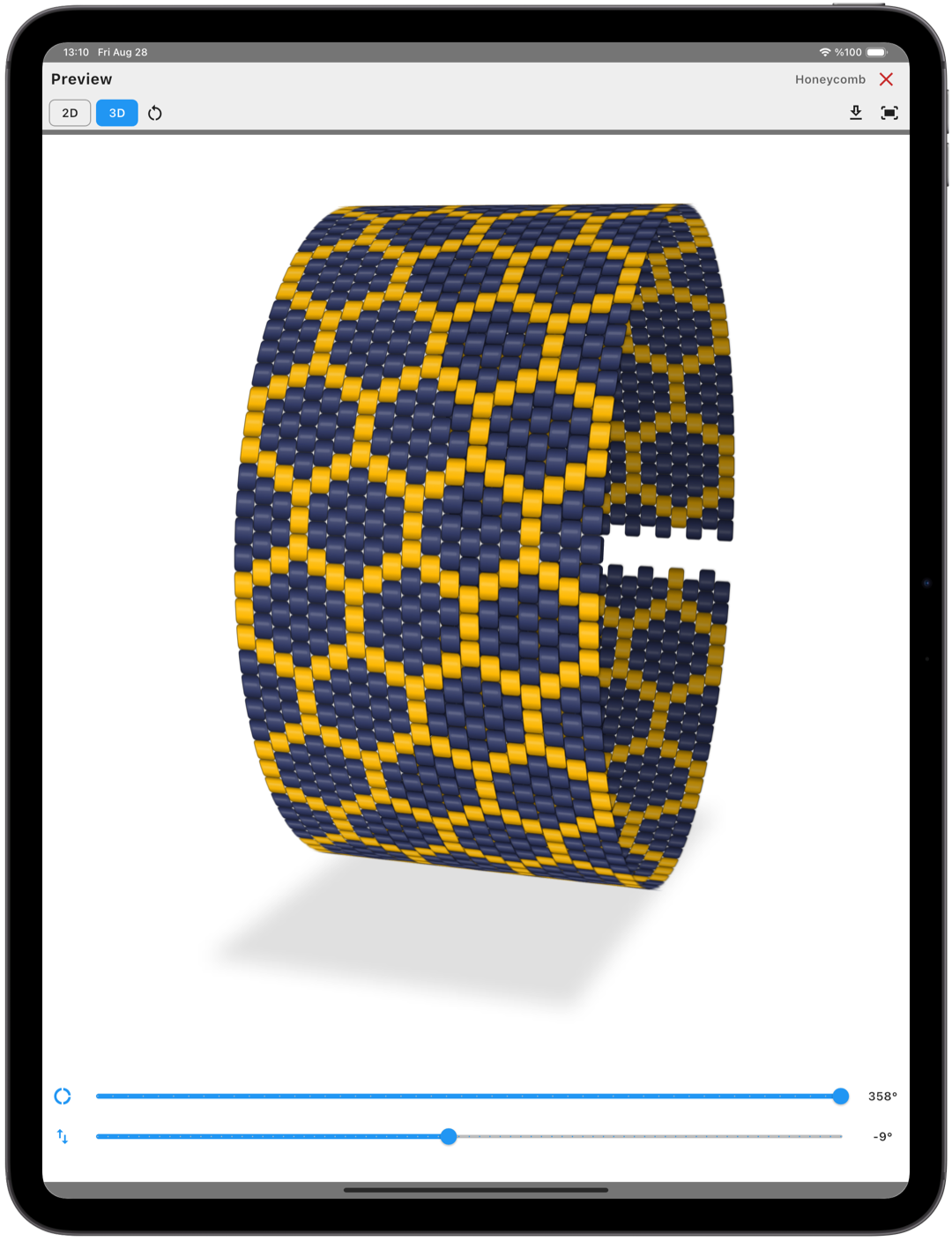
Use your iPad as a complete bead-design workspace
A tablet is a comfortable place to develop a beadwork idea because the grid, palette, and editing controls can remain easy to inspect while you work. You can zoom in for individual bead changes, zoom out to judge the full composition, and keep the design nearby at your worktable when you begin stitching.
Bead Designer keeps the project connected from the first blank canvas to the final row. You do not have to redraw the design in one tool, build the bead list somewhere else, and then find another way to track your progress.
What to compare in beading apps for iPad
When comparing beading software for iPad, look beyond the number of drawing tools. A practical app should understand the structure of the beadwork and help you turn the drawing into something you can actually make.
- Technique-aware grids: Loom, Peyote, and Brick Stitch do not use the same bead arrangement.
- Flexible editing: Individual bead changes and larger pattern revisions should both be manageable.
- Useful color tools: A searchable catalog, custom bead entries, and whole-pattern color changes make planning more realistic.
- A working view: Row guidance and visible progress help bridge the gap between designing and beading.
- Clear output: Flat and 3D previews, bead quantities, and printable instructions make the finished pattern easier to use or present.
Begin with the correct Loom, Peyote, or Brick Stitch grid
Every new project starts by choosing its beadwork structure. Bead Designer includes Loom, Peyote 1-Drop, Peyote 2-Drop, Brick 1-Drop, and Brick 2-Drop layouts. The bead positions are arranged for the selected technique from the beginning, including the staggered structure used by Peyote and Brick Stitch.

You can choose a cylinder or round bead profile, set the number of beads across and long, and check an approximate finished size before creating the canvas. Start with a blank design, choose an editable ready pattern, or use an image as the foundation of a new project. Our guide to making a seed bead pattern from scratch walks through the complete setup.
Draw and revise directly on the bead grid
The editor includes pencil, paint bucket, eraser, eyedropper, undo, and redo tools. You can add transparent gaps, fill or clear complete rows and columns, resize the design, and shift its structure when the composition needs more room.
Larger changes do not have to be redrawn bead by bead. Select part of the pattern and copy, move, fill, erase, mirror, or rotate it. This is especially useful when building symmetrical bracelet bands, repositioning a motif, or testing several arrangements of the same element.
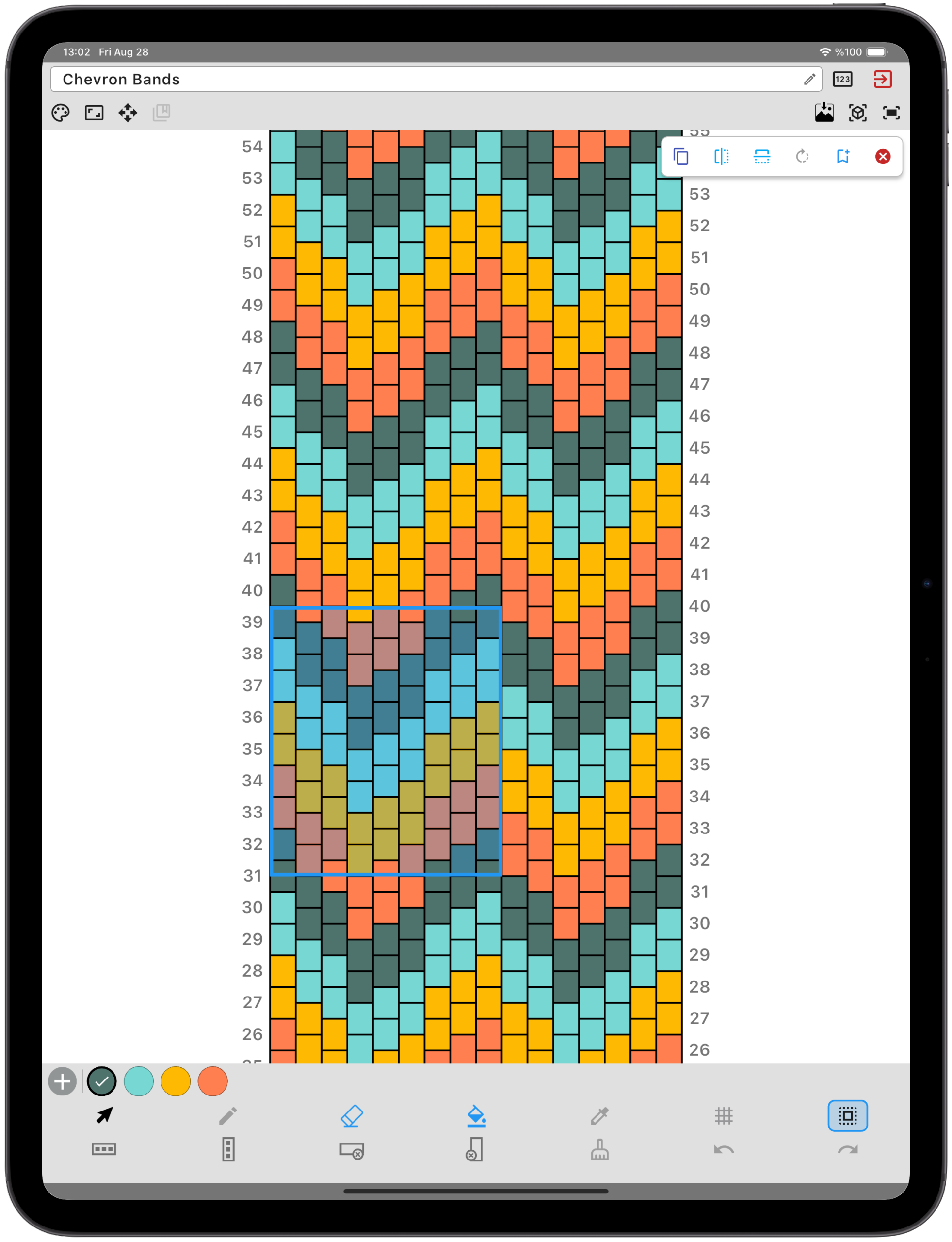
See the selected-area editing guide for a closer look at these tools. For repeating designs, you can also use Vertical Repeat or save motifs for reuse in future projects.
Turn a photo or illustration into an editable bead pattern
An imported image can be used as the starting point instead of a blank grid. Crop the picture, position the important part over the canvas, choose the chart size and maximum number of colors, and compare the mapping before creating the pattern.

The converted result remains editable. You can correct individual cells, simplify small details, replace colors, and adjust the design until it works as beadwork rather than treating the first conversion as final. The full image-to-bead-pattern tutorial shows the process from import to 3D preview.
Build the palette around the beads you use
Search the built-in bead-color catalog by name, reference code, brand, color group, DB number, or hexadecimal RGB value. You can also add beads from your own collection with a custom name, code, brand, and displayed color.
If a design needs a new colorway, the Change Colors screen lets you replace, swap, merge, or remove colors while checking the result in a live preview. This makes it easier to explore alternatives without repainting the entire grid. Learn more in the seed bead color chart guide and the tutorial on recoloring a bead pattern.
Check how the flat design looks as finished beadwork
A numbered 2D pattern is useful for precise editing, while a curved 3D view helps you judge the complete composition. In the 3D preview, you can adjust the bend, rotate highly curved designs, zoom, pan, and inspect different sides of a bracelet-style pattern.
Moving between the grid and the preview can reveal a gap, transition, or motif position that is easy to miss when you only look at a flat chart. You can then return to the editor and correct it before beginning the physical project.
Keep the pattern visible while you bead
When the design is ready, Work mode turns the iPad into a row-by-row guide. Choose a starting corner and working direction, move forward or backward through the pattern, and keep the current row or Peyote pickup phase highlighted as you work.
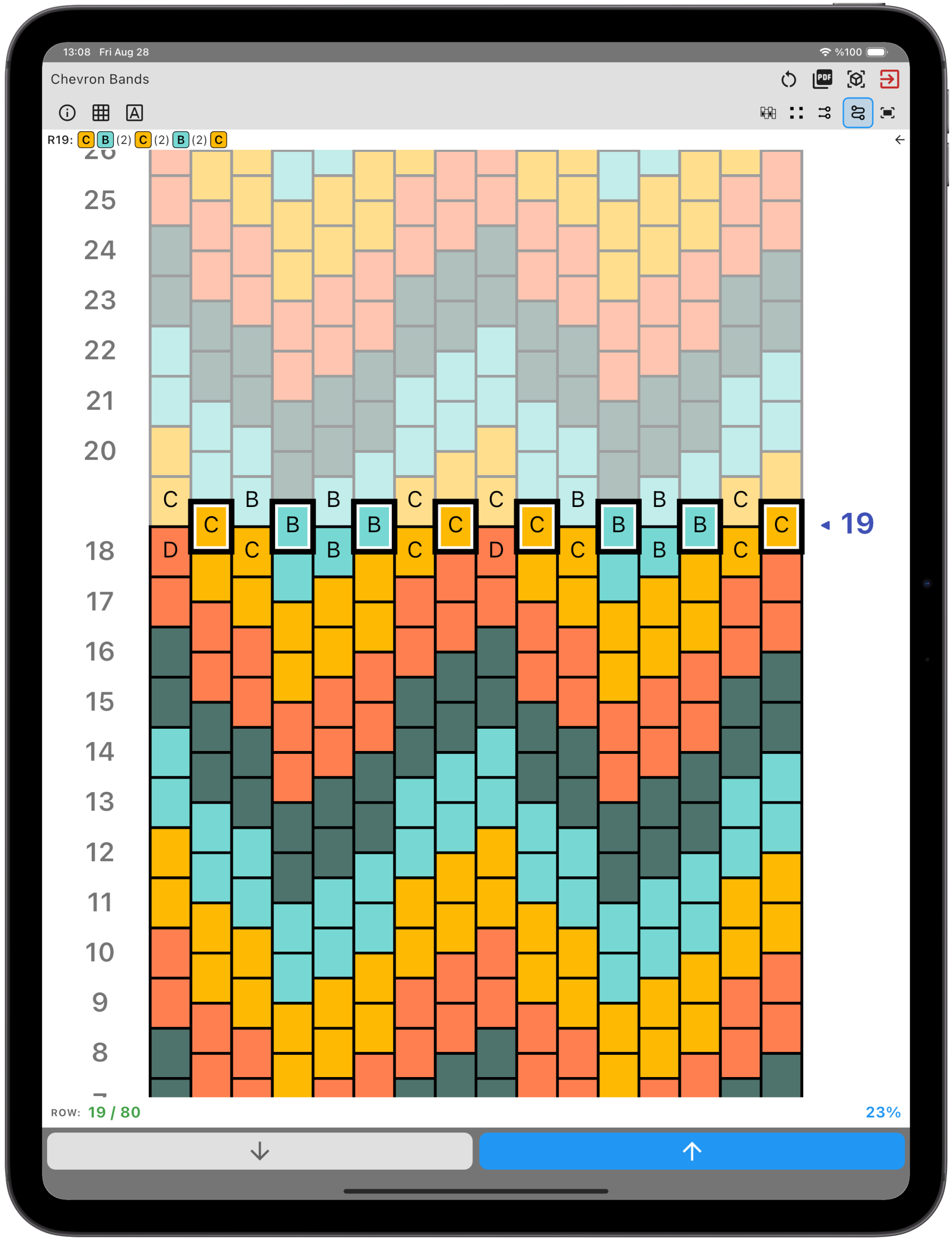
The guidance shows the row number, direction, color sequence, and bead quantities. Optional color letters help distinguish a complex palette, and transparent positions remain visible as intentional gaps. Your working position and settings are saved with the design, so you can return to the same place later. See the Peyote row-tracking guide for a complete example.
Prepare printable instructions for yourself or your customers
Bead Designer can prepare an A4 or US Letter document with design information, a bead list and quantities, a numbered pattern, a starting-corner marker, and row-by-row pickup instructions. You can add creator or brand details, a short note, bead reference codes, optional bead letters, and checkboxes for completed rows.
This is useful for keeping a clean record of a personal project and for designers who share or sell their own original patterns. The guide to creating printable bead-pattern instructions shows each document option.
Frequently asked questions
Is Bead Designer a seed bead pattern maker app?
Yes. It is made for seed-bead weaving and supports Loom, Peyote 1-Drop, Peyote 2-Drop, Brick 1-Drop, and Brick 2-Drop layouts.
Is Bead Designer a free bead pattern maker app?
Yes. Knitting Row Counter, including Bead Designer, is free to download from the App Store and is designed for iPad.
Can I convert a picture into a bead pattern?
Yes. Bead Designer can import an image, map it onto the selected seed-bead grid, and create an editable result that you can refine before using.
Can I follow a pattern directly on my iPad?
Yes. Work mode highlights the active row or pickup phase and shows direction, colors, bead quantities, and progress controls while you bead.
Can I organize several bead-pattern projects?
Yes. The Design Library includes name search and colored labels, while your designs, reusable motifs, custom beads, and Work progress remain together on the device.
Start designing bead patterns on iPad
Bead Designer brings drawing, color planning, image conversion, previewing, row guidance, and printable instructions into one iPad workflow. Download Knitting Row Counter free from the App Store and start a Loom, Peyote, or Brick Stitch design.