Did you read once this week, or fit in a few short sessions on different days? Small activities are easy to remember in general and surprisingly easy to miscount. A habit counter app gives those repeated actions a number you can come back to.
You can use Multi Counter to count everyday habits, with separate counters for reading, walks, practice sessions or anything else you want to tally. It is free to download on Android, iPhone and iPad, with named counters, groups, calendar history, plots and CSV export to help you review the numbers you record.


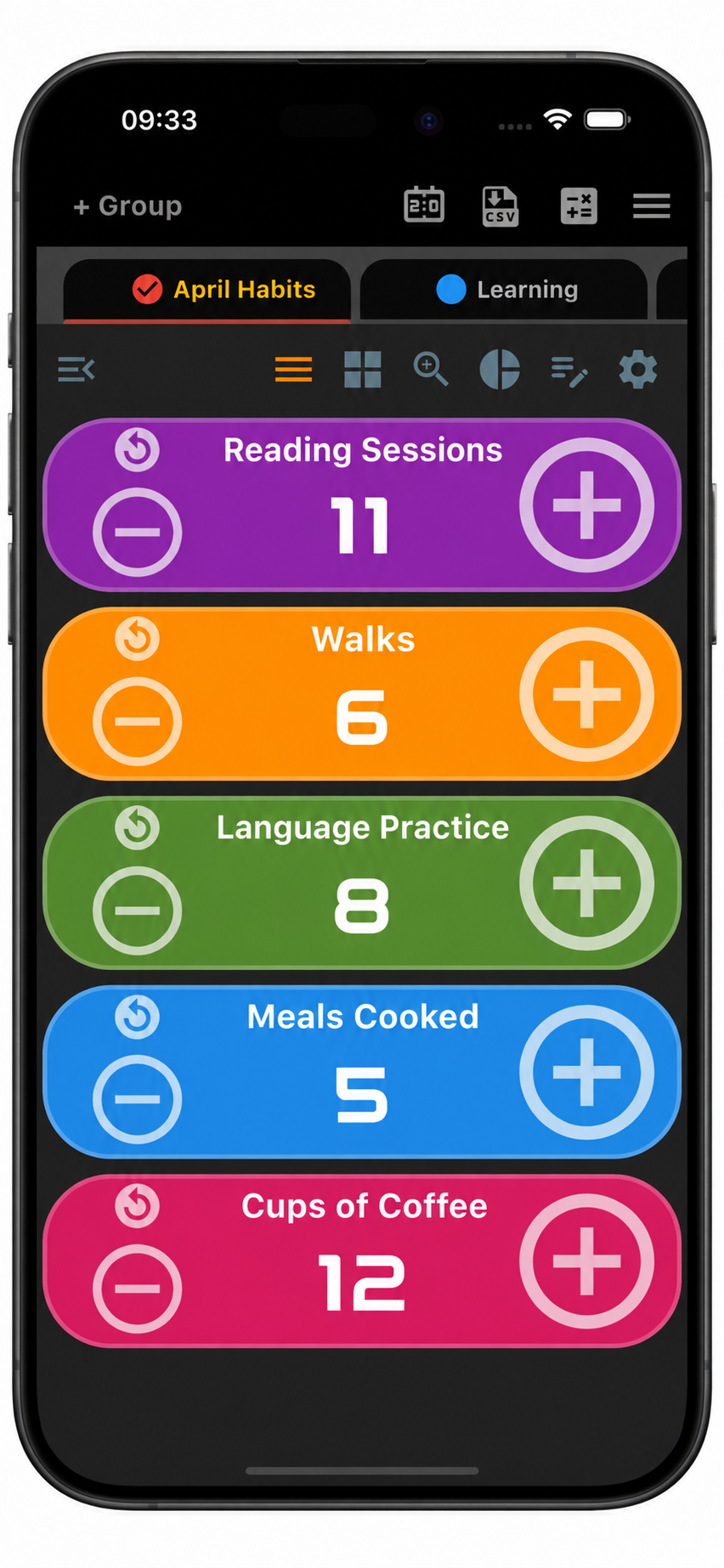
How to track how often you do something
Start with a question you would actually like to answer: “How often do I practice Spanish?” or “How many meals have I cooked at home this month?” Then give that activity a counter.
- Create a group. “April Habits” keeps your everyday activities together. You can use another group for learning or work.
- Name each counter clearly. “Reading Sessions” tells you what the number means when you look back later.
- Decide what one count represents. For reading sessions, add one each time you sit down to read. For cups of coffee, one count means one cup.
- Start at zero and use a step of one. Tap plus after the activity. If you tap twice by mistake, use minus to correct the count.
Keep adding to the same counter as the days pass. In this setup, the number is a running total from your chosen starting date, while history lets you review its changes. Give counters different colors and arrange them in the order you find most useful.
Everyday habits you can count
Track pages read or completed reading sessions
The example uses Reading Sessions, so a total of 11 means eleven occasions when you read. This is useful when you want to see how often you make time for a book, even if some sessions are short.
If you would rather track pages read, create a counter named “Pages Read” instead. Add the number of pages you finish after each session. For example, if its total is 80 and you read 15 more pages, update it to 95. Keep pages and sessions in separate counters so each number has a clear meaning.
Count your cups with a coffee counter app
If you want a coffee counter app to record how many cups you drink, add a counter named “Cups of Coffee” and tap once per cup. Its history gives you a record to look back at, instead of trying to remember every cup at the end of the week.
Count study sessions and language practice
Create “Study Sessions” or a more specific counter such as “Spanish Practice.” Add one after each completed session. Separate counters for vocabulary practice, listening and conversation can help you see which activities you have been doing.
Keep a tally of walks and home-cooked meals
Add one to “Walks” after a completed walk, or one to “Meals Cooked” each time you cook a meal at home. You could also put “Home-cooked Meals” and “Takeout Meals” together in a meals group to compare their counts. These simple labels turn a vague impression of your routine into something you can review.
A counter app with history: read totals and daily changes
Open an individual counter’s history and select Day to review the calendar. Each recorded day shows the counter’s value and the change beneath it.
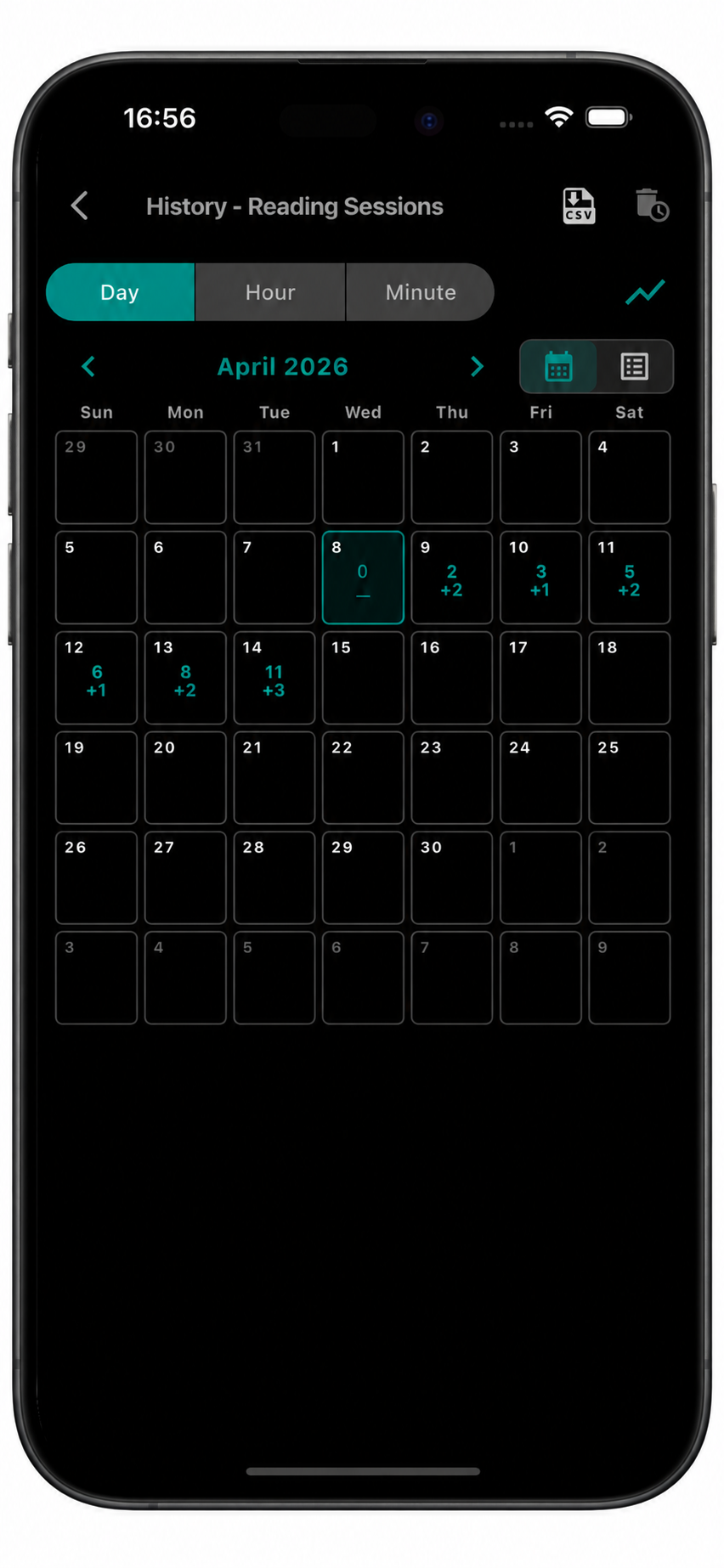
In this Reading Sessions example, the counter starts at zero on April 8 and reaches 11 on April 14. On April 12, its value is 6. On April 13, the calendar shows 8 with +2 underneath: two sessions were added that day, bringing the running total to eight.
The larger number answers “How many have I recorded so far?” The change underneath answers “How much did the counter change?” This makes it useful for reviewing activity across several days while keeping one continuing tally.
See your habits over time with daily and hourly plots
Switch to plot view for a visual picture of the recorded counter values. The daily plot below uses the same Reading Sessions example as the calendar, rising from zero to eleven across April 8–14.
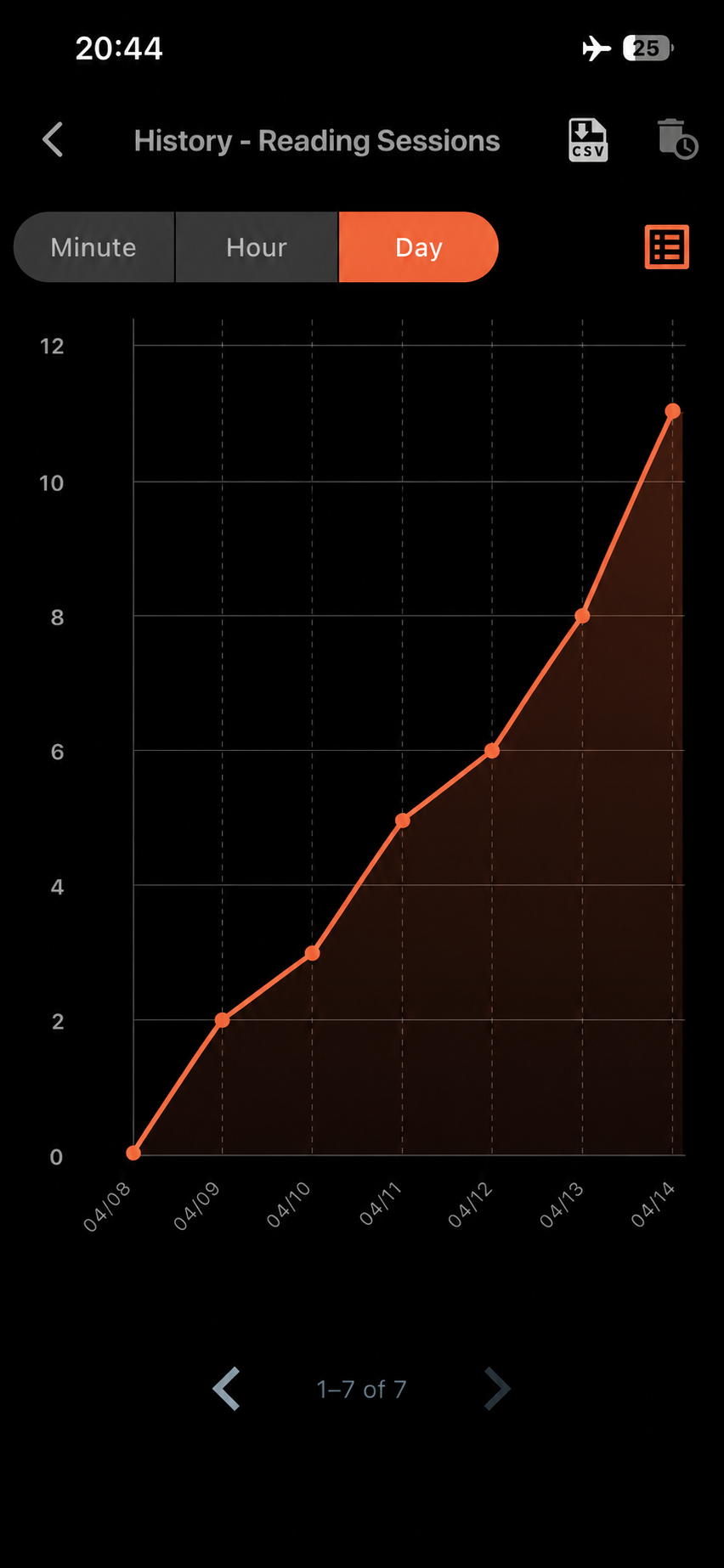
The plotted points are running totals. For example, the point at eight corresponds to the calendar’s total on April 13; the increase from the previous point is two. Hour and Minute views let you look at recorded changes in more detail when their timing matters to you.
Export your habit counts and history
Multi Counter can export counter data and count history as CSV. Open the file in a spreadsheet to keep a separate record or compare periods you have recorded. Clear group and counter names make it easier to understand the numbers later.
If you want a fresh set of counts for another month, keep the current group and create a new one. You can also add notes to a group to explain what you are counting or record context you want to remember.
Frequently asked questions
Can I count several habits at once?
Yes. Give each activity its own counter and organize them into groups. Use list or grid view to keep several counters visible, or single view to focus on one.
Do I need to reset the counters every day?
For the running-total setup shown here, keep adding to the same counter. You can review the recorded daily changes in history while the current value keeps your total from the starting date.
Start with something you want to count
Choose a few activities, give them clear names and add a count as they happen. To explore the app’s other tools, see Multi Counter for Android or our counter app for iPhone and iPad.
Download Multi Counter free on Google Play or get it on the App Store and set up your first habit counters.