Was that your second set or your third? It is easy to lose your place when you move between exercises. A quick tap after each completed set gives you a clear number to come back to.
Multi Counter can be used as a workout set counter app, with a named tally for each exercise and an optional timer beside your counters. It is free to download on Android, iPhone and iPad, so you can keep your counts on the phone or tablet you already use.



Set up a workout set counter for each exercise
Create a group for your workout, then add the exercises you want to track. In the example above, each counter records completed sets: “Squat Sets” at 3 means three sets have been logged, while “Curl Sets” at 0 has not been counted yet.
Use names from your own routine. Adding “Sets” to each label makes the meaning clear when you glance at the screen between exercises.
- Name the group. Try “Workout A,” “Home Workout” or a session date—whatever makes it easy to recognize.
- Add and name your counters. Give each exercise its own tally and color, then arrange them in the order you use them.
- Set plus and minus to one. An increment of 1 records one completed set; a decrement of 1 lets you undo an extra tap.
- Start from zero. Set the current value and reset value to 0 for a fresh session.
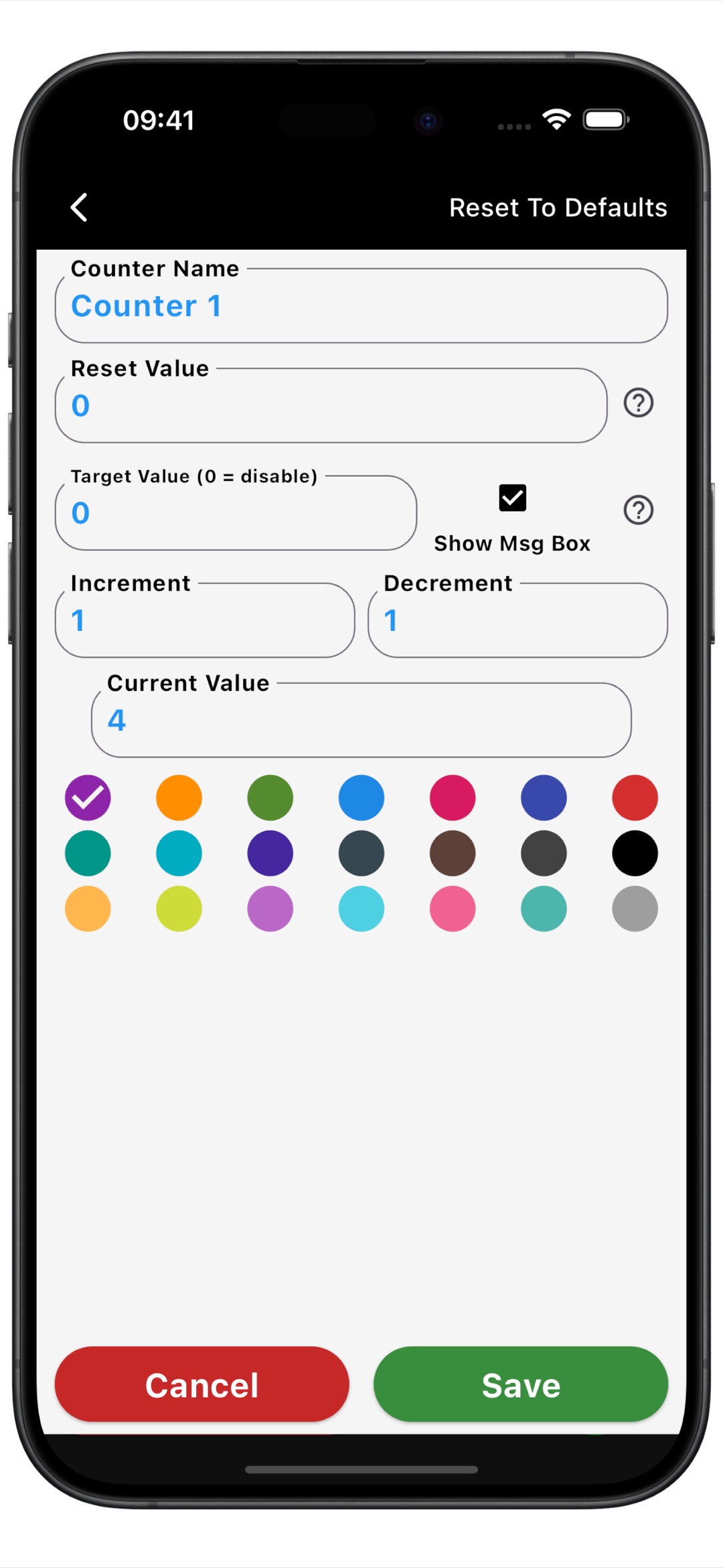
After you finish a set, tap plus on that exercise’s counter. Count at the same point each time—after completion—so you always know what the displayed number means. When you switch exercises, leave the previous count in place and move to the next name.
If you are halfway through a workout when you open the app, enter the sets you have already completed as the current value and continue from there.
Keep the timer visible while you count
Enable the built-in timer to keep time and your exercise tallies together. You can check the timer between sets without leaving the counter screen, whether you are at the gym or working through a session at home.
The first image shows this setup with the timer above the exercise list. Your set counts stay easy to scan underneath, so one glance shows both the time on the timer and where you have got to in your workout.
Use it as a rep counter app, too
If you prefer to record repetitions, name your counters accordingly: “Push-up Reps,” for example, instead of “Push-up Sets.” Multi Counter works as a rep counter app when you want to enter completed repetitions yourself or tally them for a workout partner.
For a partner’s repetitions, you can tap once for each rep you are counting. For your own exercise, enter the completed reps between sets. If you consistently log the same number at a time, you can adjust the increment to add that amount with one tap.
Keep reps and sets in separate groups if you want to record both. That way, the labels and totals remain easy to understand: one group answers “How many sets?” and the other answers “How many repetitions?”
Track daily reps or a personal challenge
Create a group named “Today” and add counters for exercises such as push-ups, pull-ups and squats. Add your completed reps whenever you finish a batch, so each counter builds up your total throughout the day.
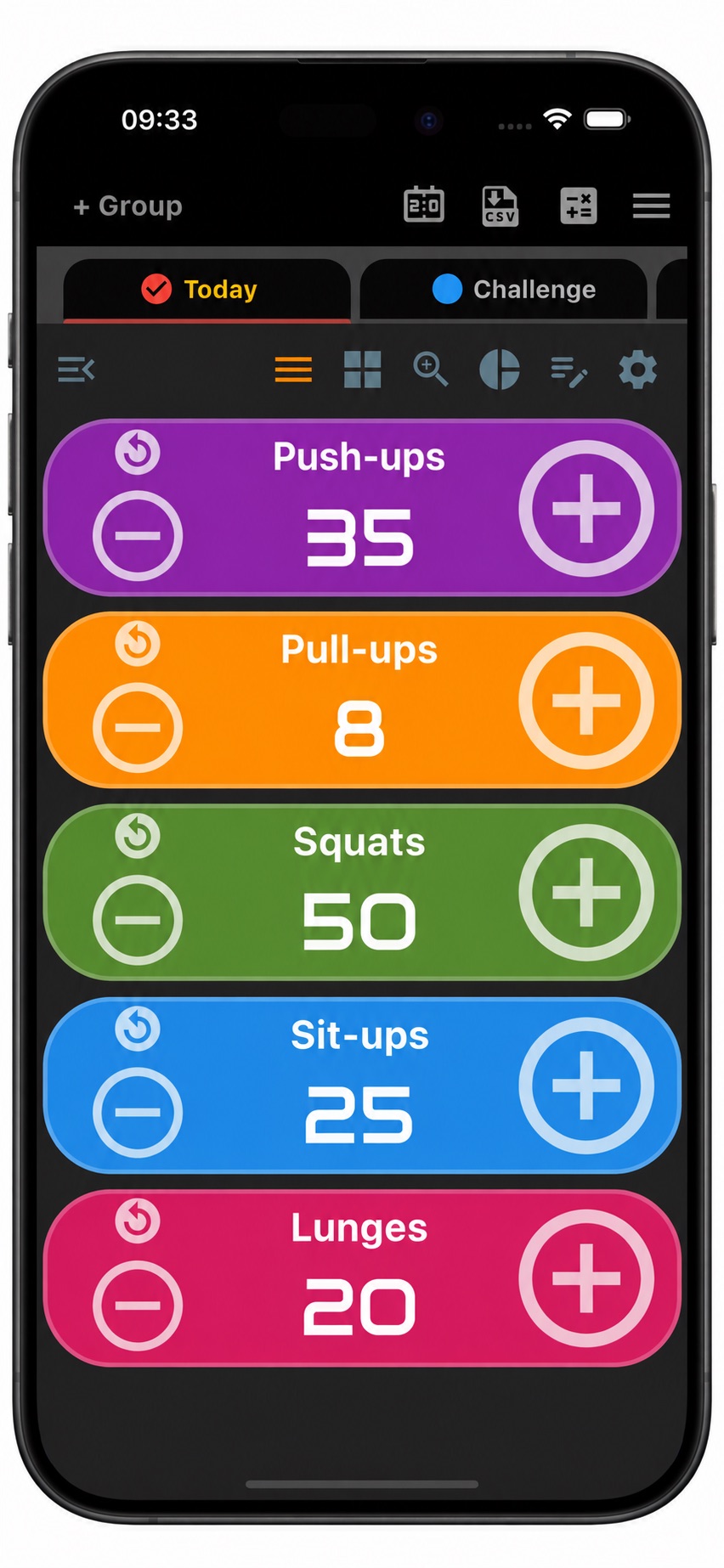
For example, if your push-up counter shows 35 and you complete 10 more later, update the total to 45. For a challenge that spans several days, use a separate group and keep adding to its running total. For fresh daily counts, export the totals you want to keep, then reset your counters at the start of the next day.
Make the counter comfortable to use between sets
List view keeps exercise names and counts together, grid view shows several counters in tiles, and single view gives one counter more space. Choose the layout that suits what you want to see, and use distinct colors to make neighboring exercises easier to tell apart.
You can enable sound or vibration for feedback when counting. On Android, the device’s volume buttons can also control counting, giving you a physical-button option between sets.
Look back at your counts after the workout
Open an individual counter’s history to review the values and changes you recorded. The Day, Hour and Minute views help you look back through your entries, instead of relying only on the current total.

You can also export counter data and count history as CSV to review in a spreadsheet. A dated group name helps keep the entries tied to the right session. Export the completed session before resetting, or keep its counters in a separate group and create another for the next workout.
Frequently asked questions
Can I use one counter for workout rounds?
Yes. Name a counter “Rounds” and tap plus after completing a full round of your chosen exercises. This gives you a simple round tally when you prefer to count the whole sequence rather than each exercise separately.
Can I keep different workouts organized?
Yes. Create separate groups such as “Workout A” and “Workout B,” with the exercise counters you need in each. You can rename and reorder both groups and counters to match how you organize your sessions.
Is Multi Counter a free exercise counter app?
Multi Counter is free to download on Android, iPhone and iPad. You can use its named tally counters for exercises, completed sets, reps or rounds, and enable the optional timer alongside them.
What if I add a set by mistake?
With the decrement set to 1, tap minus once to remove the extra set. You can also edit the current value directly if you need to bring the tally back to a known number.
Have your counters ready for your next workout
Add your exercise names, start the counts at zero and enable the timer if you want it on screen. For more ways to use Multi Counter, explore our counter app for Android or tally counter for iPhone and iPad.
Download Multi Counter free on Google Play or get it on the App Store, and give each completed set a place to count.