A pitching change is easier to follow when every pitcher has a separate tally. You can check the outgoing pitcher’s total, move to the next name and keep counting without overwriting anyone’s number.
Multi Counter can be used as a simple pitch counter app for baseball and softball. It is free to download on Android, iPhone and iPad, with large counting buttons, named counters, groups, an optional timer and history to help parents and coaches keep their pitch tallies organized.


Set up a baseball pitch counter before the game
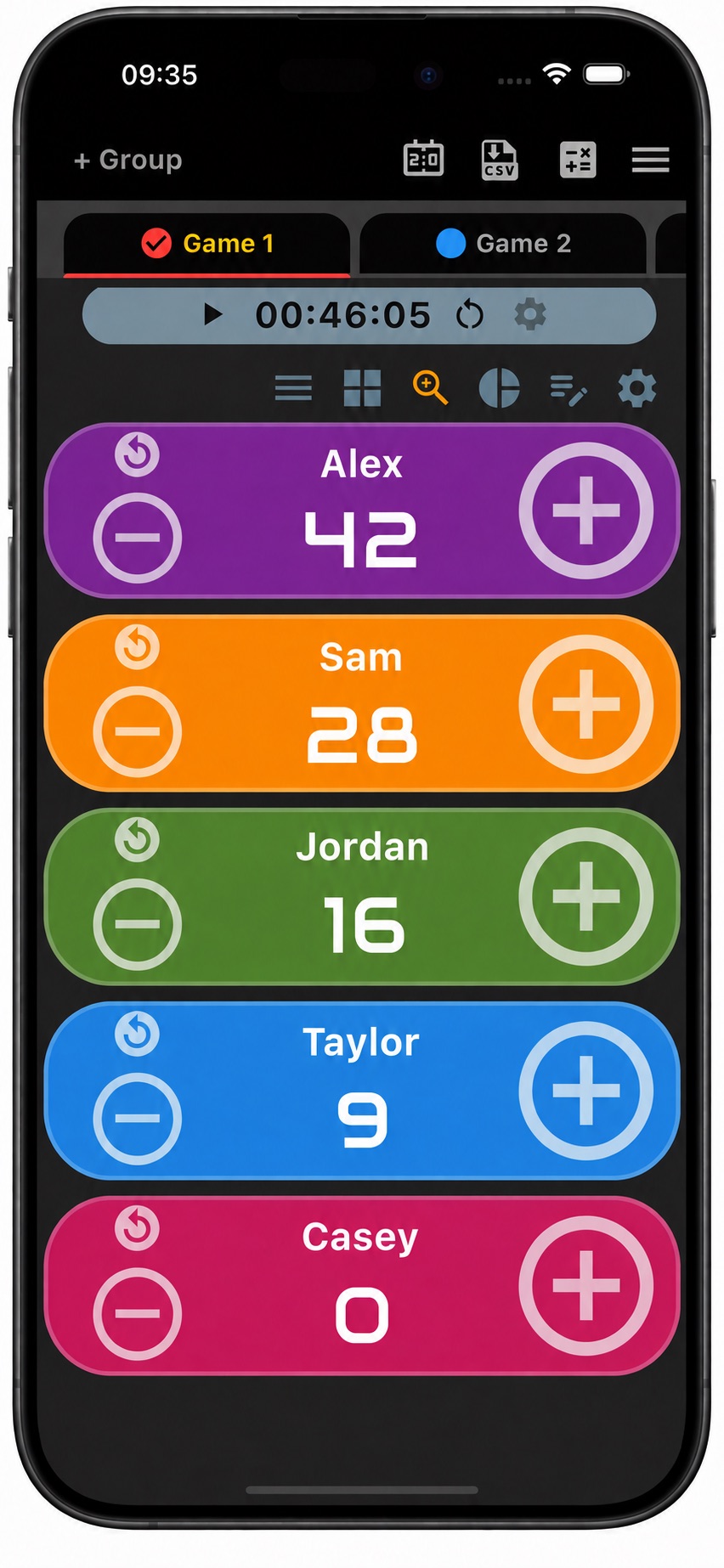
Start with a group for the game, then add a counter for each pitcher you want to follow. The example above uses player names, so each number has a clear owner. You can also include a jersey number or team name when that makes players easier to identify.
- Name the group. Use a label such as “Game 1 — September 6” or add the opponent’s name so you can recognize the session later.
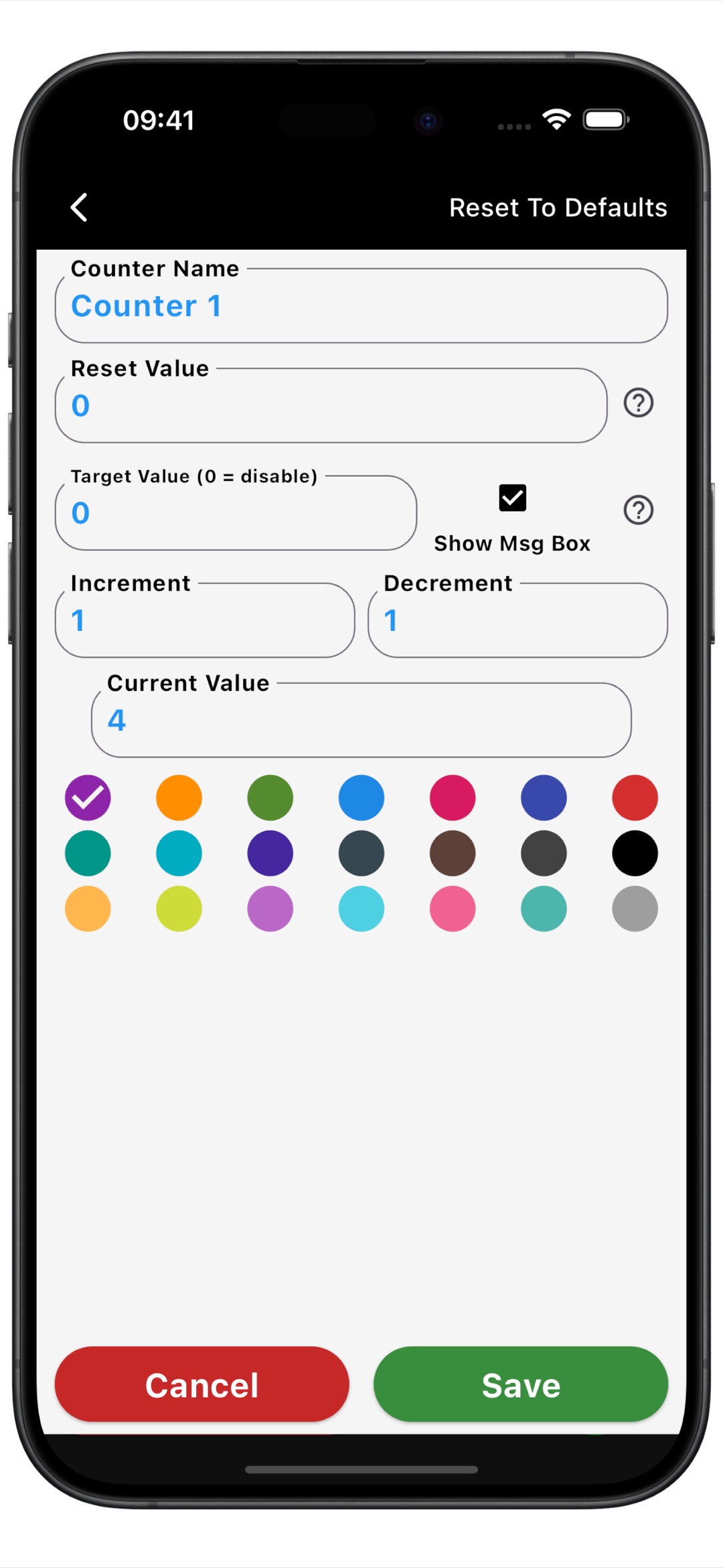
- Name each counter. Replace the default name with the pitcher, then choose a color that helps you find that tally quickly.
- Set the counting steps. Use an increment of 1 and a decrement of 1, so plus adds one pitch and minus removes an accidental extra tap.
- Check the starting value. Start each fresh game tally at zero, with a reset value of zero. If you begin partway through an outing, enter the confirmed count as the current value.
Arrange the counters in an order that suits you. List view keeps the names easy to scan, grid view puts several counters together, and single view gives you a larger display when you are concentrating on one pitcher.
Keep a separate running total for each pitcher
Tap plus once per pitch on the counter for the pitcher you are watching. Keep that running total through the outing: a new batter or inning does not mean starting the pitch tally again.
When another pitcher takes over, move to their counter. Leave the previous pitcher’s number in place so you can still check it. This is especially helpful when you are following several players and want their individual totals visible together.
If you tap twice by mistake, use minus once to correct the count. For a larger correction, you can edit the current value directly. Make the correction on the right player’s counter, then carry on from the confirmed number.
A pitch tally is separate from the balls-and-strikes count for the current batter. For organized games, follow your league’s recording procedures; Little League’s pitch-count rules, for example, designate an official pitch count recorder.
Use physical counting buttons on Android
The Android version supports counting with the device’s volume buttons. If you prefer the feel of a physical button to tapping the screen, this gives you another way to enter your tally. Try the controls before the game so you are comfortable with the setup.
You can also enable count sound or vibration for feedback. Choose the options that suit where you are watching, whether you prefer an audible response or a quieter counting setup.
A pitch count tracker with history and CSV export
At the end of the outing, you have a named total to review instead of a number you need to remember. Open an individual counter’s history to see its recorded values and changes, with Day, Hour and Minute views for looking back through your entries.

Multi Counter can export counter data and count history as CSV. Use the CSV export controls to save the game’s group, then open the file in a spreadsheet or share it with the person collecting the totals.
Keep the game date and player names clear, and export the completed count before resetting for another session. A separate group for each game also keeps one outing’s counters apart from the next.
Keep practice counts in their own group
The same setup works when you want to record pitches during a practice session. Create a group such as “Bullpen — September 6,” add the pitchers and count the throws you are recording for that session.
Keeping practice and game groups separate gives each tally a clear context. When you look back later, you can tell which numbers belong to a game and which belong to practice, without combining them into one unnamed counter.
Keep practice time visible alongside the count
Enable the built-in timer to keep time visible alongside your counters during a bullpen session or pitching drill. This is useful when you are working through a planned practice block and want to check both the pitch tally and the timer on one screen.
Frequently asked questions
Can I use Multi Counter as a softball pitch counter?
Yes. Give each softball pitcher a named counter and tap once for each pitch you want to record. Groups let you keep different games or practice sessions organized, and you can review or export the recorded counts afterward.
Can I keep pitch counts for players on both teams?
Yes. Add counters for the pitchers you want to follow and include team names or jersey numbers in the labels. Each counter keeps its own value, so switching between teams does not mean replacing a previous tally.
Is the app available on iPhone and Android?
Yes. Multi Counter is free to download on Android, iPhone and iPad. Both store versions support named counters, groups and count history; volume-button counting is an additional option on Android.
Can I save the counts before starting the next game?
Yes. Export the completed game’s counter data as CSV before resetting, or keep its counters in a clearly named group and create another group for the next game.
Have your pitch counters ready for the first inning
Create the game group, add the pitchers and keep each tally under the right name. For more ways to use the app, explore our Android tally counter or counter app for iPhone and iPad.
Download Multi Counter free on Google Play or get it on the App Store and set up the pitchers for your next game.