After a busy morning on the water, you might remember your best catch but not whether you landed six bluegill or eight. Keeping a separate tally for each species gives you a clear answer when someone asks how the trip went.
Looking for a fish counter app that keeps those numbers together? Multi Counter lets you name your counters, organize them into trip groups and review your catch totals afterward. It is free to download on Android, iPhone and iPad.


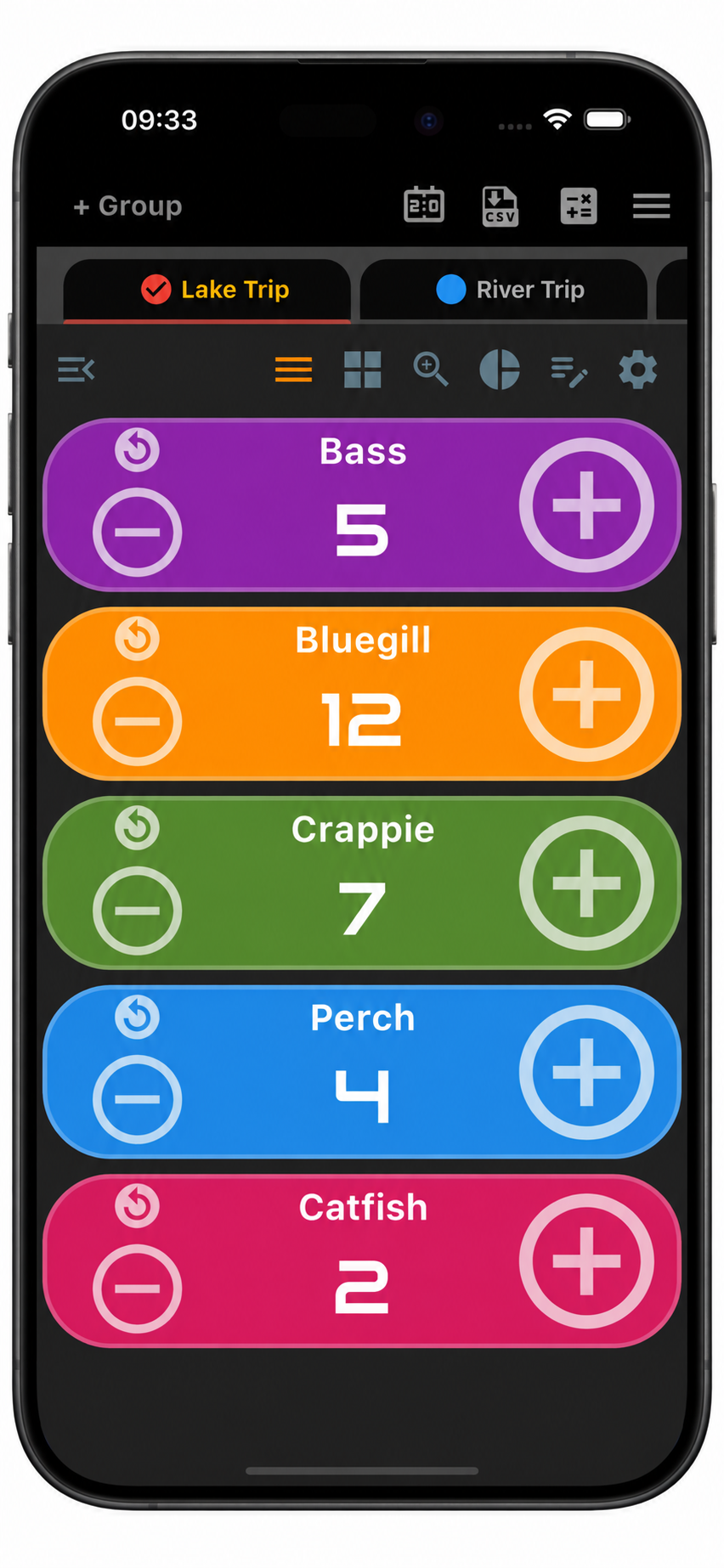
Set up a fishing catch counter before your trip
A few clear names are all you need to get started. In the example above, the Lake Trip group has separate counters for Bass, Bluegill, Crappie, Perch and Catfish. Choose the species you expect to catch and give each one its own color so you can find it quickly.
- Create a group for the outing. A name such as “Lake Trip — September 19” keeps the place and date together. You can rename the group whenever you need to.
- Add a counter for each species. Use names that are clear to you and anyone sharing the count.
- Start each counter at zero. Set the increment and decrement to one, so each tap adds or removes one fish.
- Choose a comfortable view. Grid view keeps several counters visible together; list view gives you a vertical list of named counters. Reorder them to put your most-used species first.
For another outing, create a new dated group rather than clearing the one you just finished. You can switch between groups to check an earlier trip while keeping today’s tally separate.
Track catches by species with a quick tap
Once you have dealt with the fish and are ready to record it, tap the plus button on its species counter. Each tally keeps its own value, so you can move between bass, bluegill and other catches without having to remember the previous numbers.
If you accidentally add an extra catch, use minus to correct it. You can also edit a counter’s value directly if you already have a tally written down and want to bring it into the app.
Keep the counting rule simple: one catch, one species counter. When every counter in the group represents a different species, their combined total tells you how many fish you recorded during that trip.
See the trip total and your species breakdown
The example records 5 bass, 12 bluegill, 7 crappie, 4 perch and 2 catfish: 30 fish in total. You can check each species on its counter, then open the group’s stats view for the group total, pie chart and bar chart.
That gives you two useful ways to describe the day: how many fish you caught overall and which species made up the catch. There is no need to maintain an extra total counter—the group total already adds the species counters together.
Look back at your counter history
Sometimes the final number is only part of what you want to review. Open an individual counter’s history and use its Day, Hour or Minute views to look through the recorded values and changes.

The screenshot shows the app’s history screen with sample counter data. With your own species counters, the same screen lets you review the changes you entered, alongside the current catch tally.
Save your catch counts or share a trip summary
At the end of the outing, you can keep the trip group in the app and export the counts for your own records. Tap the CSV icon and choose Export Selected Group for that trip, or Export All for all your groups.

Open the CSV in Excel or another spreadsheet to organize your results. A dated filename makes it easier to find the right outing later. Multi Counter also supports exporting count history if you want to keep the recorded changes.
For a quick message to a fishing friend, use the group notes section. You can share the group’s counter values as a list, together with additional notes, through WhatsApp or email. Add a short note about the location, weather or bait you used, then send the numbers with that context.
Frequently asked questions
Can I keep separate counts for different fish species?
Yes. Create a named counter for each species in the same trip group. Each counter has its own value and settings, and you can give the species different colors to make them easy to find.
How do I keep one fishing trip separate from another?
Create a new group for each outing and include the date in its name. Keep the previous group with its final counts, then start the new group’s species counters at zero.
Can I count catches with my phone’s volume buttons?
On Android, yes. Enable volume-button counting in the drawer menu, then open single view for the species counter you want to control. See our volume-button counting instructions for the setup.
Get your counters ready for the next trip
Name the trip, add your species and keep the tally as you go. For more ways to organize your counters, explore Multi Counter for Android or our counter app for iPhone and iPad.
Download Multi Counter free on Google Play or get it on the App Store and set up your next fishing trip.