Sometimes a physical button feels more natural than another tap on the screen. Whether you are counting items on a shelf or watching people arrive, your phone’s volume buttons can give you a simple way to enter each count.
Multi Counter is a tally counter app for Android that supports counting with your phone’s volume buttons. It is free to download on Google Play. Enable the option in the drawer menu, open a counter in single view and use your phone’s buttons to update its count.


How to count with volume keys in Multi Counter
The setup has two parts: turn on volume-button counting, then bring the counter you want to use into single view.
- Create or choose a counter. Give it a clear name, such as “Blue Pens” or “Visitors,” so you know what the number represents.
- Enable volume button support in the drawer menu. This lets you use your phone’s buttons to count.
- Switch to single view. Bring the counter you want to count into focus. Its name and value appear in a large panel, as in the image above.
- Use the device’s volume buttons to count. Button presses control the focused counter. Try the controls while watching the value, then continue with your tally.
When you want to count something else, bring that counter into focus in single view. Check its name before continuing, so the next entries go to the right tally.
Choose the counting steps and starting value
For a one-at-a-time tally, set the counter’s increment and decrement to 1. Give it a reset value of 0 when you want a fresh count to begin at zero.
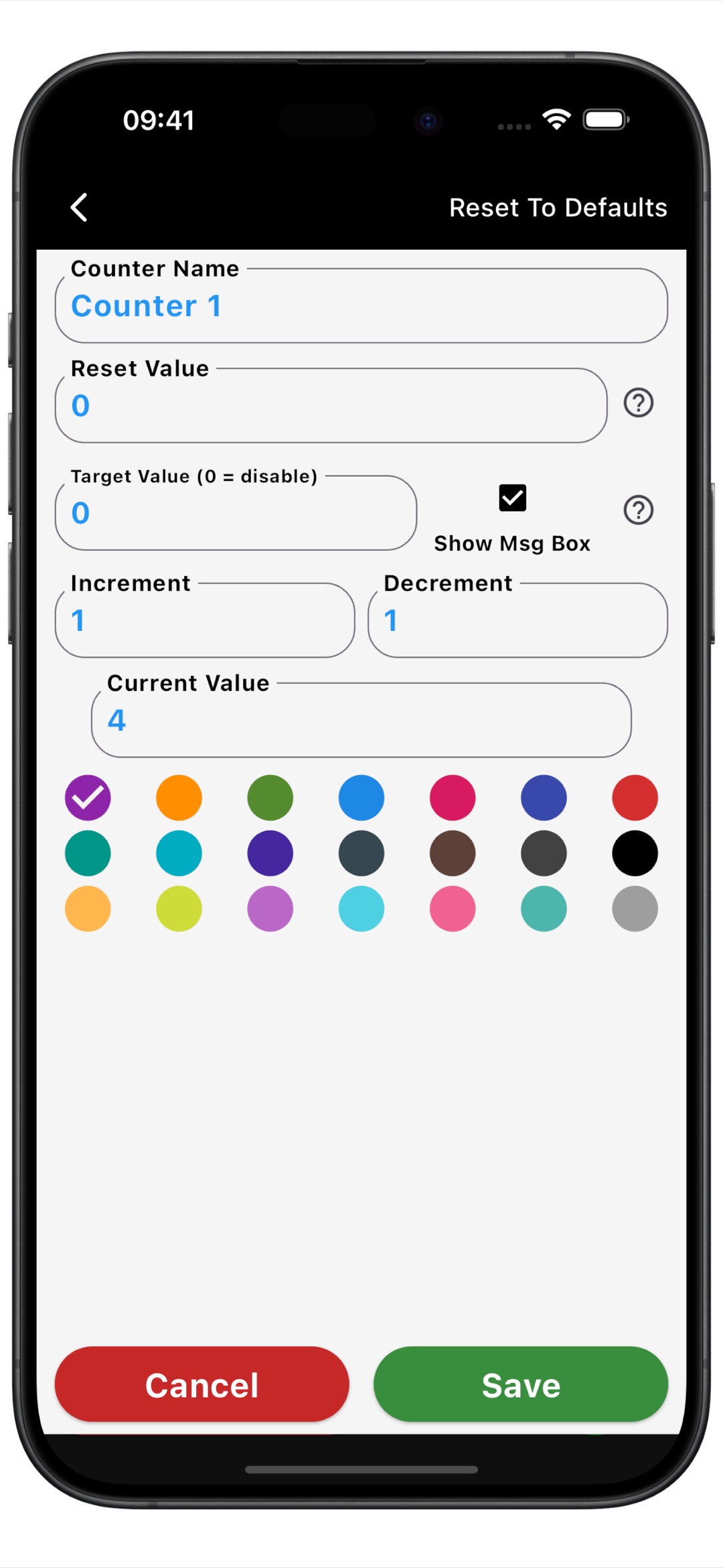
You can adjust these settings separately for each counter. If you are joining a count already in progress, enter the confirmed total as the current value. For example, if someone has already counted 25 items, you can begin from 25 instead of adding those entries again.
An accidental extra entry is easy to correct with the on-screen minus button. You can also edit the current value directly when you need to bring the tally back to a known number.
When counting with physical buttons is useful
The advantage is the feel of a physical control: you can locate it with your finger instead of aiming for an on-screen button for every entry. Here are a few everyday ways to use that setup.
- Count arriving visitors. Name a counter for the entrance or session and record each arrival. For a more detailed setup, see how to use Multi Counter as a people counter.
- Tally stock and supplies. Focus on one item, count the pieces in front of you, then move to the next named counter.
- Record pitches or practice repetitions. Keep the player or activity name on the focused counter while you enter the events you are watching.
- Track prayer or mantra repetitions. Use a named tally for your chosen practice. Find more ways to organize those counts in our prayer counter article.
You can enable count sound or vibration for feedback, choosing the options that suit your surroundings. The app also has dark and light backgrounds and adjustable counter fonts for a display that is comfortable to read.
Keep several named tallies on the same phone
Multi Counter lets you create separate counters, choose their colors and organize them into groups for different tasks. A “Stock Check” group, for example, can hold individual tallies for pens, notebooks and envelopes.
Use list or grid view to review your counters together, then return to single view for volume-button counting on the one you want to work with. The other tallies keep their own values, so changing the focused counter does not mean starting over.
Review your counter history and export the results
After counting, open an individual counter’s history to look back at recorded values and changes. Day, Hour and Minute views help you find the entries you want to review.

Multi Counter can export counter data and count history as CSV. Use clear group and counter names so the exported numbers still make sense when you open them in a spreadsheet. Export the totals you want to keep before resetting for a new counting session.
Frequently asked questions
Is Multi Counter a free click counter app for Android?
Yes, Multi Counter is free to download from Google Play. It combines named counters and groups with volume-button control in single view, on-screen counting buttons, history and CSV export.
Which counter do the volume buttons control?
They control the focused counter in single view after you enable the option in the drawer menu. Bring the counter you want into focus before entering the next count.
Can I still use the on-screen plus and minus buttons?
Yes. Multi Counter also provides large on-screen controls, so you can use the touchscreen when that feels more convenient, including when correcting a tally.
Turn your Android phone into a practical counting tool
Set up a named counter, enable volume-button counting in the drawer menu and open single view. For the rest of the app’s features, explore our Multi Counter app for Android.
Download Multi Counter free on Google Play and try physical-button counting for your next tally.