Counting the supplies on a shelf is straightforward until you get interrupted or switch between items. A separate tally for each product gives you somewhere to keep the number, so you can focus on what is in front of you.
Multi Counter can be used as a simple inventory counter app for stock, office supplies and packing materials. It is free to download on Android, iPhone and iPad, with named counters, groups, adjustable counting steps and CSV export to help you organize a count from start to finish.


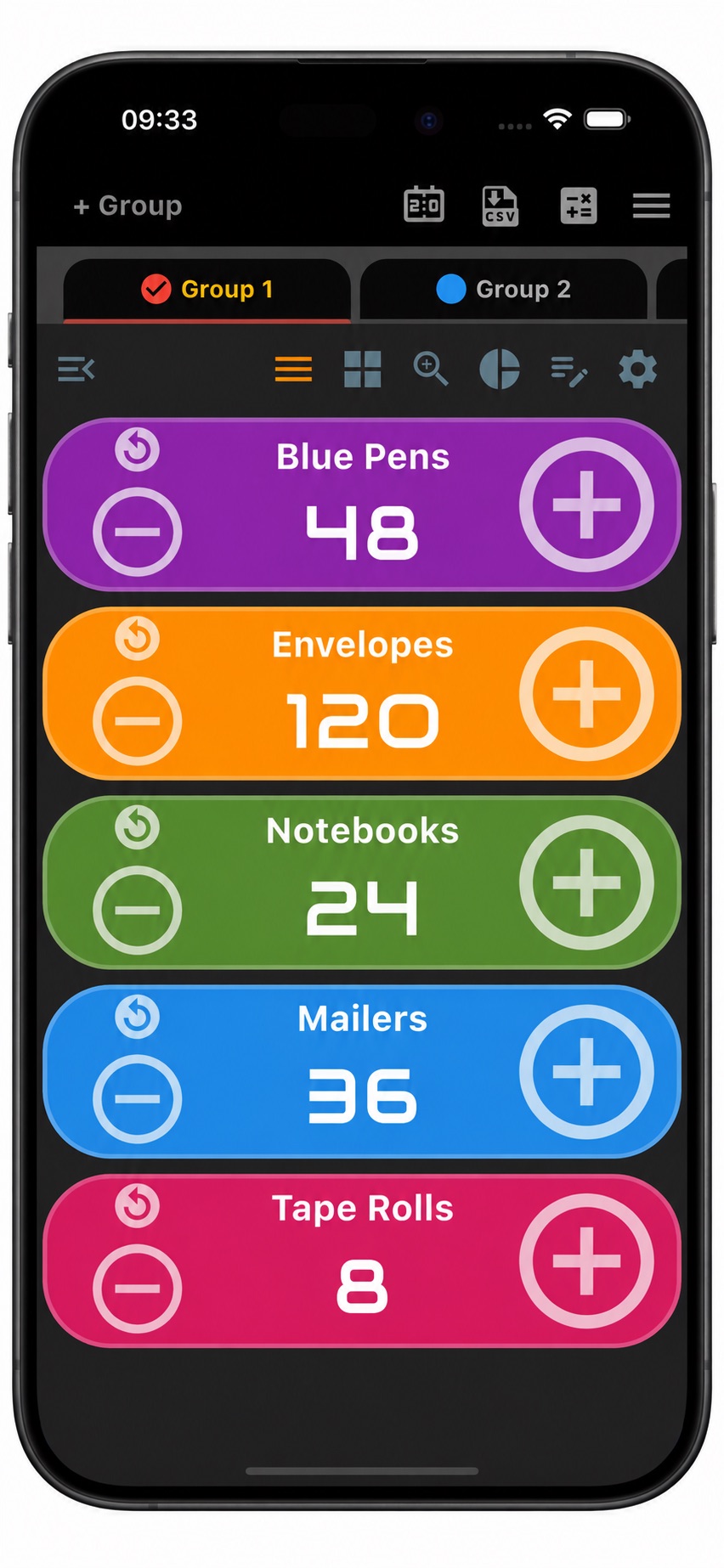
A stock counter app for everyday supplies
You might be checking stationery before placing an order, counting products for a craft fair or working through the mailers and tape at your packing station. In each case, the useful starting point is the same: give each item its own counter.
The example above keeps blue pens, envelopes, notebooks, mailers and tape rolls separate. Instead of writing down a number every time you move to another item, you update its counter. The names and colors help you find the right tally when you return to it.
How to set up a physical inventory count
Before starting a manual stock count, choose the shelf or area you will work through first. A few clear labels make the results much easier to use afterward:
- Create a group for the count. Give it a useful name, such as “Office supplies” or “Packing shelf — September 6.” Use separate groups for different rooms, shelves or counting sessions.
- Name a counter for each item. “Blue Pens” is more useful than “Counter 1.” Add a size or variant when it matters, such as “A5 Notebooks” or “Large Mailers.”
- Decide what one unit means. If you are counting individual envelopes, keep the value in envelopes throughout the count. For tape, you might count rolls. Include the unit in the name whenever it could be unclear.
- Start the count at zero. Set the current value and reset value to zero for a fresh shelf count, with an increment and decrement of one for individual items.
Work through one physical section at a time, moving counted items aside where practical. If an item appears on two shelves, either continue its existing tally or keep clearly named counters for each shelf and combine the quantities afterward.
Count items, correct a tap and keep your place
Tap the plus button as you count an item. If you tap once too many, use minus to correct it. You can also edit the current value directly when you already know the quantity and want to enter it in one go.
Use list view to move through named items, grid view to keep several counters visible together, or single view when you want to focus on one product. You can reorder counters to follow the order of the shelves, making the screen match the way you work.
Optional sound and vibration provide feedback as you count. On Android, you can also control counting with the device’s volume buttons.
Count packs with custom increments
When stock comes in equal-size packs, you can make each tap represent the number of items in a pack. For a stack of ten envelopes, set Increment to 10: one tap adds ten envelopes to the tally.
For example, seven complete packs of ten contain 70 envelopes. Change the increment back to one to count three loose envelopes, bringing the total to 73. Set the decrement to the amount you want a minus tap to remove, too.
The important detail is to keep the counter in the same unit. In this example, the number always means individual envelopes, whether you are adding a complete pack or a loose item. Check the quantity in each pack before using a larger step.
Review your count and export it to CSV
When you finish a shelf, review the individual quantities before moving on. You can also look beyond the current total to see how an item’s count has changed.
Open an individual counter’s history and choose Day, Hour or Minute to review its recorded values and changes. If you keep the same counter for an item and update its quantity as supplies arrive or are used, you can look back at the changes you entered over time.

For a view of the whole group, the stats screen shows current totals with pie and bar charts.
A group total is most useful when its counters belong together. For example, separate counts of small, medium and large mailers can give you a meaningful total number of mailers. For a mixed supplies group, check each item’s quantity when deciding what to reorder.

Tap the CSV icon and choose Export Selected Group for the group you are working on, or Export All for all groups. Multi Counter also supports exporting count history. Open the CSV in a spreadsheet to review the quantities, share the count or add your own reorder notes.
Give the exported file a clear date and location, and keep it before resetting counters for another count. That way, you have a record of the completed session as well as a clean starting point for the next one.
Frequently asked questions
Can I use Multi Counter for a small business inventory count?
Yes. Create counters for the products or supplies you want to count, organize them into groups and record the quantities as you work through them. It is a practical setup for a small stockroom, shop shelf, craft stall or packing area.
Is this inventory counting app available for Android and iPhone?
Yes. Multi Counter is free to download from Google Play for Android and the App Store for iPhone and iPad. You can use named counters, groups and CSV export to organize your stock counts.
Can I count in tens instead of tapping for every item?
Yes. Set the counter’s increment to ten to add ten items per tap, or choose another step that matches your pack size. Switch back to one for loose items so the final value stays in individual units.
Can I export my inventory count to Excel?
Yes. Export your counter data as CSV and open the file in Excel. The export screen also explains that you can choose the CSV separator in settings to help Excel recognize the columns.
Get your next stock count organized
Start with one shelf, name the items and let each counter hold its own tally. If you want to explore other uses, see more about our counter app for Android or Multi Counter for iPhone and iPad.
Download Multi Counter free on Google Play or get it on the App Store and set up your first inventory group.