Learning how to keep track of rows in a peyote stitch pattern becomes important the moment you begin beading. You glance down to pick up the next colors, look back at the chart, and two nearly identical rows are suddenly competing for your attention. Were you on row 22 or row 23? Did you already finish that color group? Which direction should you read next?
A useful peyote stitch row tracker should answer three questions at a glance: Where am I? Which way am I working? What do I pick up next? Here is a simple system you can use with a printed chart or with Bead Designer in Knitting Row Counter.



A simple routine to keep track of peyote rows
Whichever type of pattern you use, follow the same short routine for every row:
- Confirm the current row number.
- Check the working direction before picking up beads.
- Read the color sequence and quantities for that row.
- Complete the row, then mark it finished or advance the guide.
- Before putting the project away, leave the tracker on the row where you will resume.
That final step is easy to overlook. A tracker is most helpful when your starting point is already waiting for you the next time you open the project.
Paper methods for marking completed rows
With a printed pattern, you can cross off completed rows or tick a checkbox after each one. A ruler, sticky note, or straight strip of paper placed below the active row can also give your eyes a clear guide. Move it only after you finish the row.
If you are viewing a pattern on a screen without a dedicated tracker, record the current row number before taking a break. Whatever method you choose, avoid relying on memory alone. Keep both the row number and working direction visible, especially when a design repeats similar shapes or color combinations.
Following a peyote pattern in Work mode
Bead Designer includes a guided Work mode designed to help you follow a peyote pattern row by row. The current row or pickup phase is outlined on the chart. As you move forward or backward, the guide updates the active area and keeps it in view.

Before starting, you can choose any corner of the design and select a same or alternating working direction. You can also choose Normal or Speed mode for Peyote 1-Drop and Peyote 2-Drop, so the guidance matches the way you prefer to work.
The peyote pickup sequence above the chart shows the current row number, a direction arrow, the colors, and grouped bead quantities. Optional color letters can appear directly on the beads, which is useful when several shades look similar. If a design contains intentional open spaces, the pickup instructions identify them as Gap(n).
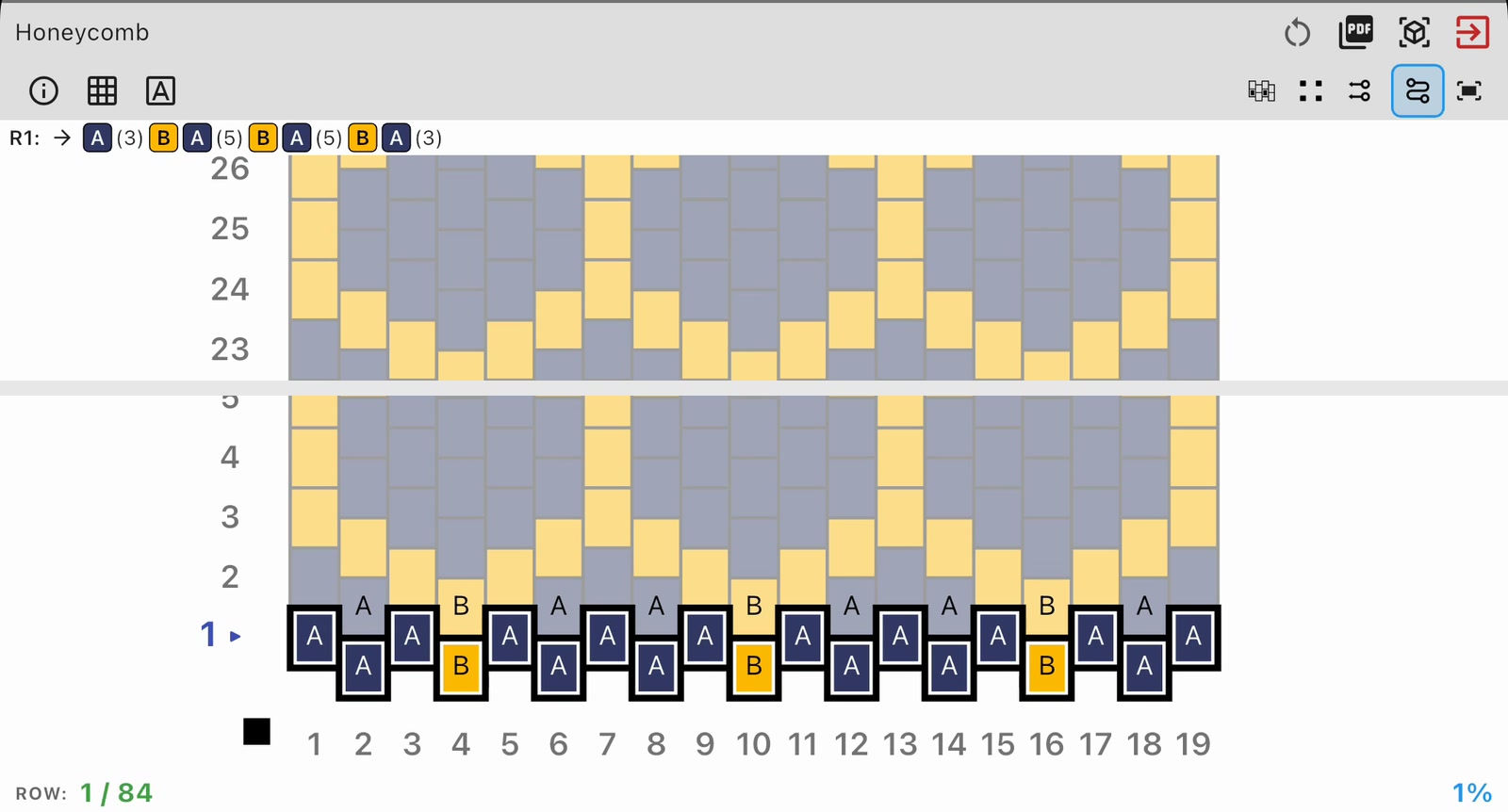
After completing the outlined step, use the forward control to continue. If you advance too soon or want to check the previous step, use the backward control. The current row, total rows, and completion percentage remain visible together, making it easy to track bead pattern progress across multiple sessions. Your progress, starting position, direction, and selected Peyote mode are saved with the design.
Example: following Woven Ribbons from row 22 to row 33
The Woven Ribbons pattern shows how the guide changes during a longer project. At the start of this sequence, row 22 of 80 is active and progress is at 28%. The row is clearly outlined, while its pickup sequence and working direction appear above the chart.
As the user advances the guide, the outline moves through the design and the chart shifts to keep the active row visible. By row 33, progress has reached 41%, and the row counter, direction, pickup sequence, and highlighted area have all updated together.
Instead of searching for your place again after every glance away, you return to one clearly marked row with the information needed to continue.

Practical habits for smoother row tracking
- Confirm the arrow after every turn. Direction is as important as the row number when following an alternating path.
- Read grouped quantities as a sequence. Work through one displayed color group at a time instead of memorizing the entire row.
- Use bead letters when colors are close. Letters provide another way to distinguish similar shades on the chart.
- Advance only after completing the step. This small habit keeps the active outline meaningful.
- Check your position before stopping. Leave the guide on the row or pickup phase you want to see when you return.
Frequently asked questions
How do you keep track of rows in a peyote stitch pattern?
Keep the current row number, working direction, and pickup sequence visible. Mark or advance the row only after completing it, and record where you stopped before putting the project away.
Can I choose where to start the pattern?
Yes. Bead Designer’s Work mode lets you choose any starting corner and select either a same or alternating working direction.
What if I advance to the next row by mistake?
Use the backward control to return to the previous step and check it again.
What do the pickup instructions show?
They show the row number, working direction, color sequence, and bead quantities. Intentional transparent positions are identified as gaps.
How do I resume a peyote pattern after a break?
If you are wondering how to resume a peyote pattern, leave the guide on your next working step before stopping. Work progress and the selected starting position, direction, and Peyote mode are saved with each design.
Keep your pattern and progress together
Bead Designer is part of Knitting Row Counter. It connects your pattern with a guided working view and saved progress, so you can spend less time finding your place and more time beading. Try Knitting Row Counter on the App Store or Google Play.