Once a few sketches become a growing collection, the real question is how to organize your beading patterns so the design you need does not disappear among all the others. Clear names help when you remember a project; color labels help when you remember what kind of attention it needs.
This tutorial focuses on original designs you create and save inside Bead Designer in Knitting Row Counter. Its visual library gives every design its own card, while name search and flexible color labels make a larger collection easier to navigate.



Why a clear digital pattern library helps
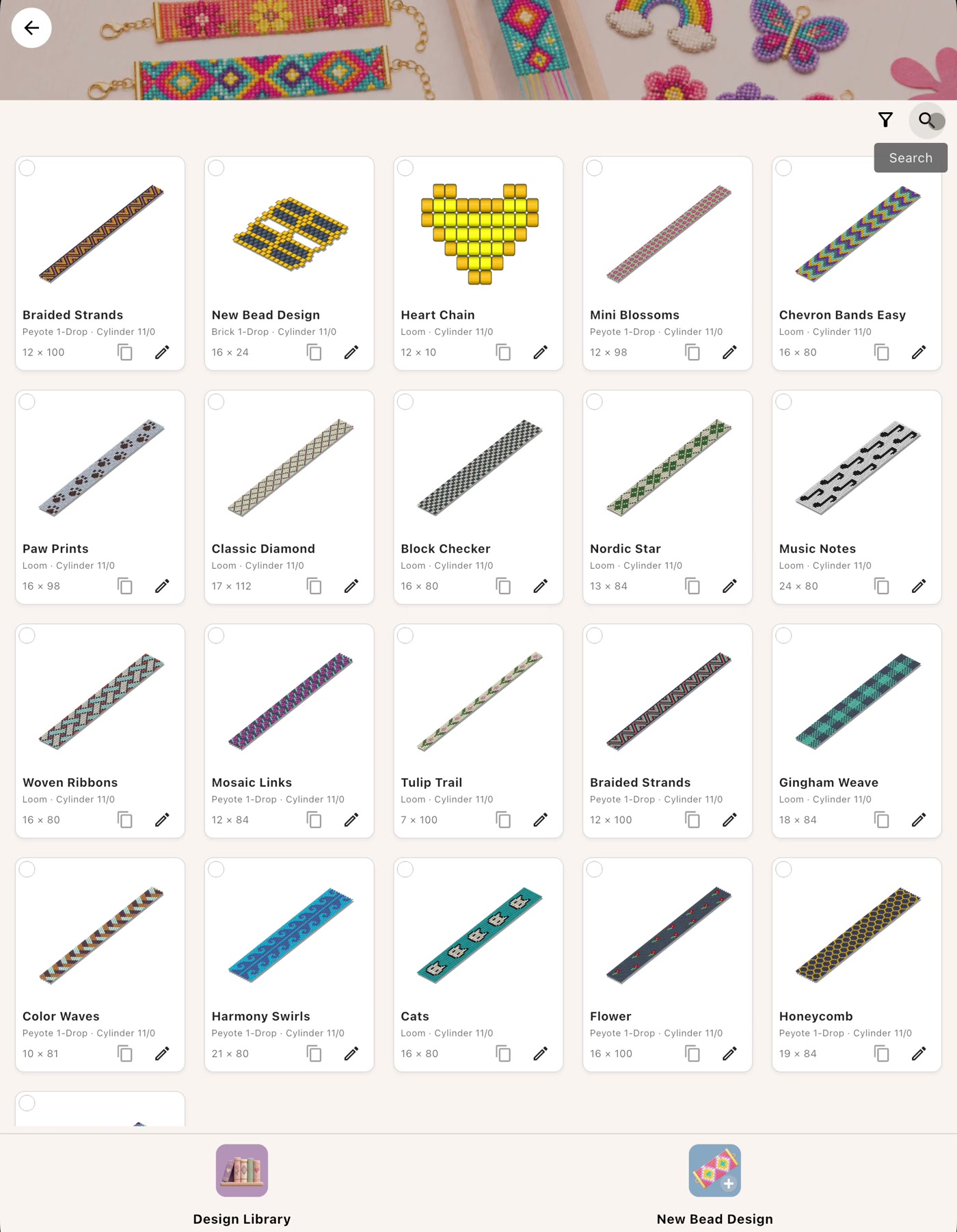
A digital pattern library becomes more useful when you can understand it at a glance. In Bead Home, saved designs appear as visual cards with a pattern preview and identifying details. You can recognize a familiar motif visually, scan the names, or use the controls at the top when the collection grows too large to browse comfortably.
The simplest organization system has two parts: give each design a useful name, then add a colored label that means something to you. Names identify individual projects. Labels let you group several designs by priority, purpose, or stage without changing the designs themselves.
1. Give every saved design a clear name
One of the easiest ways to organize digital patterns is to name them for what you are likely to remember later. A generic name such as “Pattern 4” may make sense today, but it gives you very little help after you have created twenty more designs.
Try combining a memorable motif with a useful detail. Names such as Harmony Swirls, Block Checker, or Mosaic Links are easy to recognize in the library and easy to type into search. If you create variations, add the distinguishing detail to the name—for example, “Mosaic Links Blue” or “Mosaic Links Wide.”
2. Search saved bead patterns by name
When you know which design you want, use the search control instead of scanning every card. You do not need to type the entire name. In the example shown here, entering Harmo narrows the library to Harmony Swirls.
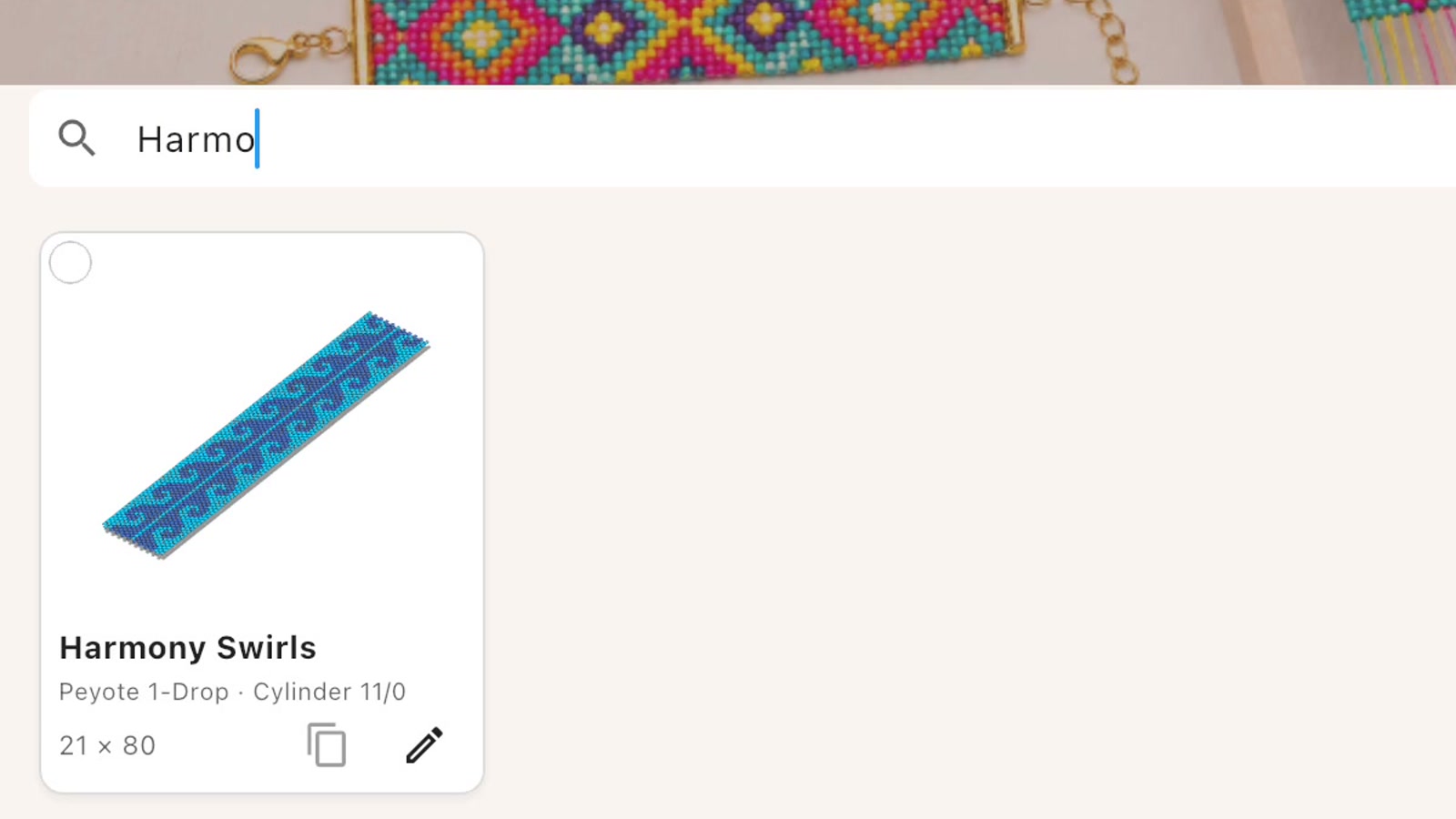
This is the fastest way to find saved patterns when you remember all or part of the design name. It is also why descriptive, consistent naming pays off: the words you naturally associate with a project become the words that bring it back into view.
3. Choose a simple color-label system
Colored labels are intentionally flexible. Each color can represent whatever makes your own workflow clearer. Before labeling everything, choose a small system you can remember without consulting a separate key.
For example, you might use:
- Pink or red for the patterns you want to work on next;
- Orange for designs that need another review;
- Green for finished designs;
- Blue for commissions or patterns being prepared to share;
- Purple for personal favorites.
These are only examples—the app does not impose a meaning on any color. A hobbyist might organize by active, finished, and favorite projects, while a pattern seller might prefer draft, review, and ready-to-list groups. The useful system is the one that matches how you already think about your work.
4. Add color labels to your designs
Open the colored-label picker from a design card and select the color you want to use. A small colored dot then appears on the card, so the label remains visible while you browse the library.

In the recorded workflow, Block Checker receives a pink/red label. Other colors are then added to designs such as Mosaic Links and Braided Strands, creating a visual overview in which several project groups can be recognized without opening each pattern.
It is usually easiest to label a design when you create it or whenever its place in your workflow changes. That small habit prevents an unlabeled backlog from building up.
5. Filter your bead pattern library by label color
Once the cards carry labels, your bead pattern library can be narrowed to one color. Open the label filter and choose the color you want to see. The library temporarily hides the other cards and leaves the matching group in view.
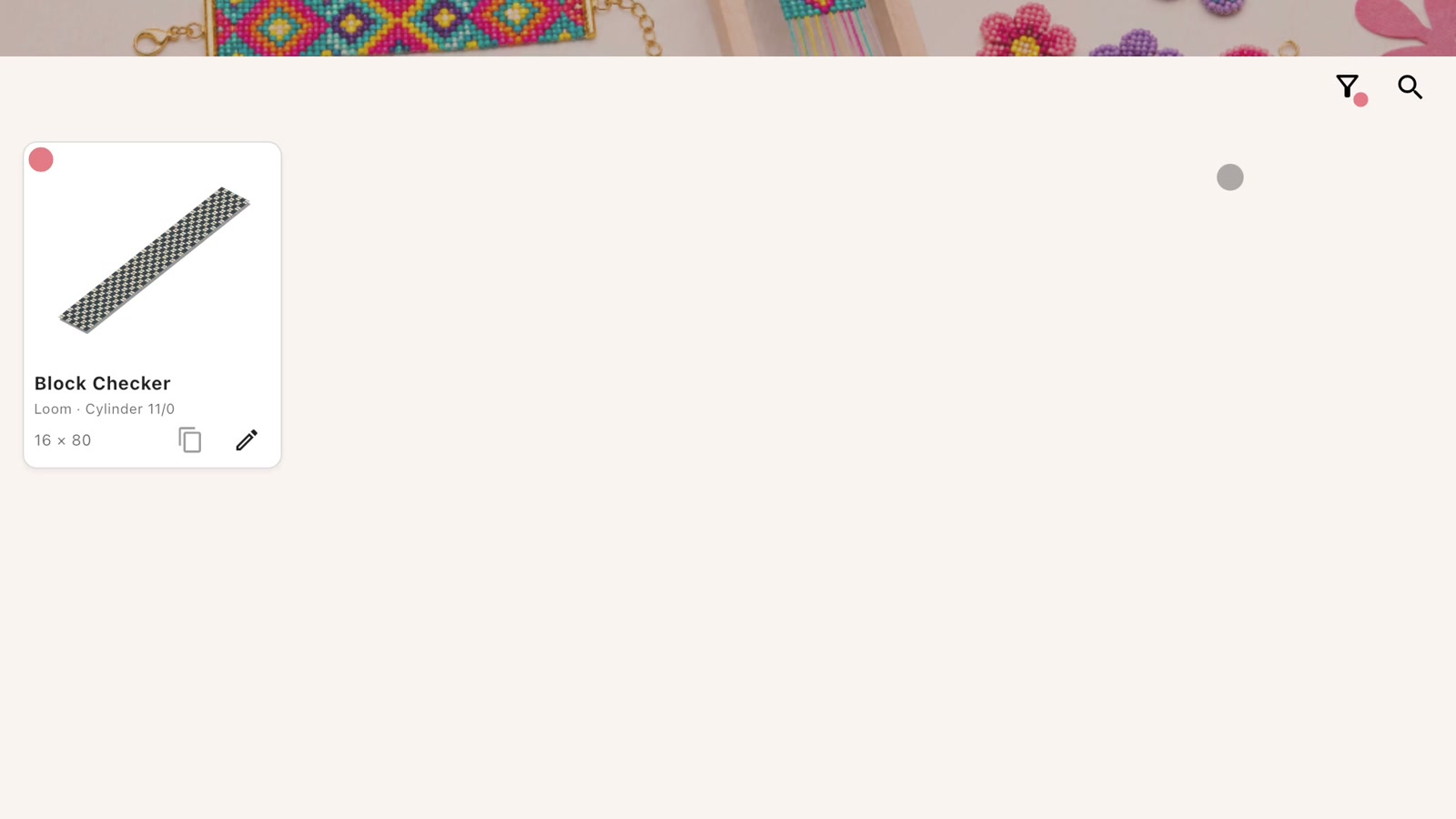
In this example, choosing the pink/red filter leaves only Block Checker on screen. If that color means “work on next,” the filter has effectively turned a crowded library into a short, focused project list.
6. Clear the filter to see every design again
When you have finished with a filtered group, reopen the filter control and clear the selected color. The full library returns, with each colored dot still attached to its design card.
Name search and color filtering solve two different jobs. Search is ideal when you know the design you want. A label filter is better when you want to see a group, such as all active projects, favorites, commissions, or finished patterns.
A practical routine for an organized library
- Give a new pattern a descriptive name before the library becomes crowded.
- Choose a few label meanings that fit your real workflow.
- Add or change the color label when the project moves to a new stage.
- Use name search when you remember a specific design.
- Use a color filter when you want to review a related group.
- Clear the filter when you want to return to the complete collection.
For independent bead pattern designers and sellers, this can become a lightweight production routine. You might label original concepts that need editing, commissions in progress, designs being prepared for listing, and finished work with different colors. A quick filter then brings the relevant group forward when it is time to review, export, or continue editing.
Frequently asked questions
What can I search for in Bead Home?
You can search your saved designs by name. A partial name is enough: the example in this guide uses “Harmo” to locate Harmony Swirls.
What do the label colors mean?
You decide. The colors are flexible, so they can represent project stages, priorities, commissions, gifts, favorite techniques, finished designs, or another personal system.
Can I filter bead patterns by color label?
Yes. Choose a label color from the filter control to show the matching design cards, then clear the filter to return to the full library.
Should I use search or labels?
Use search when you remember part of a specific pattern name. Use labels when you want to see a group of designs that share the meaning you assigned to one color.
Is this useful for people who sell bead patterns?
Yes. Designers can apply their own color system to original patterns that need review, listing preparation, client attention, or another next step. Because the meanings are personal, the same labels can adapt to a simple hobby collection or a busier design workflow.
Where are my Bead Designer projects saved?
Your designs and their organization are stored locally on your device, without requiring a separate Bead Designer account.
Keep your next design easy to find
A consistent name and one small color marker are often enough to bring order to a growing collection. Once your library is organized, you can move naturally from finding a design to editing it, working through it, or preparing instructions.
Continue with how to make a seed bead pattern from scratch, learn how to turn an image into a bead pattern, or see how to create a bead pattern PDF with printable instructions.
Bead Designer brings pattern creation, color tools, a searchable design library, Work mode, and printable instructions together inside Knitting Row Counter. Organize and continue your own bead designs with Knitting Row Counter on the App Store or Google Play.