A useful seed bead color chart does more than display rows of swatches. It helps you connect a color with its name or reference code, find it again later, and bring the right choices into a bead pattern without scrolling through every available shade.
This guide shows how to browse and search colors with Bead Designer in Knitting Row Counter. You will also see how to create a personal bead entry with a name, display color, code, and brand, then add both catalog and custom colors to a project palette.



What makes a color chart useful for bead pattern design?
When you are building a pattern, color information needs to be practical. A visual swatch helps you compare nearby shades, while a name and code make the same bead easier to identify again. Grouped color families are helpful for browsing; search is better when you already know part of the name or reference.
A well-organized digital chart can support several common jobs:
- browsing colors by family when you are still exploring a palette;
- searching for a bead by name, brand, group, code, DB number, or hexadecimal RGB value;
- adding a selected catalog color to the current design;
- saving beads from your own collection with recognizable details;
- combining catalog colors and personal entries in one project palette.
1. Open the searchable bead-color catalog
Open an editable design and select the add button beside the project colors. The Add Bead Color screen shows the search field, your personal My Beads section, and built-in colors arranged into groups such as Neutrals, Skin, Brown & Earth, Red, Orange & Yellow, Green, Teal & Cyan, and Blue.
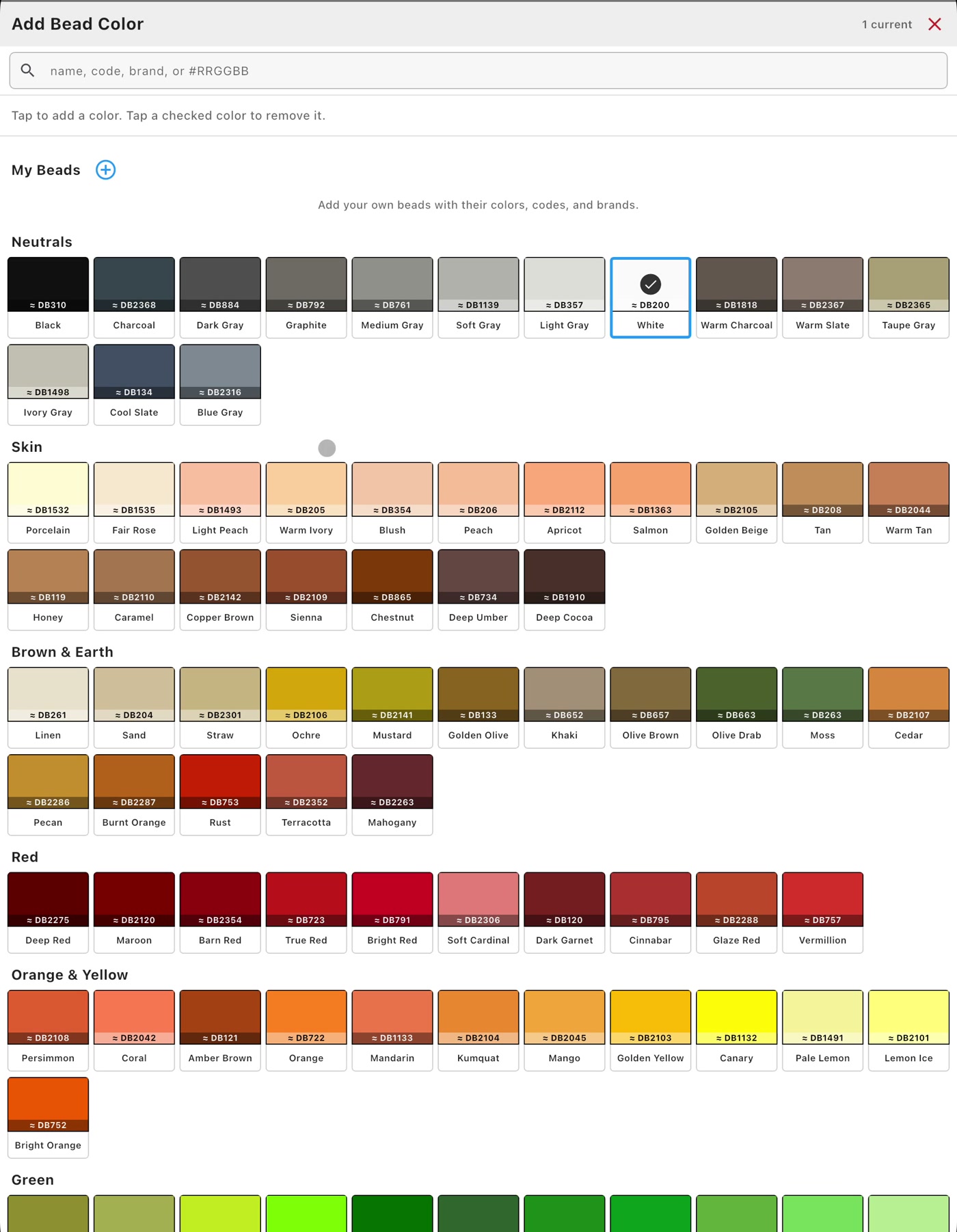
A checked swatch is already part of the current project palette. Tap another color to add it, or tap a checked color when you want to remove it from the palette. This keeps the design palette focused on the colors you plan to use rather than every color in the catalog.
2. Search names and seed bead color codes
Use the field at the top when you have a particular shade or reference in mind. The search accepts names, codes, brands, groups, DB numbers, and hexadecimal RGB values. That makes it useful both for broad searches such as “Blue” and for more specific seed bead color codes.
In the recorded example, entering Blue narrows the catalog to 15 visible results, including Blue Gray, Turquoise Blue, Clear Blue, Navy, Cobalt, and several other choices. Clear Blue is then selected and added to the design.

Searching first is especially helpful when two colors sit in different catalog groups or when you remember a code more easily than a color name. Once a result is selected, it becomes available from the project palette in the editor.
3. Turn color references into a focused project palette
Most color searches begin with either a swatch you like or a code from bead packaging, a supplier listing, or project instructions. A bead color catalog supports both approaches: browse visually when you are exploring, or enter a known identifier when you already have one.
Add only the colors you want to compare, and the large catalog becomes a focused seed bead color palette for the current design. If a bead from your own collection needs a personal record, save its name, display color, code, and brand under My Beads.
4. Add a custom bead from your collection
In the Add Bead Color screen, tap the plus button beside My Beads. The custom-bead form lets you enter a bead name, choose its display color, and add optional code and brand details.
Choose the display color visually with the picker or enter a hexadecimal RGB value. Then give the bead a name you will recognize later. In this demonstration, the new entry is called My Pink; the optional fields are filled with DB0055 and MIYUKI as the details for that personal record.
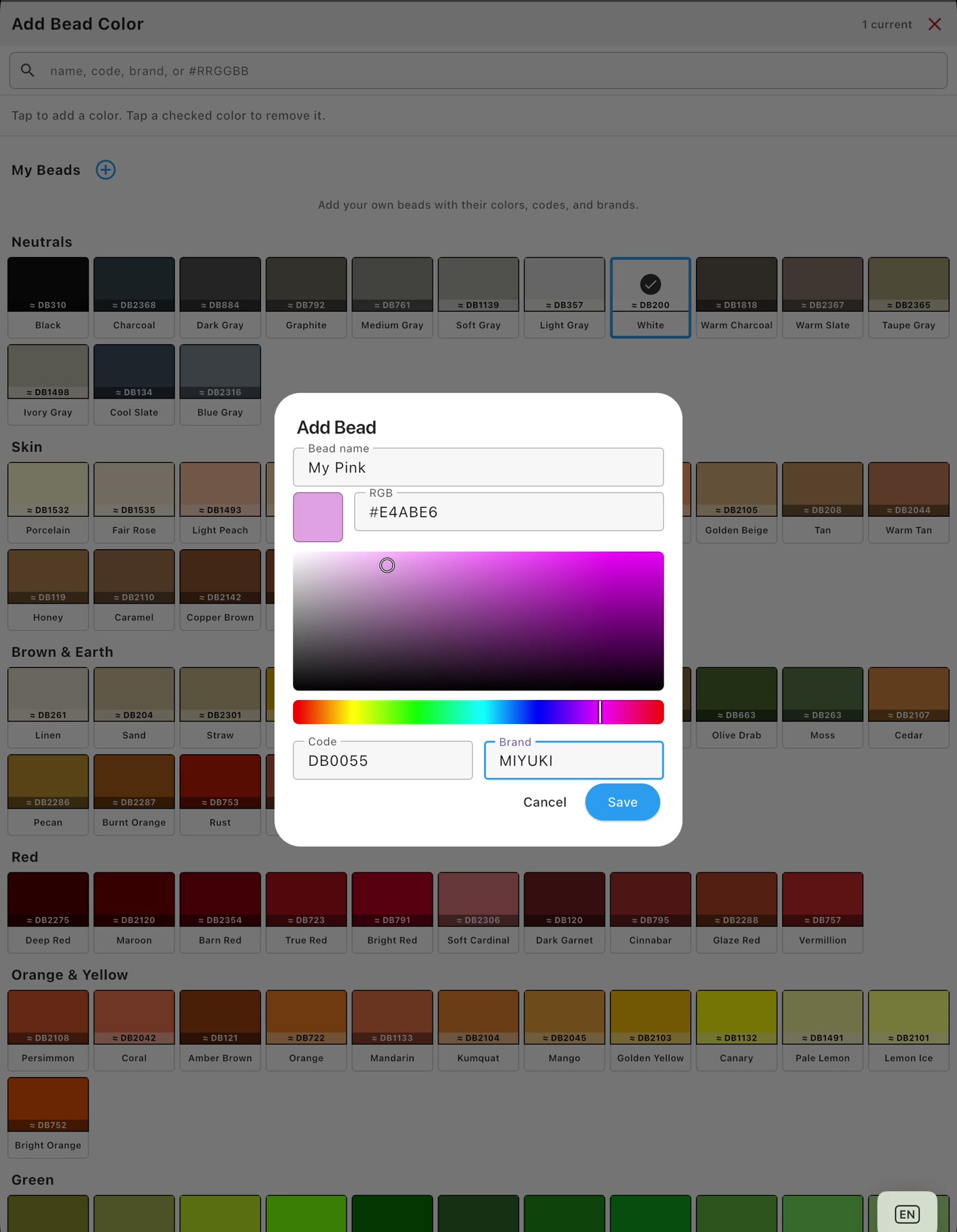
This is useful for Miyuki Delica beads, TOHO seed beads, small-batch purchases, locally named colors, or any bead from your stash that you want to recognize by its own label. Recording the name, package code, brand, and display color also makes the palette easier to understand when you return to a saved design.
5. Save the bead under My Beads
Tap Save when the entry is complete. My Pink now appears at the top of the catalog under My Beads, showing its personal name and entered code. Tap the swatch to add it to the current design just as you would add a built-in catalog color.
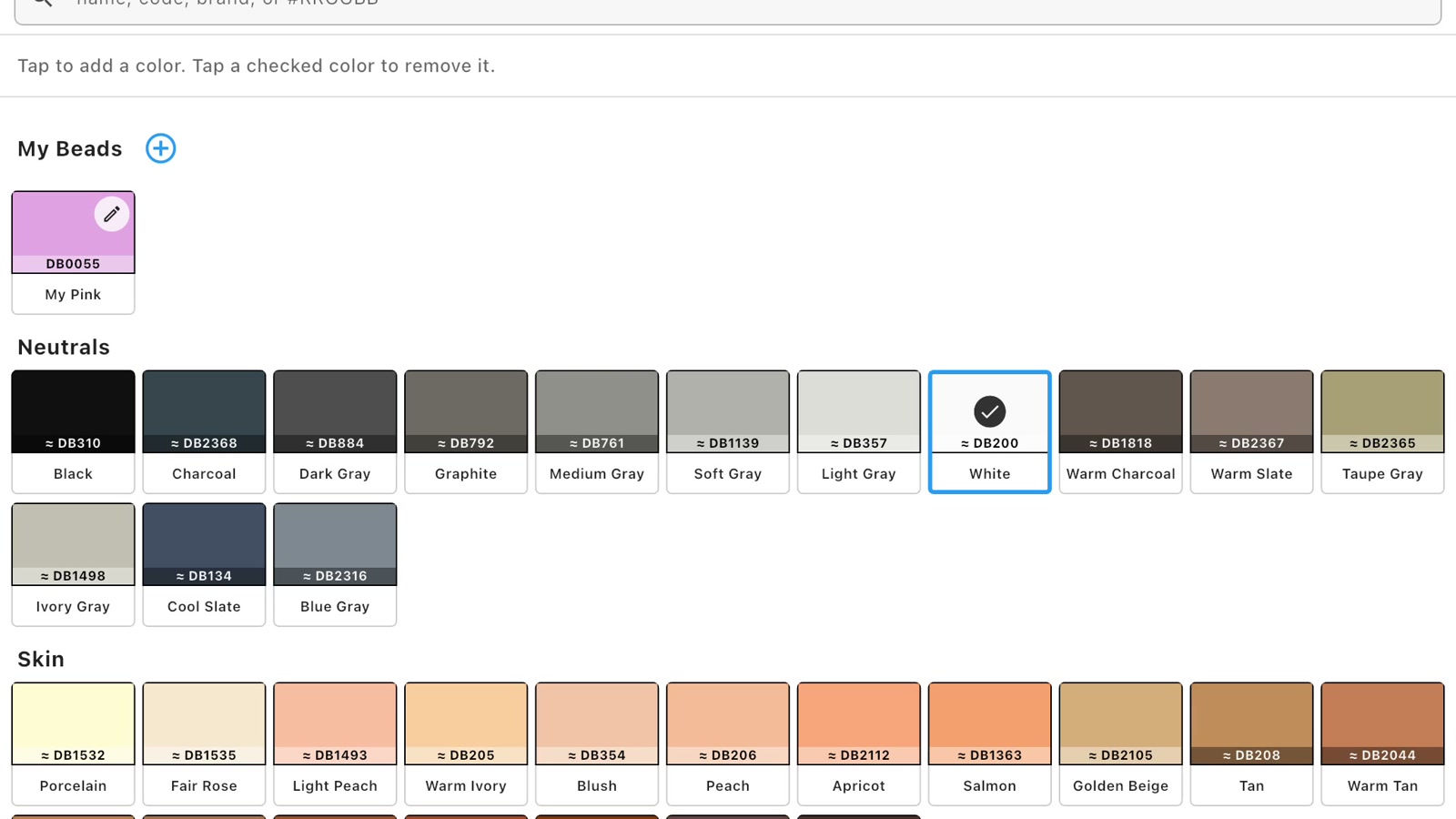
The example ends with White, My Pink, and Clear Blue in the project palette. This shows how personal bead records and searchable catalog colors can work together: one may represent a bead from your own collection, while another comes directly from the grouped catalog.
Why save color details before drawing?
Building the palette first gives each color a clear identity from the beginning. You can use meaningful names while drawing, see which swatches belong to the project, and keep the same information connected to the design as it develops.
This can be helpful for independent pattern designers, kit makers, and sellers working with their own original designs. Recording names, brands, and codes creates a clearer project reference when you revisit a design or prepare its bead list. Bead Designer can later use the project colors when you create a bead pattern PDF with printable instructions.
Seed bead color chart workflow
- Open an editable bead design.
- Select the add button beside the project palette.
- Browse a color family or use the search field.
- Search by name, code, brand, group, DB number, or hexadecimal RGB value.
- Tap a catalog result to add it to the design.
- Use My Beads when you want to create a personal entry.
- Enter a recognizable name and optional code and brand.
- Choose the display color and save the bead.
- Add the saved personal bead to your project palette.
Frequently asked questions
What can I search for in the bead-color catalog?
You can search by color name, reference code, brand, color group, DB number, or hexadecimal RGB value.
Can I add a bead that is not already in the catalog?
Yes. Create a personal entry under My Beads, choose its display color, and add a name plus optional code and brand information.
Can I add Miyuki Delica or TOHO bead codes?
Yes. Create a personal entry under My Beads and record the bead name, package or reference code, brand, and display color. You can then add the saved bead to project palettes like a catalog color.
Can I use a code from my bead packaging?
Yes. Enter the code in the search field to look for a catalog result, or record it in the Code field when creating a personal bead entry.
Can I reuse a custom bead in another design?
Yes. Saved personal entries remain available under My Beads, where you can select them for another project palette.
What is the RGB field used for?
The RGB field sets the bead’s display color inside the app. You can use the visual picker or enter a hexadecimal value such as the one shown in the My Pink example.
Can I change colors in a pattern after creating the palette?
Yes. Once a design contains colors, the separate Change Colors workflow can replace, swap, merge, or remove them. See how to replace colors in a bead pattern for a complete example.
Build the palette for your next bead pattern
Bead Designer brings searchable bead colors, personal bead records, pattern editing, previews, Work mode, and printable instructions together inside Knitting Row Counter. Build your next project palette with Knitting Row Counter on the App Store or Google Play.