Whether you are measuring an equipment pad, shed base, patio, or path, the first useful figure is the slab’s volume. A concrete slab volume calculator turns the length, width, and planned thickness into a clear starting quantity for your project.
Unit Converter makes this easy when the measurements use different units. Enter meters and centimeters together, or work with feet, inches, and fractions, then review the volume in the unit you need. Unit Converter is free to download for Android, iPhone, and iPad.


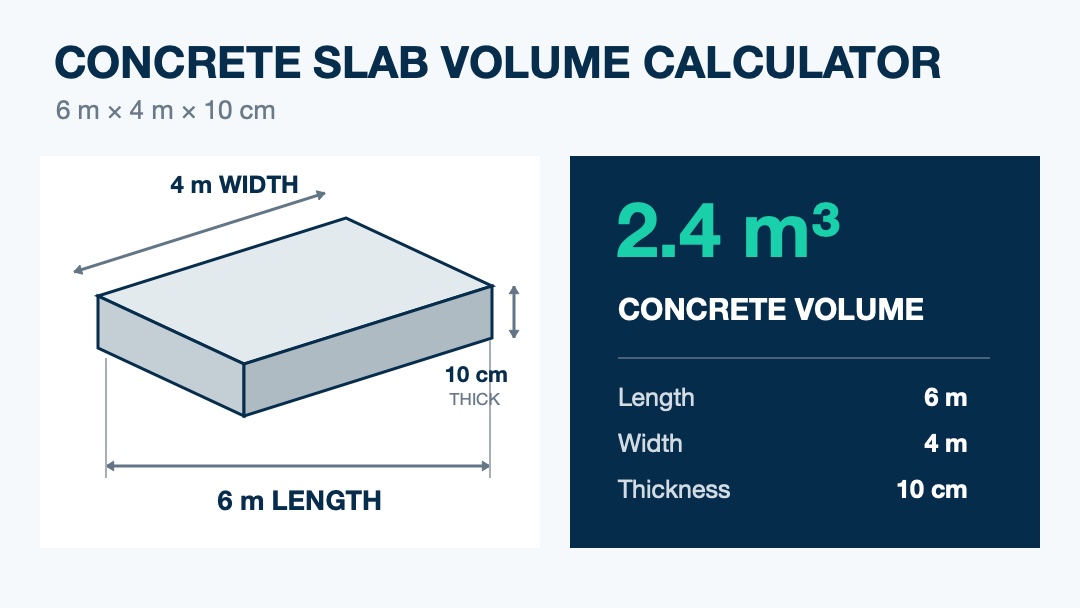
How to calculate concrete slab volume
The formula for a rectangular slab is straightforward:
Volume = length × width × thickness
All three measurements need to describe the same unit before they are multiplied by hand. In the metric example, the 10 cm thickness is 0.10 m. The complete calculation is:
6 m × 4 m × 0.10 m = 2.4 m³

The first two measurements give a base area of 24 m². Multiplying that area by the 0.10 m thickness produces cubic meters, which is a volume rather than a surface area.
Enter mixed dimensions directly in Volume mode
A useful slab volume calculator should match the measurements you already have. In Unit Converter, the length, width, and height fields can each use FT/IN, decimal inches, meters, or centimeters independently.
To reproduce the 2.4 m³ example:
- Open Construction Calculator and make sure Shift is off.
- Select Volume.
- Tap L, choose M, and enter 6.
- Tap W, choose M, and enter 4.
- Tap H, choose CM, and enter 10.
- Choose M on the result display to read 2.4 cu m.
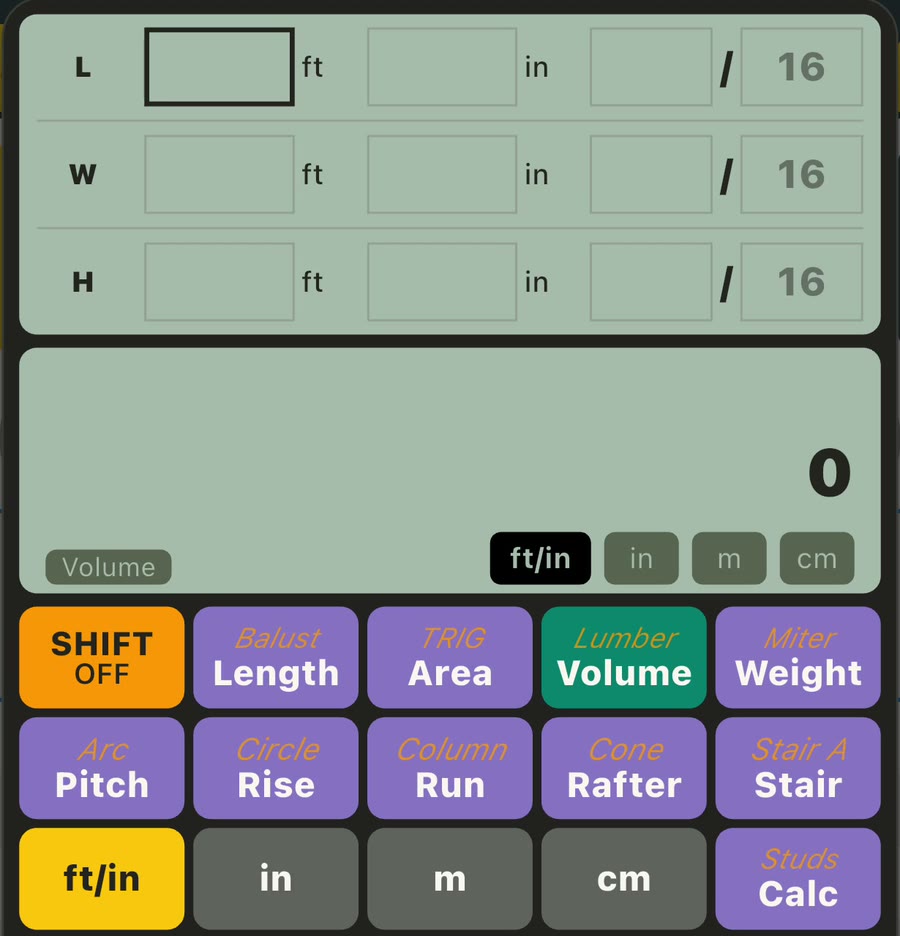
The result-unit buttons can also display the same entered volume as cubic feet, cubic inches, or cubic centimeters. That makes the workflow useful when plans, field measurements, and the preferred result do not all use the same measurement system.
Use the same calculation for concrete pads
A rectangular equipment base, shed pad, patio section, path section, or similar pad uses the same length × width × thickness geometry. In that setting, a concrete pad volume calculator simply gives the rectangular base volume for the dimensions entered.
Use the thickness specified for the project and measure to one consistent set of boundaries. Clear length, width, and thickness measurements give you a result that is easy to review against the drawing or site notes.
Calculate more than one rectangular section
Real layouts are often easier to measure as several simple rectangles. Calculate the main slab first, then use the calculator’s addition or subtraction keys to combine compatible volume sections.
- Add separate sections for connected rectangular areas or independently measured thickened portions.
- Subtract measured recesses or penetrations when the project calls for them to be excluded.
- Scale repeated sections by multiplying a displayed volume by the number of identical pads.
This approach keeps every part visible in the calculation instead of forcing an irregular layout into one oversized rectangle.
Turn the geometric result into a planning quantity
For the worked example, 2.4 m³ is the rectangular base quantity. Use it as the starting point for a preliminary material check, then apply the project-approved ordering adjustment after confirming the design thickness, site conditions, and the supplier’s ordering increment.
Thickened edges, grade beams, recesses, and penetrations can be measured as their own sections. Keeping those details separate makes the total easier to check and update when the project dimensions change.
Frequently asked questions
What is the formula for concrete slab volume?
Multiply the slab length by its width and thickness. Convert the measurements to compatible units first when calculating by hand. For example, 6 m × 4 m × 0.10 m equals 2.4 m³.
Can I use meters for length and centimeters for thickness?
Yes. Unit Converter allows each Volume input to use its own supported unit. You can enter length and width in meters, thickness in centimeters, and display the result in cubic meters.
Can I enter feet, inches, and fractions?
Yes. The Volume fields support feet with whole and fractional inches, as well as decimal inches. The result can be reviewed in cubic feet or cubic inches.
Can the calculator total several slab sections?
Yes. Use addition or subtraction to combine compatible volume results. You can also multiply one section’s volume by a plain number when several pads have identical dimensions.
Is the concrete slab calculator free to download?
Yes. Unit Converter is free to download from Google Play and the App Store, and Volume mode is included in its Construction Calculator.
Calculate your slab from the measurements you have
Enter the slab’s length, width, and design thickness, choose the result unit, and use the displayed volume as the base for your project check. To explore the full set of dimensional and jobsite tools, visit our Construction Calculator app guide. If your plans use imperial measurements, our feet and inches calculator app guide explains fraction entry and mixed-dimensional math.
Download Unit Converter on the App Store for iPhone or iPad, or get Unit Converter on Google Play for Android.