A friendly soccer game is easier to follow when the score and match time are visible together. Scoreboard Plus includes a dedicated Soccer mode with goals, a match clock, halves, shots and saves. The app is free to download on Android.
If you need a soccer scoreboard app for a pickup game, practice match or weekend rematch, you can put both teams on the board and keep track from the sideline. Add your team names and avatars, choose the half length and save the result when you’re done.

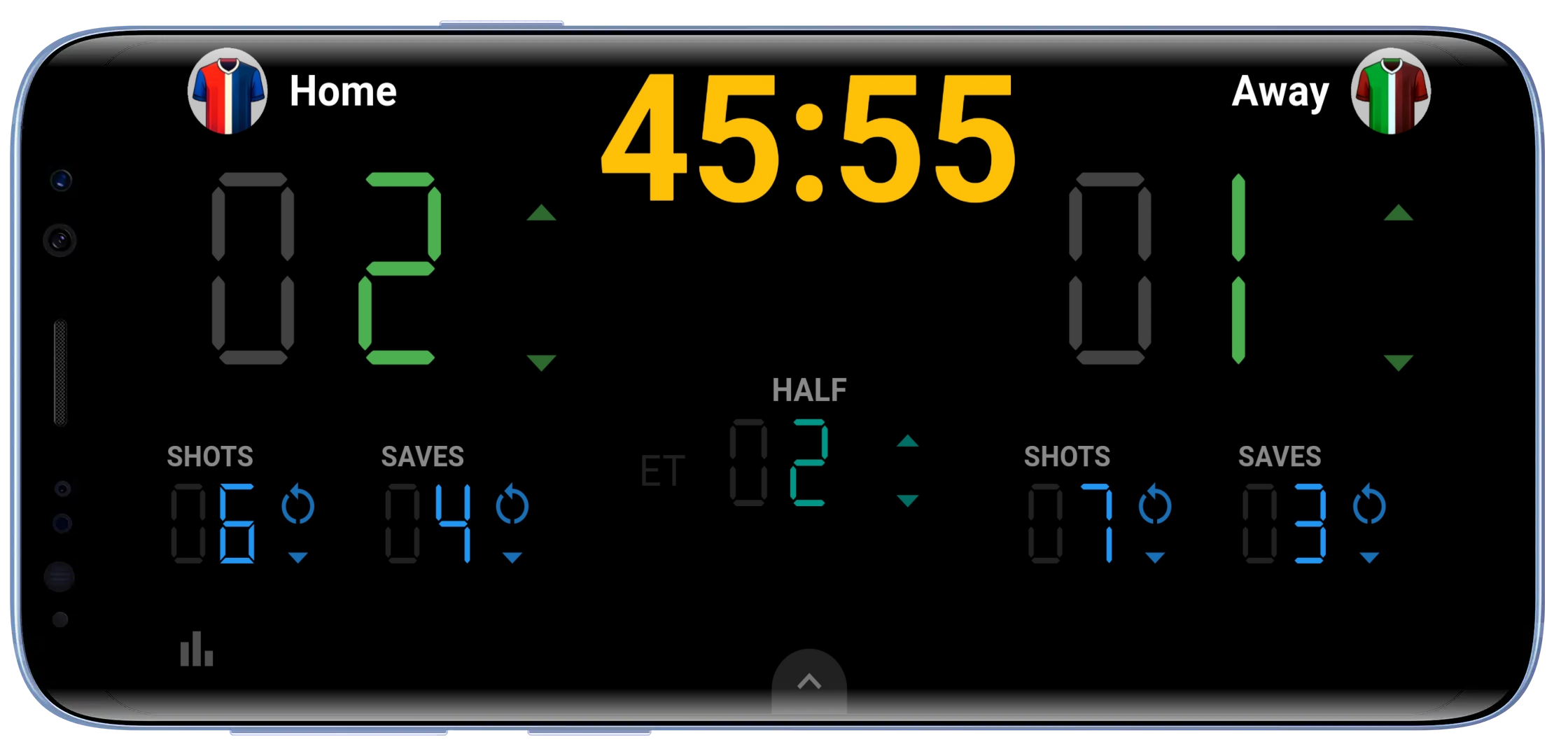
Set up your teams before kickoff
Open the Soccer board and tap the arrow at the bottom to reveal the controls. Open Settings, enter the two team names and tap Save. The names you choose appear beside the scores, so everyone can recognize their side at a glance.
If the same teams play regularly, create reusable profiles in the app’s Profiles section. Before kickoff, use Select Profile in soccer settings to load each team’s saved name and avatar, then save your choices. Those profiles can also collect the results of your finished matches.
For a personal touch, tap the avatar area beside a team name on the board. Choose a built-in avatar or a custom one you’ve made with the app’s avatar creator. Your regular opponents can have familiar faces on the scoreboard, even when you change the lineup on the field.
A soccer scoreboard and match timer in one view
In Settings, choose the duration of each playing half to suit your game. Two shorter halves can work well for a practice match when your group has limited field time. You can also choose the extra-half duration and whether the halftime buzzer sounds.
Tap the match clock to start or pause it. The clock counts up, with the score and current half alongside it. The display carries the match time into the second half: if you’re playing 20-minute halves, the second half begins at 20:00.
If you need to correct the time, open the bottom controls and use the clock button to adjust the elapsed minutes and seconds within the current half. This keeps the timing controls close to the scores you’re updating.
Move from the first half to the second
When you’re ready to end the half, tap the Half number or its up arrow and confirm. You can run a halftime-break countdown or choose No Halftime Timer. After the break, tap the match clock to begin the next half.
With the halftime buzzer enabled, an audible reminder sounds when the chosen playing-half duration is reached. You decide when to advance the half and when to finish the match, which is handy for relaxed games with friends.
Record goals, shots and saves
When a team scores, tap its large goal total or up arrow to add one. Use the down arrow to remove an accidental extra goal. The two team totals remain easy to find while you watch the game.
The Shots and Saves counters let you record more of what happens on the field. Tap a team’s counter to add a shot or save, and use the down arrow to correct it. When a goalkeeper stops an attempt, record the attacking team’s shot and the defending team’s save in their respective counters.
One person can act as the soccer score keeper, updating the goals and these team totals as play happens. In a practice match, shots and saves give you something useful to discuss afterward: the final score tells you who won, while the counters show how often each side was shooting or making saves.
Use portrait or landscape on the sideline
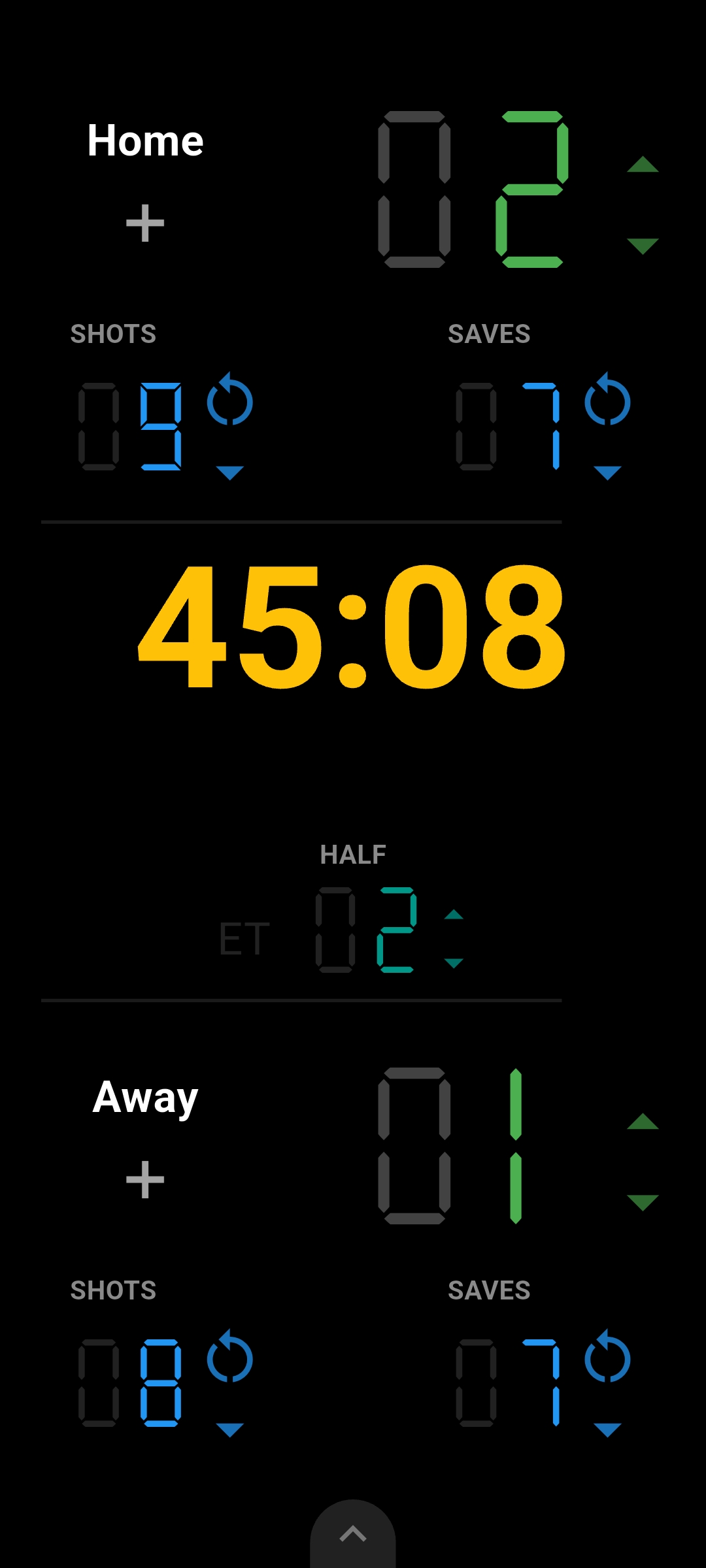
The soccer board has both portrait and landscape layouts. Landscape places the teams side by side around the match clock. Portrait stacks the teams vertically, making it a convenient choice when you prefer to hold your phone upright while keeping score.
Save the result for your next rematch
When the match is over, open the bottom controls and tap the finish flag. Choose to save the match when you confirm. History keeps the final team scores along with the shots and saves you recorded, so the result is there when you want to look back.
If you selected profiles before kickoff, the saved result also contributes to their statistics. For regular opponents, Head-to-Head comparisons let you revisit previous meetings, wins and draws before the next game.
Frequently asked questions
Can I use it as a football scoreboard app for a friendly match?
Yes. Whether you call the sport soccer or football, use the same Soccer mode for goals, two halves and match timing. Set your team names and half length for a friendly kickabout or a small-sided game, then keep the score on your Android phone or tablet.
Can I use it as a soccer timer app for shorter practice games?
Yes. Choose a shorter playing-half duration in Settings and use the count-up clock alongside the scores. The optional halftime buzzer helps you keep track of your chosen session length, and you can time the break before starting the next half.
Can I show the soccer scoreboard on a TV?
Yes. Use your Android device’s screen mirroring feature with a compatible TV. The same scoreboard appears on the larger screen while you update goals and match time on your phone or tablet.
Get ready for your next game
For a different sport or a game night, explore the other modes in our scoreboard for Android.
Download Scoreboard Plus free on Google Play and open Soccer mode. Set up your teams, choose your playing time and keep the goals, clock and match details together from kickoff to the final score.