Keep the score, game clock and shot clock together with the dedicated Basketball mode in Scoreboard Plus. The app is free to download on Android, with team names, avatars and match history for your regular games.
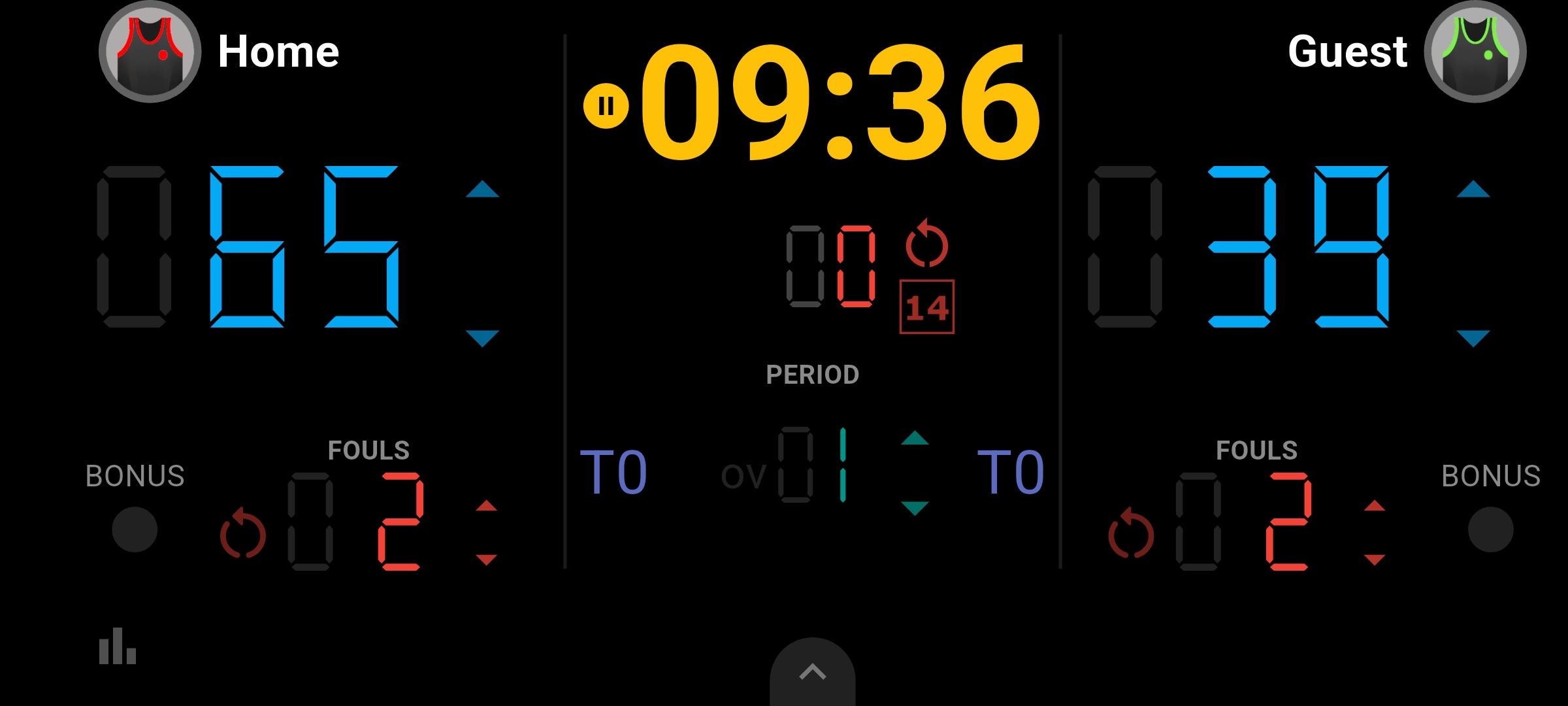
If you’re looking for a basketball scoreboard app for a pickup game or practice match, you can set up both teams, choose your playing time and keep the board beside the court. Large scores and visible clocks help everyone follow the game.

Set up your teams, profiles and avatars
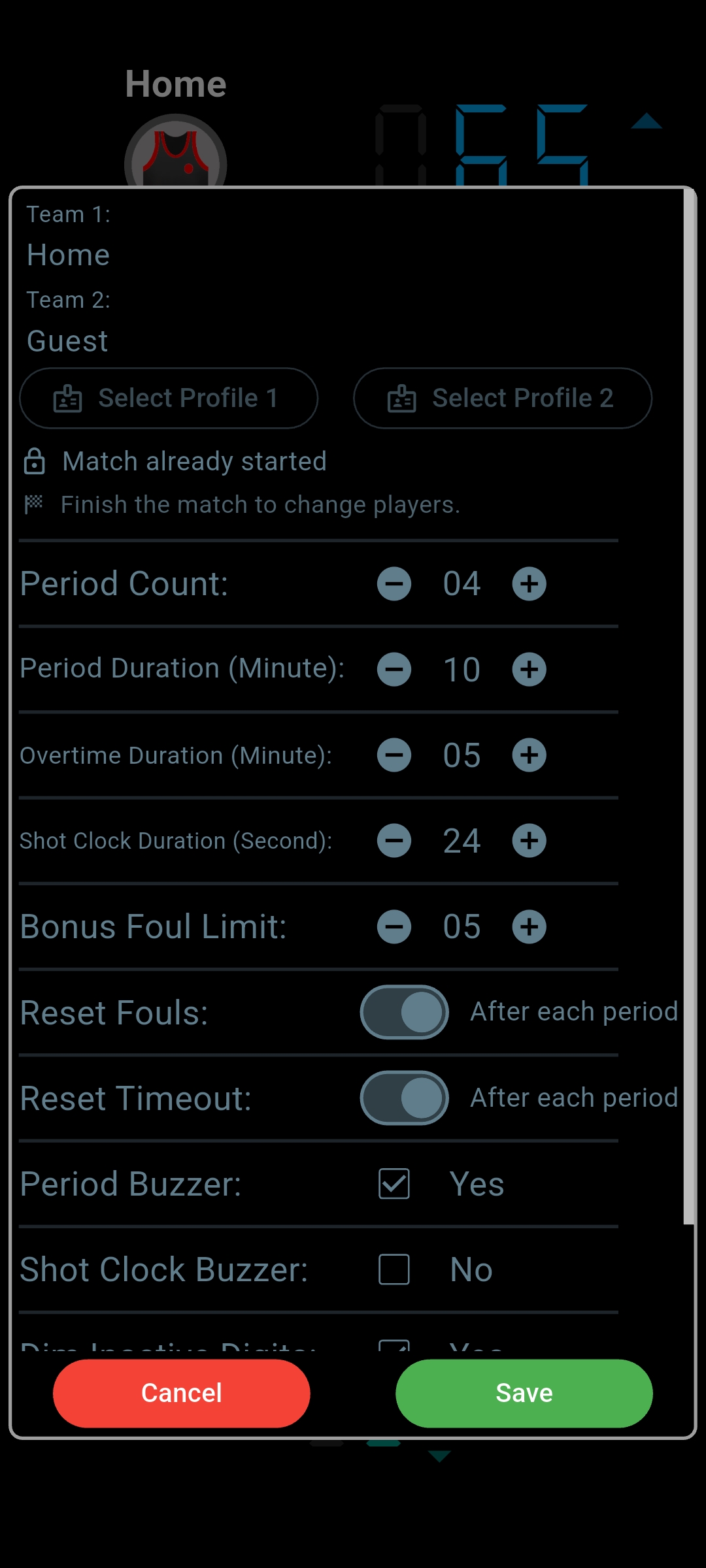
Open the Basketball board, tap the arrow at the bottom to reveal the controls, then open Settings. Before starting the game, enter the two team names and tap Save. Your own names make the board more recognizable than simply leaving it as Home and Guest.
For regular matchups, create reusable profiles in the app’s Profiles section. In basketball settings, use Select Profile for each team to load a saved name and avatar, then save your choices. Selecting profiles also connects the result to those profiles when you save the finished match.
To change a team avatar directly, tap its avatar on the scoreboard. Choose a built-in design or a custom one you’ve made with the app’s avatar creator. You can give each side a familiar character before the next rematch.
A basketball scoreboard with timer controls for your game
A short practice game and a longer friendly match don’t have to use the same playing time. In Settings, choose the number of periods, period duration and overtime duration to match the game you’ve agreed to play. You can also choose whether the period buzzer sounds.
Before starting, check the displayed game time. Use the clock button in the bottom controls to set the opening minutes and seconds, or to correct the remaining time during the game. Tap the game clock to start or pause it; during play, the game clock and shot clock count down together.
When you’re ready for the next period, tap the period number or its up arrow and confirm that the current period is finished. You can choose to run a break before continuing. If the game goes beyond the configured regulation periods, the board uses your overtime duration.
Update points as baskets are scored
The scoring controls stay beside each team’s total. Tap the large score or its up arrow to add one point, and use the down arrow to subtract one. Tap twice for a two-point basket or three times for a three-pointer; a mistaken extra tap is easy to correct.
For a casual match, one person can act as the basketball score keeper, updating points and pausing the clock for stoppages. The same board keeps the team totals, current period and remaining time visible while they follow the action.
Keep the shot clock beside the game clock
The shot clock has its own clear display on the board. Choose the full shot-clock duration in Settings, then use the reset arrow beside the shot clock to restore that duration. There is also a separate 14-second reset control.
Resetting the shot clock pauses the clocks, so tap the game clock again when play resumes. This gives the person keeping time a chance to prepare the countdown before the next possession. You can enable the shot-clock buzzer in Settings as well.
Track team fouls and timeouts
Team fouls sit alongside the scores, with up and down controls for adding a foul or correcting the count. The board also has bonus indicators, and you can set the bonus foul limit in Settings to fit the game you’re playing.
When a team takes a timeout, tap its timeout count, choose a duration and select Start Timeout. The board adds the timeout and uses the secondary clock to time it while holding the game clock.
You can choose whether foul and timeout counts reset after each period or are reset manually. Set this up before play so the board follows the format your group is using.
Save the result for the next rematch
At the end of the game, open the bottom controls and tap the finish flag. Choose to save the match when you confirm, and the final score is kept in History.
If you selected saved profiles before playing, the result also contributes to their records. For teams that meet regularly, saved scores and profile statistics give you something to look back at before the next game.
Frequently asked questions
Can I use it as a basketball shot clock app for practice?
Yes. Open Basketball mode to use its shot clock alongside the game clock. Choose the full duration in Settings, use the reset controls between possessions and tap the game clock to resume. It’s useful for practice games where you want players to work within a possession time.
Does the basketball board work in portrait and landscape?
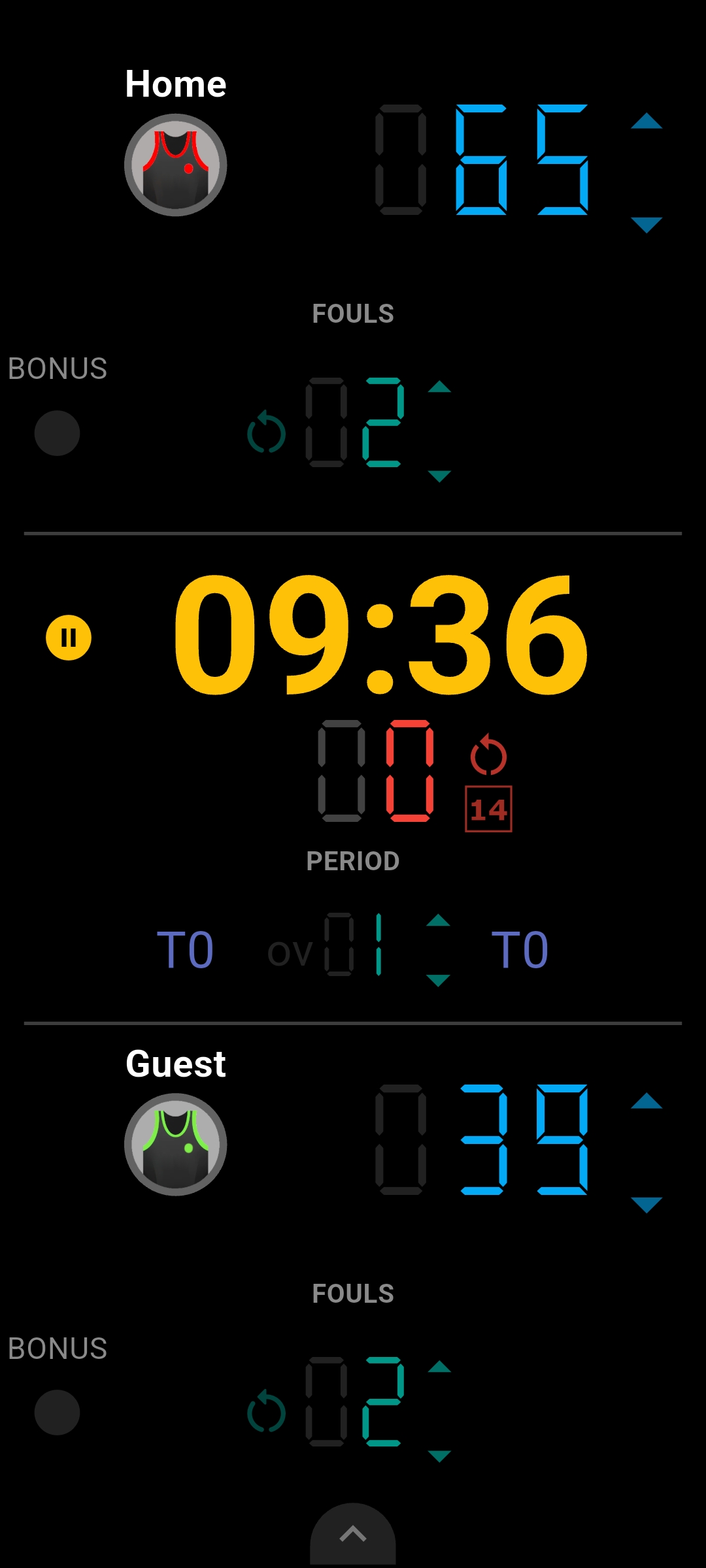
Yes. You can use either orientation. Landscape places the teams side by side with the clocks between them, while portrait arranges the board vertically to suit how you’re holding or placing your device.
Can I show the basketball scoreboard on a TV?
Yes. Use your Android device’s screen mirroring feature with a compatible TV. You can display the same scoreboard on the bigger screen while updating scores and clocks on your phone or tablet.
Get the board ready for your next game
For your other sports and game nights, see the different layouts available in our Android scoreboard app.
Download Scoreboard Plus free on Google Play, open Basketball mode and set up your teams and playing time. Keep the scores, clocks and match details together from the first basket to the final result.