Scoreboard Plus includes a dedicated 3–4 Players mode that puts everyone’s points side by side. Use it as a 4 player scoreboard for a full group, or choose three players when that’s who’s at the table. The app is free to download on Android.
Personalize each player with a name, color and avatar, then use their plus and minus controls to keep score. For a family game or a friendly challenge, you can keep all the scores visible together, follow who’s ahead and update points as people take their turns.

Set up the board for your group
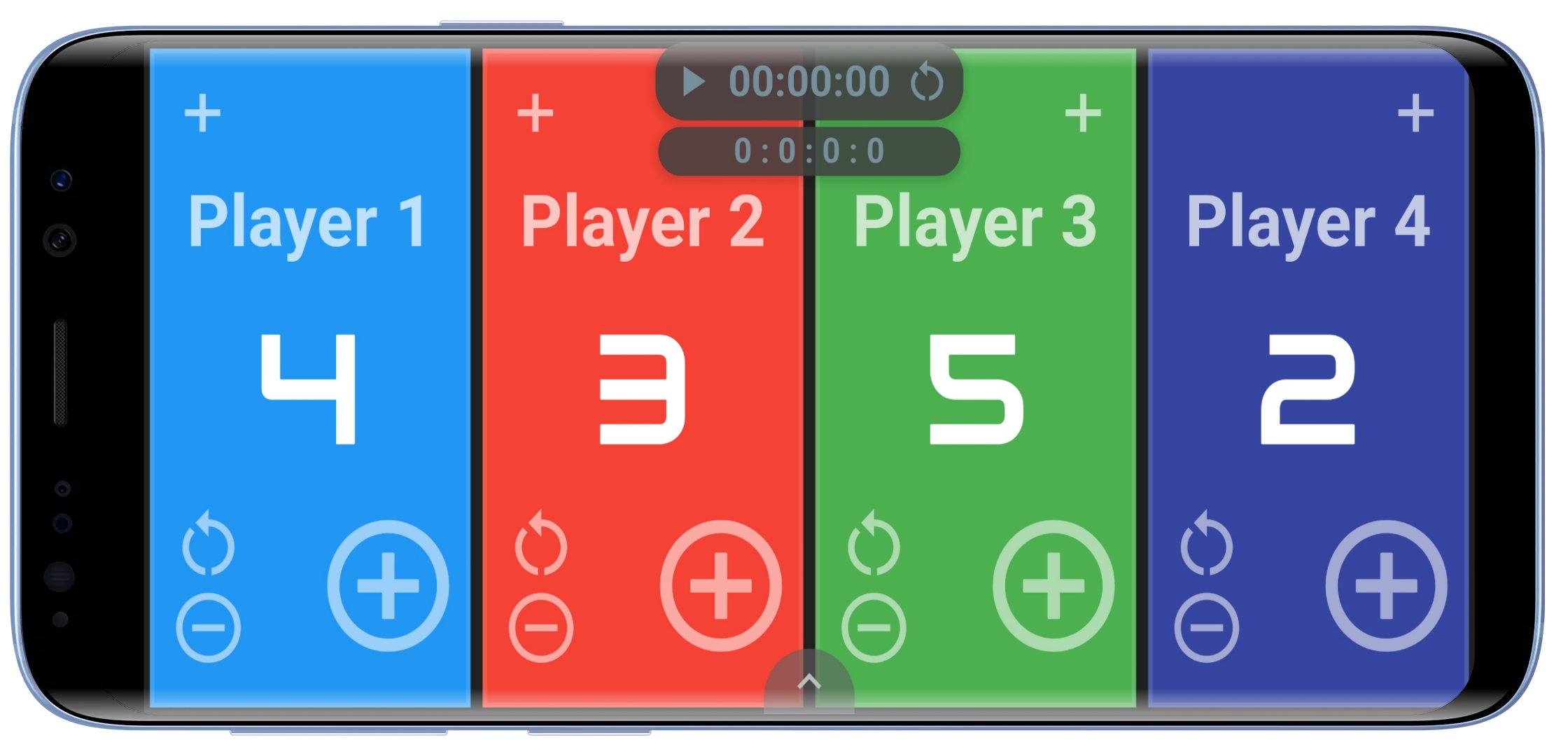
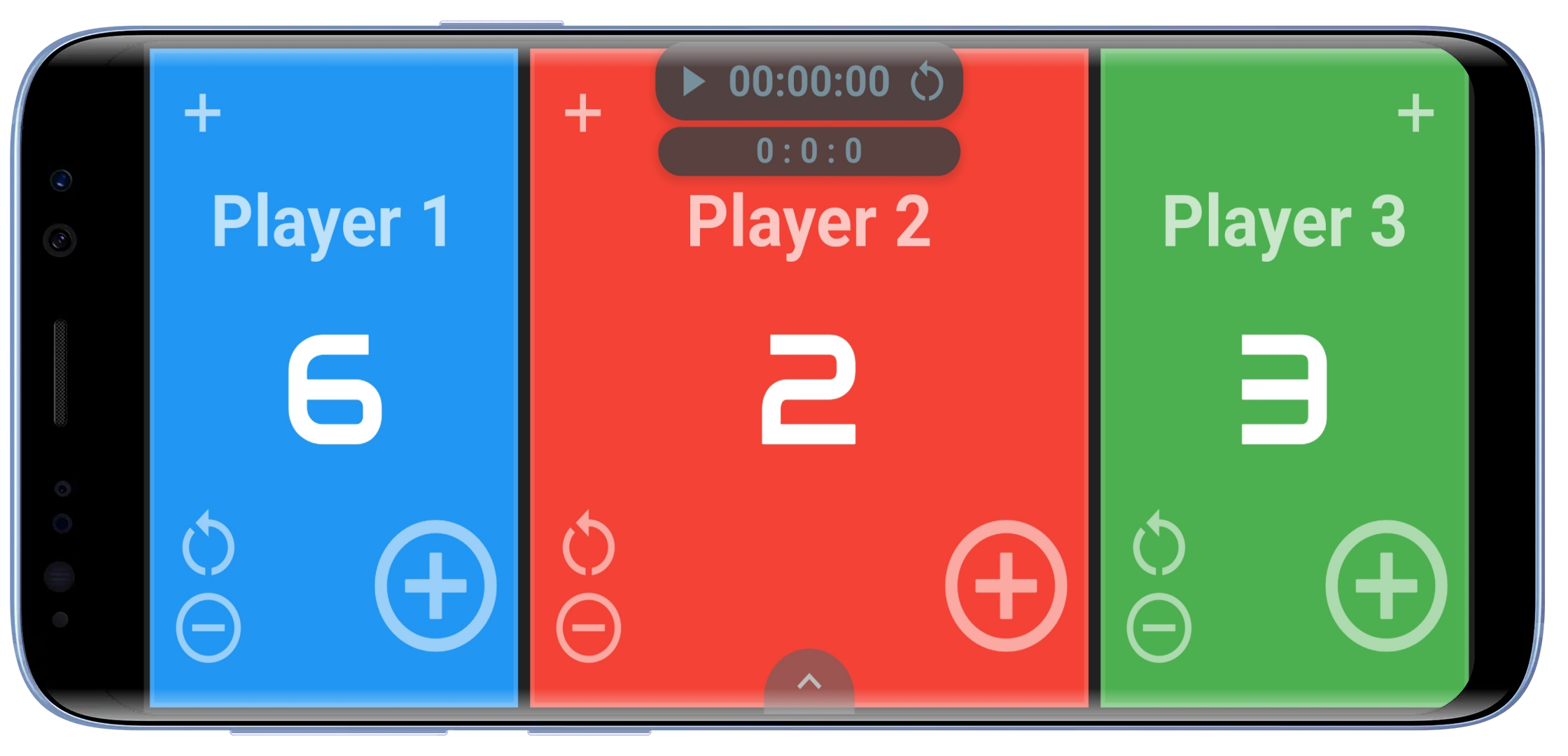
Open the 3–4 Players board in Scoreboard Plus. Tap the arrow at the bottom to reveal the controls, then use the 3P/4P button to choose your player count before the game.
Playing with three people? Choose the 3 player scoreboard and give each person their own score. Select four players for a four-person game. You can track individual points during play and keep round wins alongside them through a series of games.
Add player names, profiles and avatars
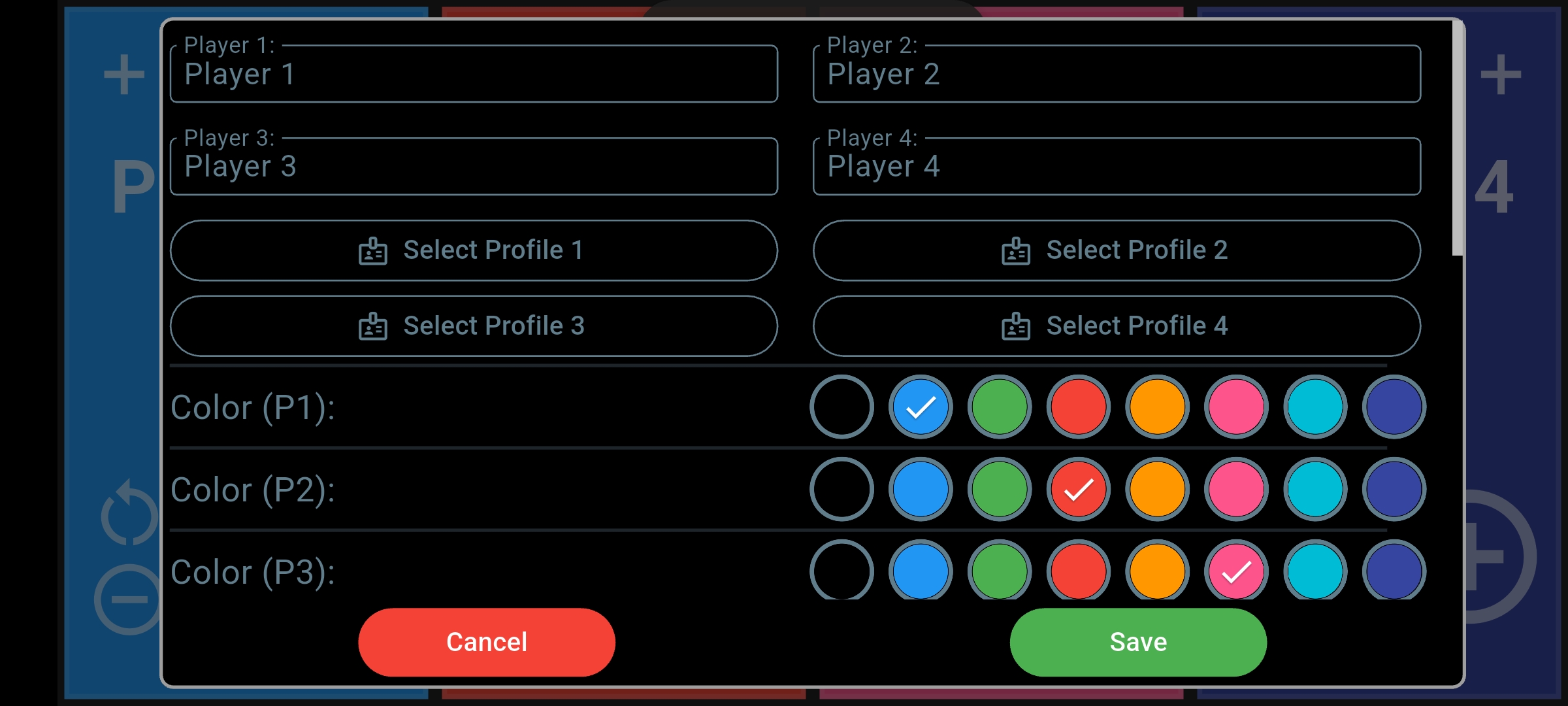
Tap the arrow at the bottom of the board, then open the settings gear. Enter each person’s name and choose their color, then tap Save. Familiar names and distinct colors make it easy to recognize each player’s score during the game.
For regular games, create reusable player profiles in the app’s Profiles section using Create Profile. Back in scoreboard settings, tap Select Profile for the relevant player and choose their saved profile to fill in their name, color and avatar. Tap Save to apply your selections.
To add an avatar directly to a player, tap the avatar area above their name on the scoreboard. Choose a built-in avatar or use a custom one you’ve created with the app’s avatar creator. It’s a simple way to give each friend or family member a recognizable character on the board.
Choose point values that match your game
Before you start, decide what a successful turn earns. In settings, Increment is the number of points a plus press adds, and Decrement is the amount a minus press removes. The values you choose apply to every player.
Leave both at 1 for one-point scoring. If each successful attempt is worth five points, set both to 5 so adding a score and reversing an accidental press take the same amount. If your game uses a different penalty, you can set Decrement separately.
During play, press the large plus button below the score to add points to that player. Use the smaller minus button to subtract them. The colors and names help you find the right panel quickly between turns.
For a bonus or correction that doesn’t match the usual point amount, tap the large score number to enter the total directly, then save it. You can also use a player’s reset icon when you want to bring just that score back to zero.
Keep round wins separate from the current points
A few short games can turn into a whole evening of rematches. Turn on Show Rounds in settings if you’d like to keep a round-win tally alongside the points in the current game.
Open the bottom controls to add a round to the person who won. When the app asks whether to reset the point scores, choose a fresh start for the next game or keep the totals as they are. You can have it remember your choice for later rounds.
For example, three friends can play several short target-toss challenges. The large scores show how many points each person has earned in the current challenge, while the round counters show who has won the earlier games. Everyone can follow both parts of the contest.
A scoreboard with timer controls for quick challenges
Tap the timer display to choose a duration and count-up or countdown mode. A countdown works well when everyone has the same amount of time to earn points; count-up mode is useful when you want to see how long a game lasts.
Keep the board beside a timed tabletop challenge or a practice activity, then use the timer controls as you update the scores. You can enable the timer buzzer in settings for an audible countdown alert.
Save the result before the next rematch
When you’ve finished, open the bottom controls and tap the finish flag. Keep Save Match to History checked when you confirm, and the app saves the final points and round totals for the players in that game.
You can look back at the result in History later. If you selected saved profiles before playing, the completed result also connects to those players’ records—a useful extra when the same friends or family members play regularly.
Frequently asked questions
Can I use it as a 4 player score counter for board games?
Yes. It suits board games and tabletop activities where each person has an individual running total. Set the point amounts to fit the game, update the matching panel after each turn and use direct score entry when you need to enter a different total.
Can I show the three- or four-player board on a TV?
Yes. Use your Android device’s screen mirroring feature with a compatible TV. The same side-by-side scoreboard appears on the larger display while you update the points on your phone or tablet.
Get your next small-group game ready
If your next game has a different player count or scoring style, explore the other layouts in our scoreboard app.
Download Scoreboard Plus free on Google Play and open the 3–4 Players board. Choose your player count, add the names and keep everyone’s scores together through your next game.