When the layout of a bracelet already works but the palette does not, you do not need to draw the design again. You can replace colors in a bead pattern while keeping the motif, bead positions, and structure of the original design.
This guide shows how to change colors in a bead pattern with Bead Designer in Knitting Row Counter. We will turn a moss-and-gold honeycomb design into a navy-and-gold colorway, then use a flamingo pattern to show how one color change can give a finished design a noticeably different character.



Why change colors instead of redrawing the pattern?
A colorway can change how a familiar motif feels. The same honeycomb pattern can look earthy in moss and golden yellow, more graphic in navy and gold, or completely different again with a lighter background. Recoloring lets you explore those alternatives while the drawing itself stays in place.
It is useful when you want to match beads already in your collection, prepare a seasonal variation, compare palettes for a commission, or create alternative versions of an original design for a pattern listing or kit. You can concentrate on the color relationship rather than rebuilding every row.
1. Open an editable bead design
Begin with the design you want to recolor. It can be a pattern you drew from scratch, an editable design from the ready-pattern library, or a design created with the image-transfer tools. If you are starting with a picture, first see how to turn an image into an editable bead pattern.
Before changing anything, look at the current palette and decide which part of the design you want to preserve. In the honeycomb example, Golden Yellow defines the repeating outlines, so we will keep it and change only the Moss background.
2. Open Change Colors and read the mapping
Open the design menu and choose Change Colors. The screen places each current color beside its new color. At first, every color maps to itself, so the preview matches the original design.
This view makes the scope of the edit clear. In our example, Moss is used for 1,056 beads and Golden Yellow for 540 beads. Selecting the Moss row means the replacement will be applied wherever that color appears, while the yellow parts remain unchanged.
3. Browse the seed bead color palette
Select the new-color side of the row to open the seed bead color palette. You can browse grouped colors or search by details such as a color name, code, brand, group, DB number, or hexadecimal RGB value. This is helpful when you already have a shade in mind as well as when you want to compare nearby alternatives.
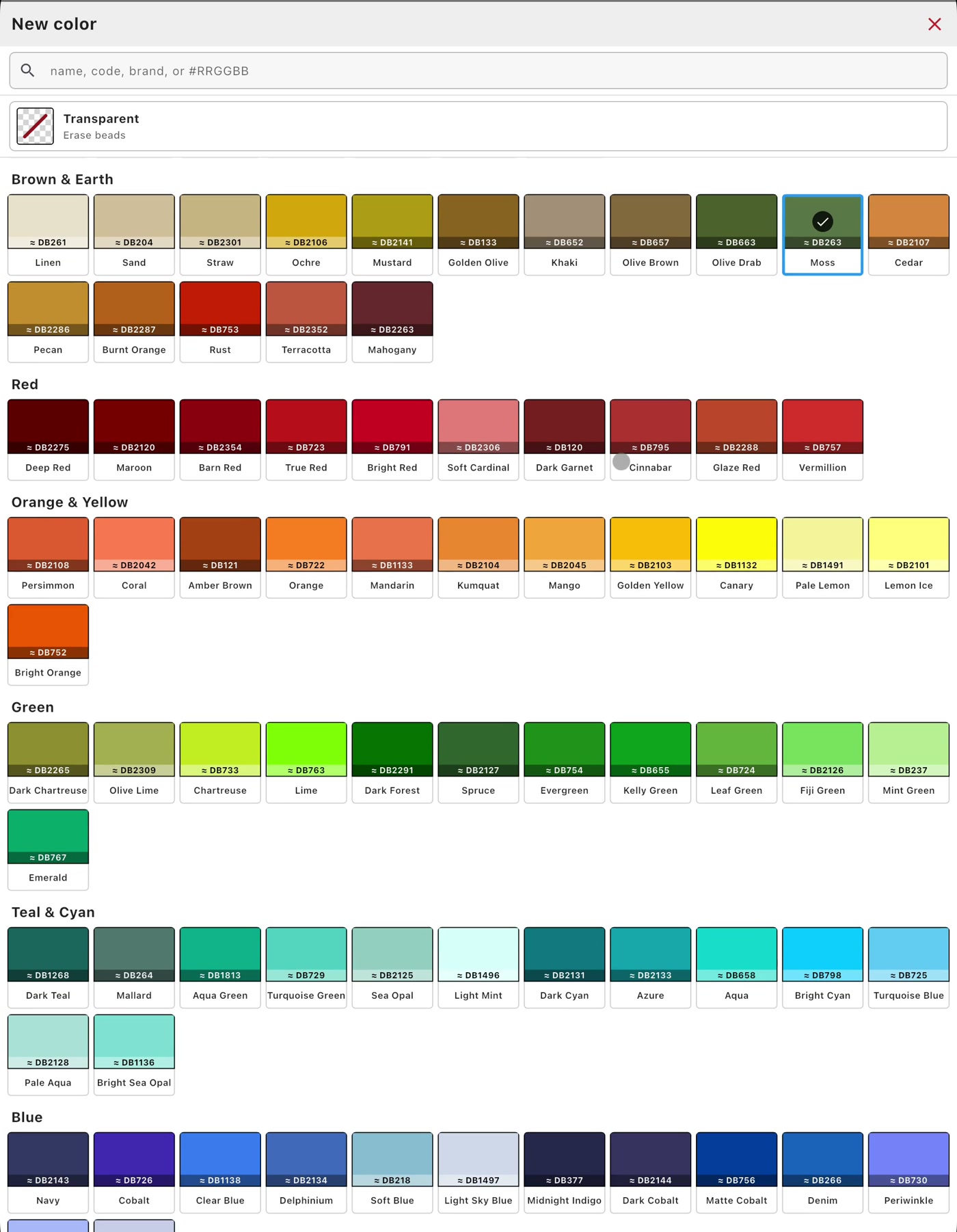
For the honeycomb design, choose Navy as the replacement for Moss. The palette shows the named colors and their reference information together, making it easy to return to the mapping with the intended choice.
4. Replace one bead color throughout the design
After selecting Navy, the mapping reads Moss → Navy. The Golden Yellow row still maps to Golden Yellow. This is the key step when you want to replace one bead color without disturbing the rest of the palette.

Use the live preview above the mapping to check the new relationship before applying it. Here, the darker navy creates stronger contrast against the yellow outlines. When the colorway looks right, tap Done to apply the change to the design.
5. Compare the original and recolored pattern
The before-and-after view makes it easy to see what changed. Moss becomes Navy across the complete honeycomb pattern, while the yellow motif, bead placement, row count, and repeating structure remain the same.
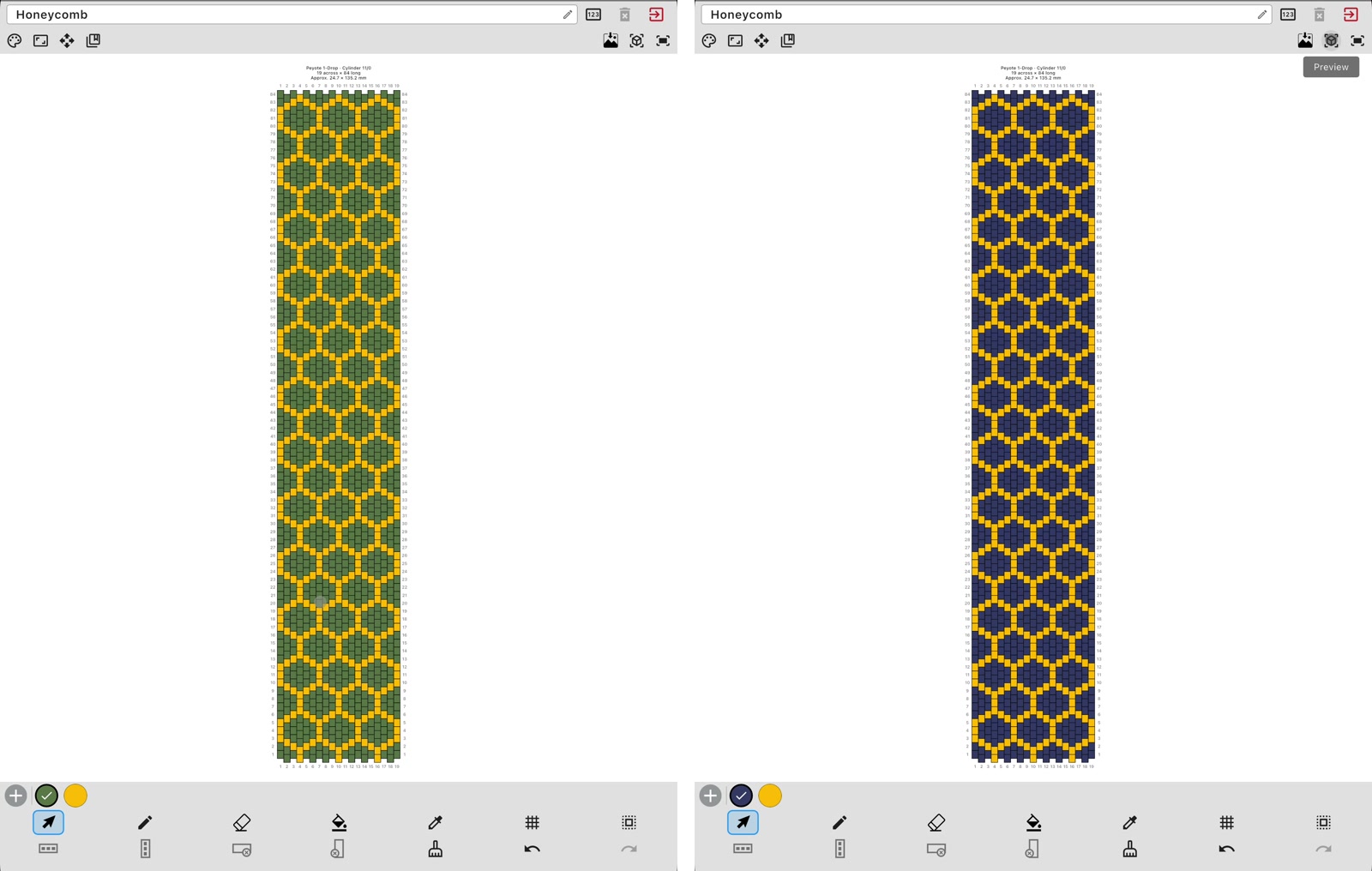
This type of comparison is useful when you are choosing between two palettes. Instead of trying to imagine how a single swatch will behave across a long bracelet, you can see the replacement repeated through the complete design.
Another example: recolor a bead pattern with a brighter pink
The same workflow also works in designs with larger illustrated areas. In the flamingo example, Pansy Rose appears in 572 bead positions. Mapping that color to Hot Pink brightens the birds while the turquoise background, black details, white highlights, and darker accents stay in place.

This shows why it can be helpful to recolor a bead pattern globally: one intentional mapping updates the repeated flamingos consistently. For designers who sell patterns or assemble kits from their own work, duplicating a design and testing another colorway can also help present customers with a clear alternative without redrawing the motif.
6. Check the new colorway in 3D
After applying the replacement, open Preview and switch to the curved 3D view. A flat pattern is best for editing, but the bracelet preview helps you judge how the repeated colors travel around the loop and how the design reads near the join.
Rotate the bracelet and inspect it from more than one angle. If another palette would suit the design better, return to the editor and try a different mapping. The editor and 3D preview shown at the top of this guide display the same navy-and-gold honeycomb colorway.
Other useful color changes
Change Colors is not limited to a one-for-one replacement. Depending on what the design needs, you can also:
- swap colors to reverse their roles in a motif;
- merge colors by mapping more than one current color to the same new color;
- remove a color from the design;
- map a color to transparent to create gaps or open areas wherever that color was used.
Because the preview updates before you confirm the mapping, you can review the overall result rather than judging the change from one isolated bead.
Quick recoloring checklist
- Open the editable design you want to recolor.
- Choose Change Colors from the design menu.
- Select the current color you want to change.
- Browse or search the bead-color catalog for a replacement.
- Check the current-to-new mapping and live preview.
- Apply the change and compare the full design.
- Open the 3D preview to inspect the bracelet colorway.
- Save the updated design when you are happy with the result.
If you need a new layout before experimenting with color, follow the guide to make a seed bead pattern from scratch.
Frequently asked questions
Does replacing a color update every matching bead?
Yes. The mapping applies the selected replacement wherever the current color is used in the design. The bead count shown beside the color helps you understand how many positions will be affected.
Can I preview a new palette before applying it?
Yes. Change Colors includes a live, zoomable preview above the current-to-new mappings, so you can inspect the combination before tapping Done.
Does changing a color alter the pattern structure?
No. A color replacement updates the selected color while keeping the design’s bead positions and technique-specific canvas structure in place.
Can I recolor a pattern created from an image?
Yes. A pattern created with the image-transfer tools remains editable, so you can refine individual beads or use Change Colors after the image has been mapped onto the bead canvas.
Can I remove a color from a bead pattern?
Yes. You can remove a color or map it to transparent, allowing the matching positions to become gaps throughout the design.
Can bead pattern sellers create alternative colorways?
Yes. For an original design, you can duplicate the project, apply a different color mapping, and preview the variation without rebuilding the motif. This is useful for preparing alternate versions for a listing, commission, kit, or customer choice.
Try a new colorway for your bead pattern
Bead Designer brings pattern drawing, color editing, 2D and 3D previews, guided Work mode, and printable instructions together inside Knitting Row Counter. Try your next bead pattern colorway with Knitting Row Counter on the App Store or Google Play.