Looking for a practical food cost calculator for restaurants, meal prep, catering, or home recipe pricing? The Cooking Unit Converter app includes a built-in Food Cost Calculator that helps you add ingredients, account for waste, calculate cost per serving, and estimate a sale price with tax and profit included.
This guide shows the exact workflow used inside the app on both Android and iPhone, using the real interface and examples from the feature.


What the Food Cost Calculator Does
The calculator is organized around two simple ideas: first you create a product library, then you build dishes from those saved products. Every dish updates automatically when ingredient prices or waste values change.
- Add products with a name, unit, price per unit, and waste percentage.
- Create dishes with a tax rate, markup, and serving count.
- Add ingredients to each dish and enter the amount used.
- See total ingredient cost, cost per serving, selling price before tax, estimated profit, and final prices with tax.
- Use the Preferences dialog to set your currency, default tax, and default markup.
In the app, waste is built directly into the effective ingredient cost, so trimming loss, spoilage, and prep waste are reflected in your final numbers.
Step-by-Step: How to Use It
Open the Products tab and build your ingredient library
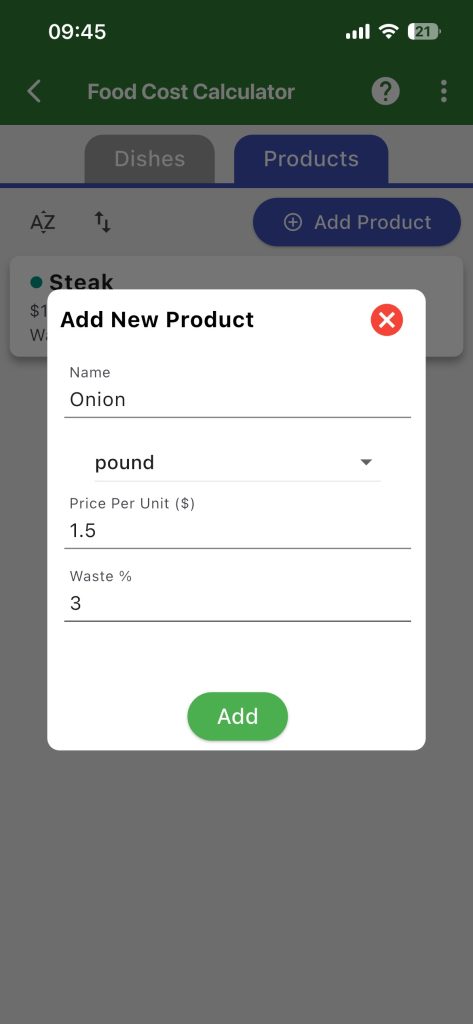
Start in the Products tab. Tap Add Product, then enter the ingredient name, choose the unit, add the price per unit, and set the expected waste percentage.
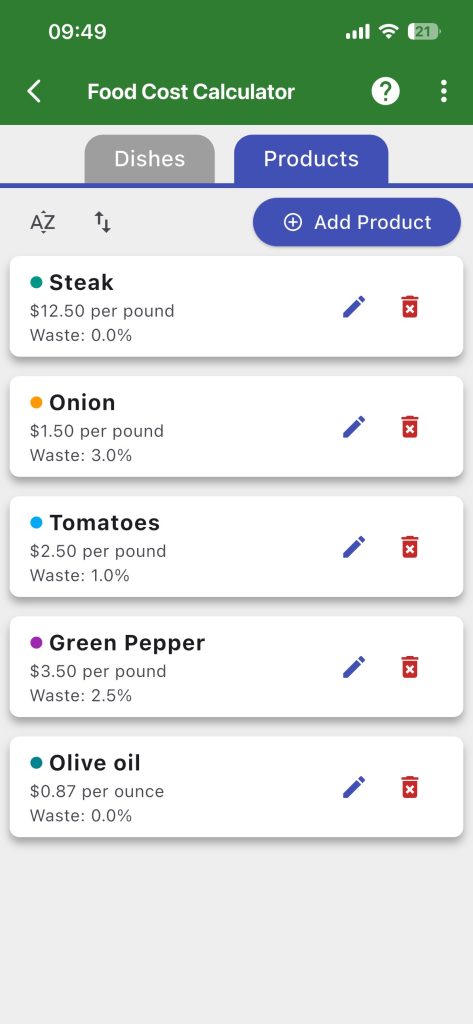
Supported product units include piece, kilogram, gram, pound, ounce, liter, milliliter, gallon, and fluid ounce.
Add products with realistic pricing and waste
The most accurate results come from entering the cost exactly how you buy the ingredient. For example, if onions are bought by the pound, enter the price per pound instead of trying to estimate the cost per slice.
Waste percentage matters. If an ingredient has trim loss or unusable portions, the app raises the effective cost to reflect the usable amount, not just the purchase price.
Create a new dish
Switch to the Dishes tab and tap New Dish. Enter the dish name, tax rate, markup, and number of servings. The serving count is important because the app calculates cost per serving and final price per serving from it.
If you are changing the size of the recipe itself, see how to scale a recipe for any number of servings before entering the ingredient amounts for your new batch.
Add products to the dish
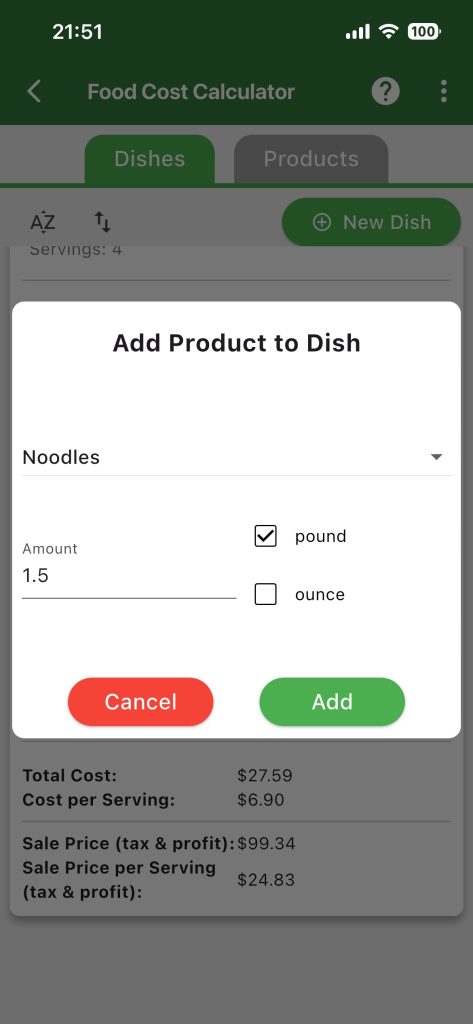
Inside each dish, tap the plus icon in the Products area. Choose a product from your library and enter the amount used in the recipe.
The app also lets you enter the amount in the main product unit or in a paired unit such as pound/ounce, kilogram/gram, or liter/milliliter. It converts the amount automatically before calculating the cost.
Review the automatic cost breakdown
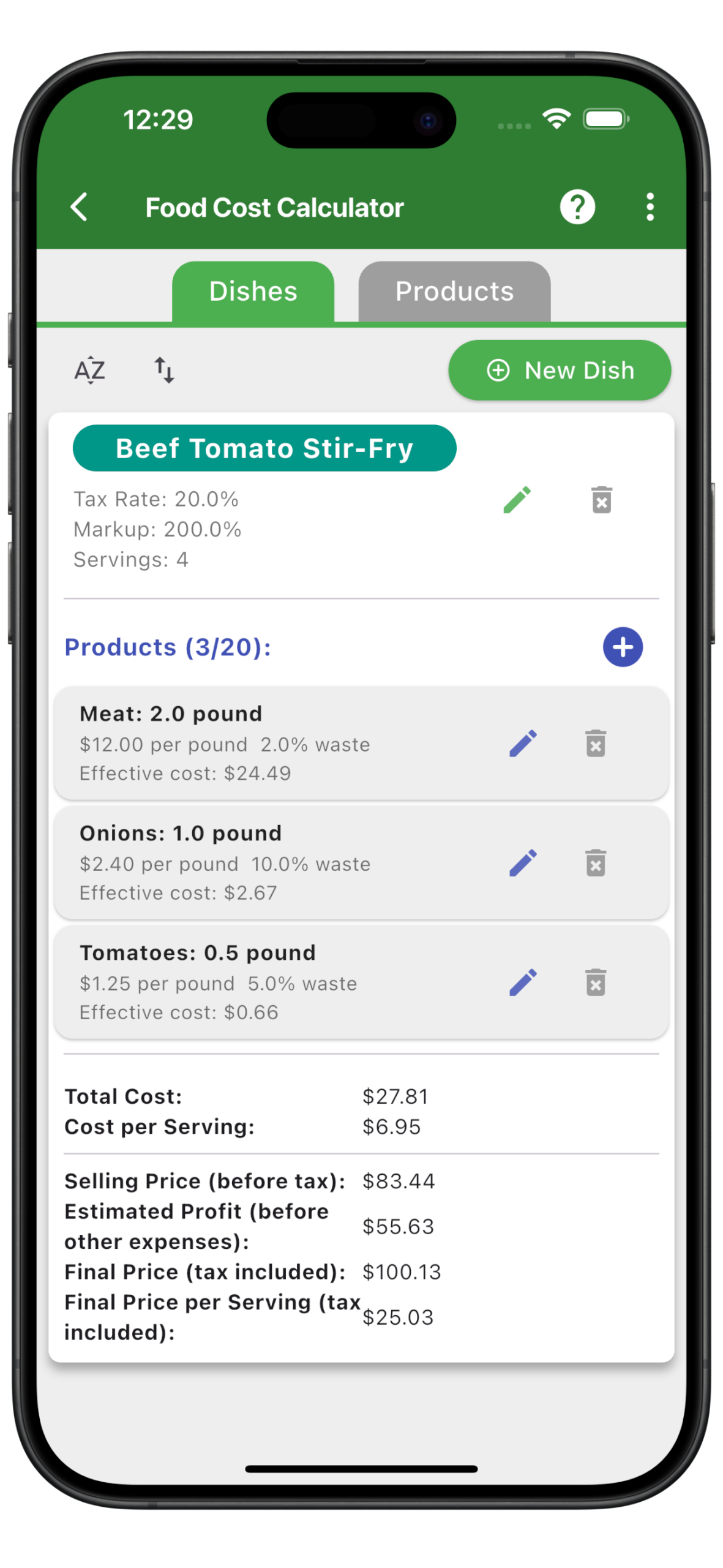
Once ingredients are added, the app shows the effective cost of each product in the dish and totals everything for you. You will see:
- Total Cost
- Cost per Serving
- Selling Price (before tax)
- Estimated Profit (before other expenses)
- Final Price (tax included)
- Final Price per Serving (tax included)
Adjust preferences when needed
Use the Preferences menu to choose your currency and set default tax and default markup values. This is useful if you price many dishes with the same baseline settings.
The markup setting is the percentage added to the ingredient cost. For example, a 200% markup adds twice that cost, making the selling price before tax three times the ingredient cost.
How the App Calculates Food Cost
The app increases the effective ingredient cost when you enter a waste percentage, then totals the adjusted ingredient costs for the dish.
Effective ingredient cost = (price per unit × amount used) ÷ (1 − waste percentage ÷ 100)
For example, 10% waste leaves 90% usable, so the calculation divides the ingredient’s purchase cost by 0.90. Adding the waste-adjusted costs gives the total ingredient cost; dividing that total by the number of servings gives the cost per serving.
Next, the selected markup determines the selling price before tax. The difference between that selling price and the ingredient cost is the estimated profit before other expenses.
Tax is calculated on the selling price and added to give the final price with tax included. Dividing that final price by the serving count gives the tax-inclusive price per serving. This makes it useful as a recipe cost calculator, menu pricing calculator, and food cost per serving calculator in one place.
Example: Pricing Beef Tomato Stir-Fry
The Beef Tomato Stir-Fry shown above is set to 4 servings, a 200% markup, and a 20% tax rate. Its ingredients are:
- Meat: 2 lb at $12.00 per lb, with 2% waste — effective cost $24.49.
- Onions: 1 lb at $2.40 per lb, with 10% waste — effective cost $2.67.
- Tomatoes: 0.5 lb at $1.25 per lb, with 5% waste — effective cost $0.66.
Using the unrounded waste-adjusted ingredient costs and rounding the final results to cents gives:
- Total cost: $27.81
- Cost per serving: $6.95
- Selling price before tax: $83.44
- Estimated profit before other expenses: $55.63
- Final price with tax included: $100.13
- Final price per serving with tax included: $25.03
This kind of breakdown helps restaurants and food businesses decide whether a dish is priced correctly before it goes on the menu.
Why This Food Cost Calculator Is Useful
- Useful for restaurants, cafes, bakeries, food trucks, caterers, and home businesses.
- Tracks ingredient waste, which many simple food cost tools ignore.
- Calculates both total recipe cost and cost per serving.
- Lets you update product pricing once and have dish costs refresh automatically.
- Works inside the Cooking Unit Converter app, so unit conversions and costing live together.
Frequently Asked Questions
Can I use this as a restaurant food cost calculator?
Yes. The feature is designed for dish pricing and ingredient costing, including waste percentage, tax, markup, and serving count.
Does the calculator support unit conversions?
Yes. When you add a product to a dish, the app supports paired units such as gram and kilogram, ounce and pound, or milliliter and liter.
What happens if ingredient prices change?
Update the product in your library and the connected dish cost details update automatically, so your pricing stays current.
Is the Cooking Unit Converter app available on Android and iPhone?
Yes. You can use Cooking Converter for Android or Cooking Converter for iPhone and iPad. Both versions include the Food Cost Calculator.
Download the App
If you want a food cost calculator that also handles kitchen unit conversions, recipe work, and day-to-day cooking support, the Cooking Unit Converter app is built for that job. Use this feature to price dishes faster, protect your margins, and make better menu decisions on both Android and iPhone.
Download Cooking Converter on Google Play or the App Store and set up your first dish.