Some bead motifs are worth drawing once and keeping. A small flower, border, symbol, or decorative detail may fit many future designs, but rebuilding the same bead arrangement every time interrupts the creative flow and makes accidental differences more likely.
The Motif Library in Bead Designer in Knitting Row Counter lets you select part of your own design, save it, and bring it back to the canvas when you want to use it again. This tutorial saves a 10 × 9 Peyote 1-Drop flower motif, retrieves it twice, and manually places both reusable copies around the original.



Why save reusable bead motifs?
Reusable elements are helpful when your work has a visual language of its own. You may return to the same flowers, leaves, geometric accents, borders, initials, or small symbols across different projects. Saving those details turns them into reusable bead motifs that are ready when a new composition needs them.
This is also where a bead pattern design app can offer more than a temporary copy-and-paste action. The Motif Library acts as a persistent collection for selected design elements, so a useful piece can remain available after you move on from the design where it was created.
For hobbyists, that means less repetitive drawing. For independent designers and pattern sellers, it can help maintain a recognizable style across original projects while leaving every placed motif open to further editing on the canvas.
1. Draw a motif you will want to use again
Begin with a complete, self-contained element. In the example, yellow centers, pink petals, and green beads form two connected flowers on a Peyote 1-Drop grid. The result is distinctive enough to recognize in the library and compact enough to place in several parts of a larger pattern.
When planning your own beading motifs, think about where each element could work beyond the current project. A clean flower can become part of a bracelet, a border can frame several designs, and a small symbol can act as a recurring accent.
2. Select the complete motif area
Choose the area-selection tool and drag a rectangle around the entire motif. Include every colored bead that belongs to the element and enough surrounding cells to preserve the layout you want.
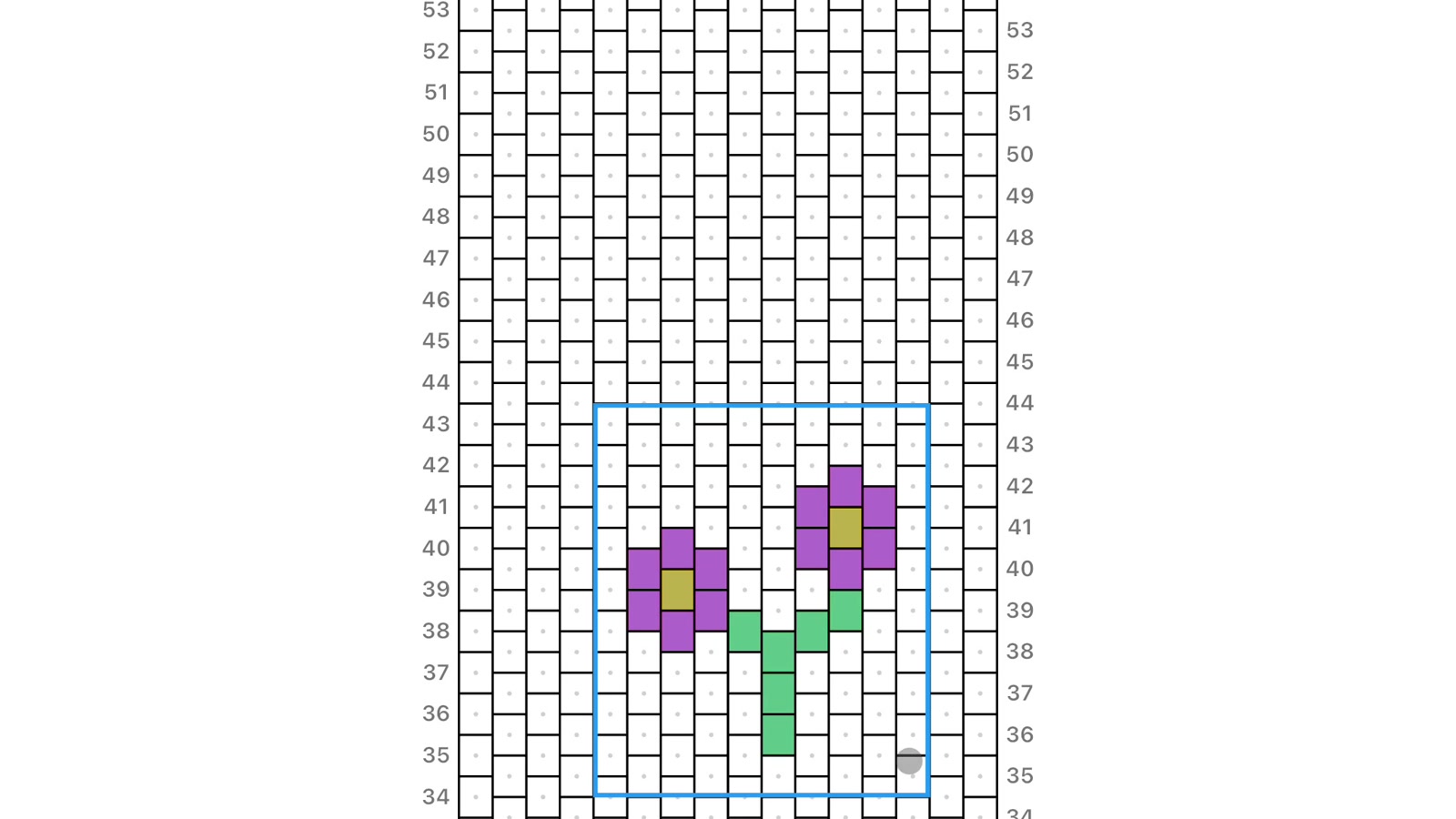
The example selection measures 10 × 9 beads. Its blue outline makes the boundary clear before anything is saved. If part of a petal or stem sits outside the box, adjust the selection first so the stored version contains the complete design.
3. Save the selection to the Motif Library
Open the selection toolbar and choose the Motif Library save action. A confirmation appears when the selected area has been added.

At this point, the motif is no longer useful only inside the current pattern. It has become a saved design element that you can retrieve for another placement without reconstructing the flowers bead by bead.
4. Find saved motifs by beadwork technique
Open the Motif Library from the editor to see the saved entries. Each card includes a visual preview, its dimensions, and the beadwork technique connected to that motif.
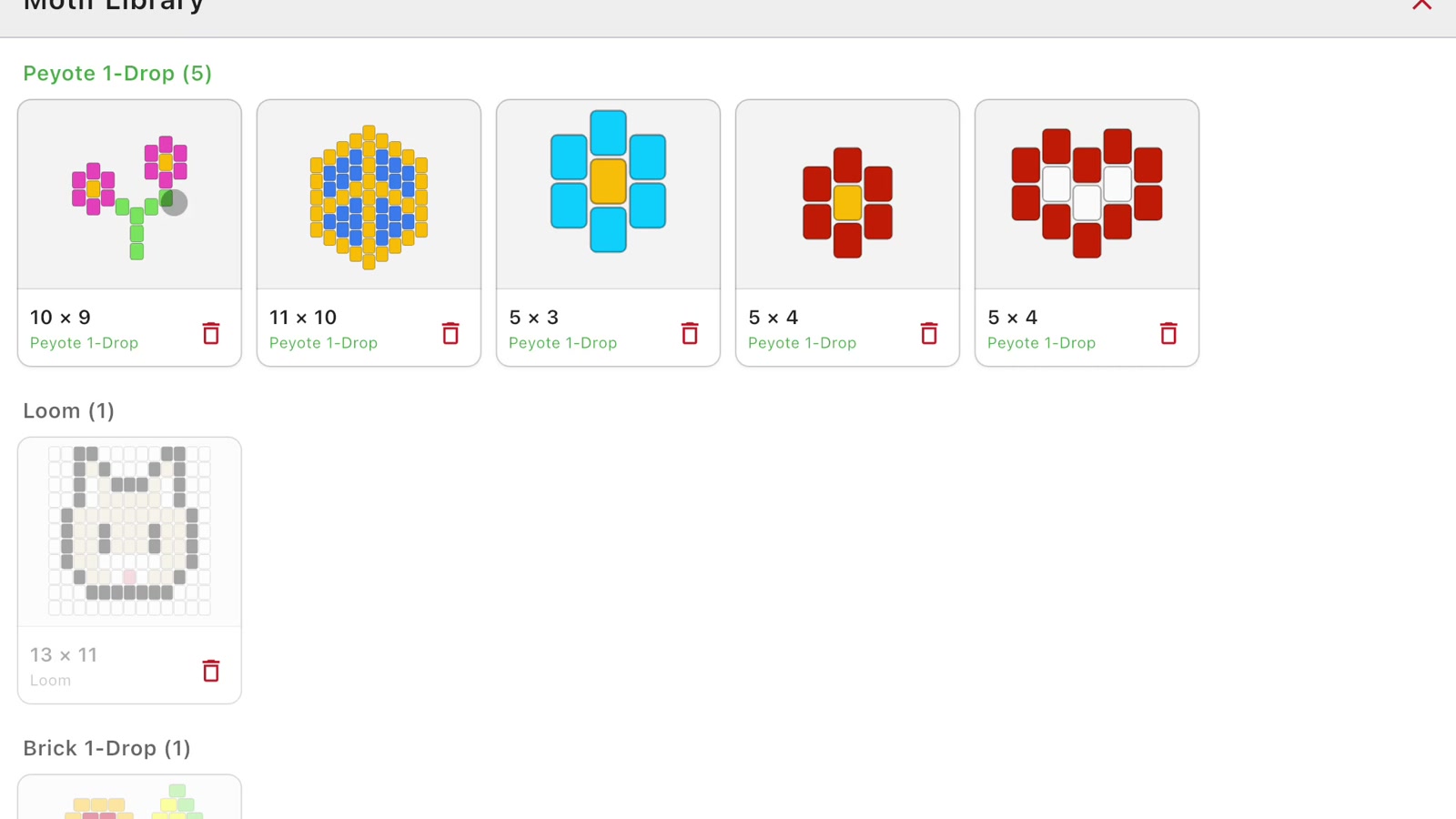
Motifs matching the current design technique appear first. In this Peyote 1-Drop example, the newly saved 10 × 9 flower sits at the beginning of the Peyote section. Loom and Brick 1-Drop sections are also visible below, making the technique attached to each saved element easy to recognize.
The library can hold up to 50 motifs, with each motif measuring up to 32 × 32 beads. That provides room for a practical collection of small original details rather than a single temporary clipboard item.
5. Insert a saved motif into the visible canvas
Select the flower card in the library. The saved motif returns to the visible part of the canvas inside an active blue selection, ready to be positioned.

Drag the selection to the place where you want the new instance. Check the surrounding rows and columns, then use the confirmation control to place it. The original remains where it was; the retrieved motif becomes another manually positioned element in the pattern.
6. Reuse the motif again to build a larger composition
Open the Motif Library again and choose the same flower a second time. Move this new instance below the original and confirm its position. The final canvas now contains one original flower design plus two placements retrieved from the library.

Because you decide where each instance belongs, the arrangement does not have to follow a fixed interval. Place motifs close together, leave open space between them, offset them across the width, or use them as anchors for a more detailed original composition.
Motif Library, copy, or Vertical Repeat?
These tools are useful for different kinds of repetition:
- Copy a selected area when you need another instance during a one-off editing workflow in the current design.
- Use Vertical Repeat when each new edit should appear automatically at a chosen row interval along the pattern.
- Save to the Motif Library when an original element is worth keeping and manually placing again later.
Choosing the tool according to the job keeps each workflow simple. For a deeper look at one-off transformations, see the bead pattern editor selection tools. For interval-based designs, follow the guide to creating a repeating bead pattern with Vertical Repeat.
Ideas for building a useful personal motif collection
- small flowers, leaves, stars, hearts, and geometric accents;
- corner elements and short border sections;
- original symbols or initials used across related projects;
- signature details for a coordinated group of bracelet patterns;
- compact shapes you often use as the starting point for variations.
Save the version that is most reusable rather than surrounding it with details that belong only to one project. A well-chosen boundary gives you a clean element that is easier to position and adapt later.
A quick motif-saving workflow
- Finish the small design element on the bead grid.
- Select the complete area around it.
- Check that every required bead sits inside the selection.
- Choose the save-to-Motif-Library action.
- Open the library and select the saved preview.
- Drag the inserted motif to the position you want.
- Confirm the placement and continue editing the composition.
Frequently asked questions
How do I save a Peyote motif?
Complete the Peyote motif, select its full area, and choose the Motif Library save action from the selection toolbar. Its preview, dimensions, and Peyote technique then appear in the library.
Can I use the same bead motif more than once?
Yes. Select the saved motif from the library each time you want another instance, drag it to the intended position, and confirm the placement. The tutorial retrieves and places the same flower twice.
How are motifs organized in the library?
Saved motifs are shown with visual previews, dimensions, and technique labels. Motifs matching the current design technique are displayed first, followed by the other technique sections.
How many motifs can I save?
The Motif Library can store up to 50 motifs. Each saved motif can be up to 32 × 32 beads.
Can I save motifs for Loom, Peyote, and Brick designs?
Yes. Motifs can be saved with supported Loom, Peyote, and Brick layouts. The stored technique appears on the motif card, helping you choose an element that matches the design you are editing.
Where is the Motif Library stored?
Your saved motifs are stored locally on your device along with your Bead Designer projects, without requiring a separate Bead Designer account.
Build once and make the detail part of your toolkit
A useful motif should not vanish when one design is finished. Select it, save it, and let it become part of a growing personal toolkit for future patterns. The next time your composition needs that flower, border, or signature accent, it is ready to retrieve and place.
If you are starting with a blank grid, first learn how to make a seed bead pattern from scratch. You can then use the Motif Library to keep the original elements you expect to use again.
Bead Designer combines drawing, selected-area tools, a reusable Motif Library, color editing, previews, Work mode, and printable instructions inside Knitting Row Counter. Build your own motif collection with Knitting Row Counter on the App Store or Google Play.