The tapered sides of a leaf earring give you a shape to build your own motifs around. A pattern can follow the curve, cross it in bands or give each side a different character. Designing beaded leaf earrings on screen lets you explore your ideas before picking up your needle.
Bead Designer, included in Knitting Row Counter, has a dedicated Leaf layout for creating your pattern, checking its appearance and following the weaving steps through the whole design. You can preview one earring or a pair, then use Work mode to keep your place as you bead. The app is free to download for Android, iPhone and iPad.


Start with the dedicated Leaf layout
Open Bead Designer in Knitting Row Counter, create a new bead design and choose Leaf. Select the size you want from the available layout sizes when creating your project, then build your own pattern on the leaf-shaped grid.
The bead editor lets you draw motifs, fill areas and edit individual beads on the Leaf layout. You can work around its tapered sides and open center, adding your own shapes, details and colors.
If you have a picture you want to work from, you can turn an image into a bead pattern on this layout too. After transferring it, use the editor to adjust the motif and refine how it fits the leaf shape.
When creating leaf earring patterns, it helps to think about the outline and the color arrangement together. The shape is already recognizable, so the motif can be as simple as a border, a few contrasting bands or a gradual change from one shade to another.
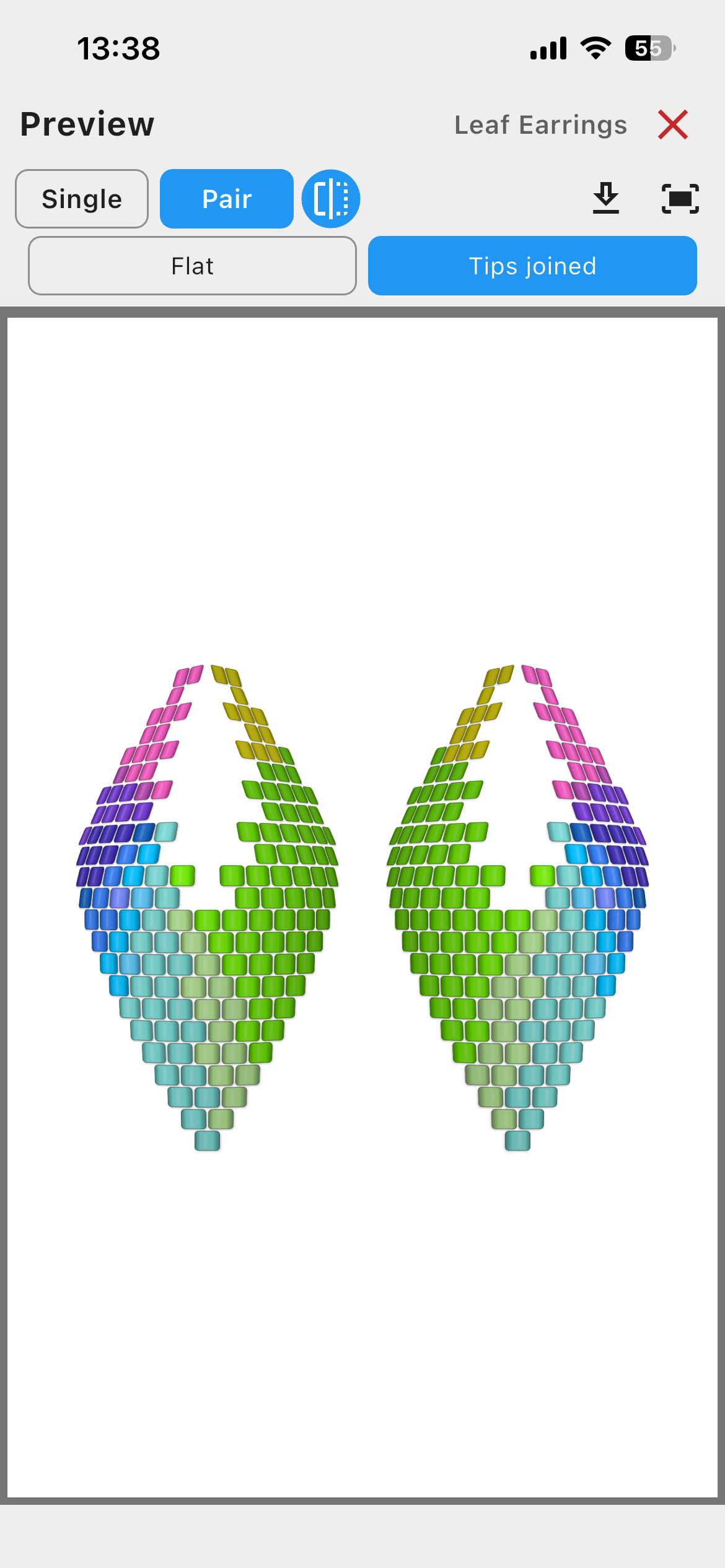
The sample pictured here uses pink, purple and blue along one side, with yellow and green on the other. The colors meet around the lower point. It is one way to keep the leaf outline clear while giving the two sides different personalities.
Compare Flat and Tips joined previews
You can check your leaf-shaped beaded earrings in two preview modes: Flat and Tips joined. Switch between them to inspect the color arrangement in the flat view and see how it looks with the tips brought together.
You can also switch between Single and Pair. Look closely at one earring when adjusting a detail, then view the pair to judge the overall balance. In the screenshot, Pair and Tips joined are selected.
Before you start weaving, check the colors around the opening and the lower point. A small change in one of these areas can be easier to judge in the preview than on the chart alone.
Follow the whole leaf in Work mode
Once you are ready to bead, open Work mode. It guides you through the leaf design step by step, highlighting the beads for the current step and showing their color letters, quantities and working direction. You can follow your progress through the whole pattern.
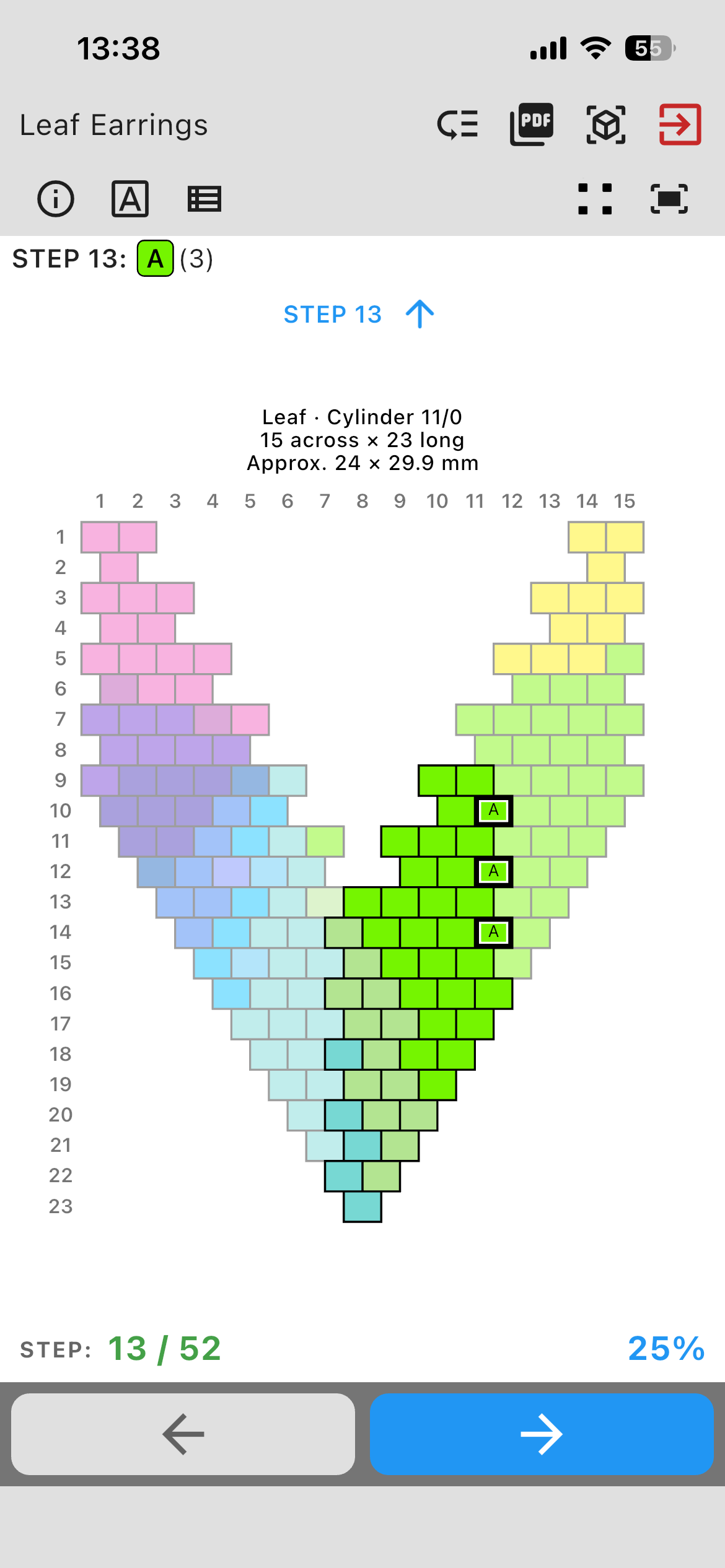
In this example, the screen shows Step 13, an upward arrow and A(3). The three beads marked A are highlighted on the chart. That gives you both the quantity to pick up and the positions you are following.
Notice that the highlighted beads occupy several chart rows. Following the working step helps you stay with the weaving sequence as it moves through the leaf shape, instead of treating every horizontal line as a separate step.
Use the back and next controls to move through the instructions at your own pace. Your Work progress is saved with the design, so when you take a break you can return to the step you were following.
Try another palette without starting over
Once you have a motif you like, duplicate the design to explore another version. You might keep the same arrangement and replace the bright colors with softer shades, or make a second version to match a particular outfit.
The Change Colors screen lets you preview replacements before applying them. Our guide to recoloring a bead pattern explains how to replace, swap and merge colors across a design.
Frequently asked questions
Is there an app for designing beaded leaf earrings?
Yes. Knitting Row Counter includes Bead Designer with a dedicated Leaf layout. Choose a size at creation and draw your own pattern or transfer an image. You can compare Flat and Tips joined previews, view a pair and follow the whole design in Work mode.
Can I create and follow leaf earring patterns on my phone?
Yes. The app is available for Android and iPhone, as well as iPad. Your design, preview and Work mode are together in Bead Designer, so you can plan the earrings and keep the pattern beside you while beading.
How do I keep my place while weaving a leaf earring?
Follow the highlighted beads and direction shown for the current step in Work mode. Check the color quantities, then advance when you are ready. Saved progress lets you continue after a break.
Make your own leaf earring pattern
Choose Leaf and a size for your project, create your own motif in the editor or start from an image, then check the design as a pair. When you are ready to weave, Work mode keeps the next beads and your progress in view.
Explore other shapes in our beaded earring design guide, or see the wider collection of drawing and pattern tools in Bead Designer.
Download Knitting Row Counter free from Google Play or the App Store and open Bead Designer to create your leaf earrings.