A fringe earring design brings two things together: the pattern in the beaded top and the colors running down the hanging strands. Seeing both on the same screen makes it easier to decide where a stripe should continue, where a color should change and how the lower edge should look.
Bead Designer, included in Knitting Row Counter, gives you a dedicated Fringe layout for this. Its fringe earring pattern maker lets you create your own pattern, preview a pair and follow the whole design while you bead, from the brick-stitch top to the hanging strands. The app is free to download for Android, iPhone and iPad.


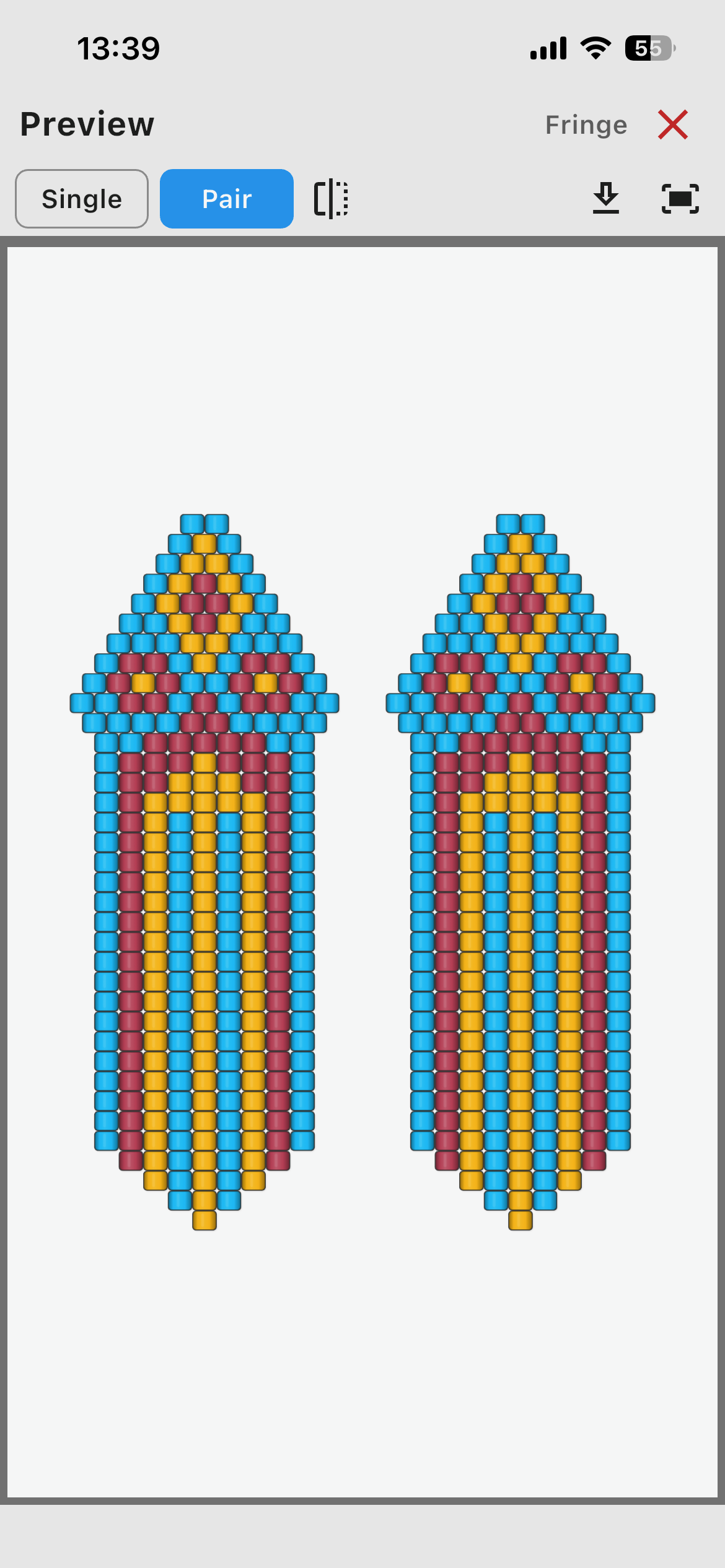
Start your design with the Fringe layout
Open Bead Designer in Knitting Row Counter, start a new bead design and choose Fringe. Select a size from the available layout sizes as you create the project. The beaded top and hanging strands are together in one design, ready for your own pattern.
Use the bead editor to draw your motif, fill areas and edit individual beads across the top and fringe. You can build stripes, geometric shapes or another design of your own, choosing the colors and detail as you work.
You can also transfer an image into a bead pattern on the Fringe layout. Use it as a starting point, then refine the result with the same editing tools to suit the top and hanging strands.
When planning a beaded fringe earring pattern, decide on the overall look first. Do you want a bold central stripe, bands of color or a small motif in the top that carries down into the fringe? A simple idea is easier to judge while you are building the design.
Place the main shapes first, then add finer details. Check how the motif crosses from the top into the strands as you draw; looking at both together helps you keep the design connected.
Try different color combinations
When choosing colors for brick stitch fringe earrings, start with the beads you plan to use. Try those colors in the editor and check that stripes or small motifs are easy to see. You can change individual beads to compare a few options before settling on a combination.
If you want to try different fringe earring designs using the same motif, duplicate the project and experiment with another palette. The Change Colors screen lets you preview replacements before applying them. Our guide to replacing and swapping bead colors explains the tools.
Preview a single earring or a pair
Open the preview and switch between Single and Pair. Use the single view to inspect the motif, then the pair view to see the overall effect.
Check the transition from the beaded top into the fringe, the position of your accent colors and the lower outline. This is a useful moment to adjust a color that disappears into its neighbors or a band that draws more attention than you intended.
Follow the whole earring in Work mode
Work mode helps you follow the entire design, from the brick-stitch top to the hanging strands. Track your progress through both parts and keep your place until the whole earring is complete.
When you reach the fringe, Work mode highlights the current strand and displays the direction, color letters and bead quantities. The pattern stays visible around the highlighted section, so you can see where that strand belongs.
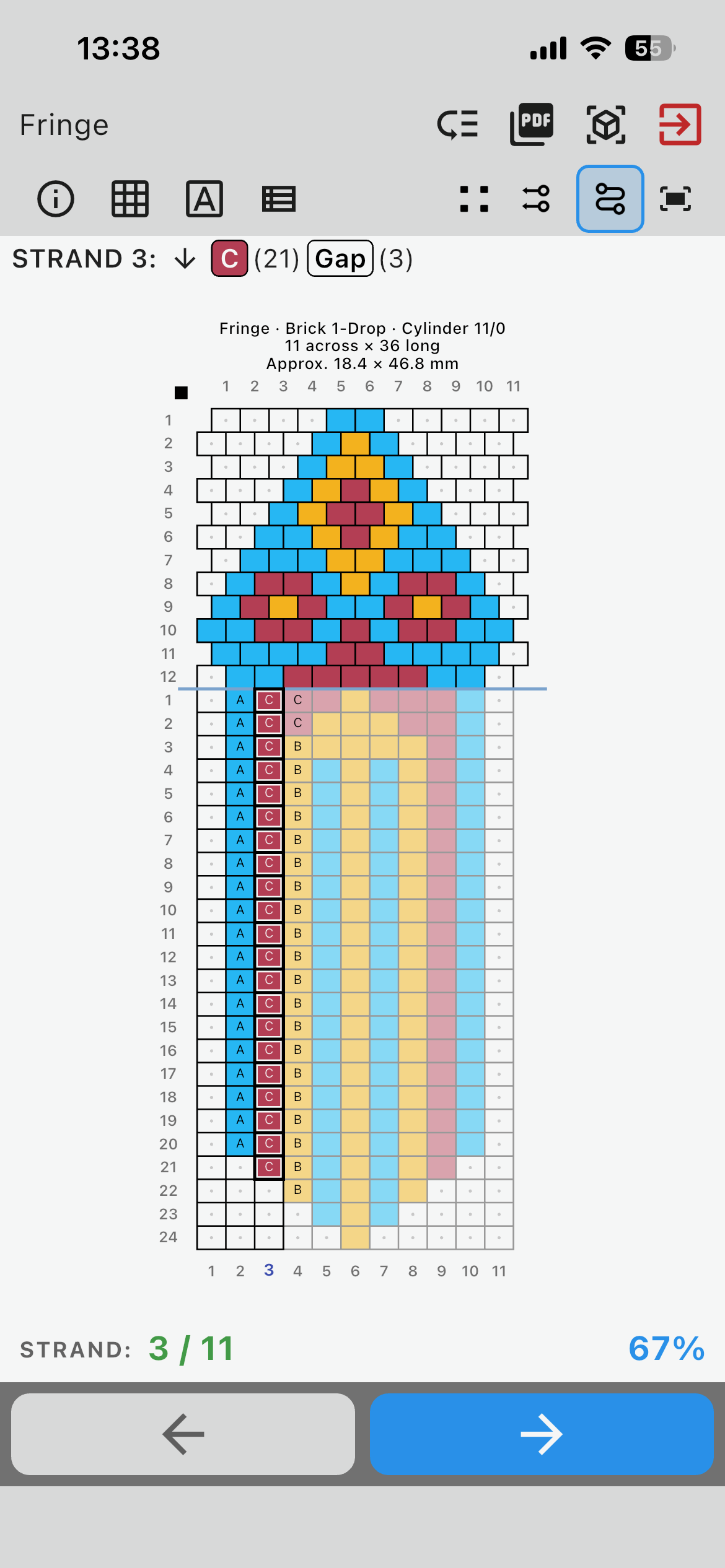
In the screenshot, strand 3 is highlighted in berry. The instruction line shows C(21), matching the 21 beads of color C in that strand. The blank positions below it are outside the strand and help define the pointed outline.
Use the back and next controls to move through the pattern as you work. Following the highlighted strand is especially helpful when neighboring strands have similar colors but different lengths. Your Work progress is saved with the design, so you can return to your place after a break.
Frequently asked questions
Is there an app for designing fringe earrings?
Yes. Knitting Row Counter includes Bead Designer with a dedicated Fringe layout. Choose a size when creating the project, draw your own pattern or transfer an image, then preview a pair. Work mode helps you follow both the brick-stitch top and hanging strands.
Can I use it on Android, iPhone or iPad?
Yes. Knitting Row Counter is available on Google Play and the App Store. Download the app, open Bead Designer and choose Fringe when creating your project.
How can I keep my place in a fringe earring pattern?
Use Work mode to follow your progress through the brick-stitch top and hanging strands. In the fringe section, it highlights the current strand and shows its color sequence and bead quantities. Move forward when you are ready; saved progress helps you continue later.
Create your own fringe earring design
Choose the Fringe layout and a size for your project, then draw your idea or start from an image. Preview the pair before you begin beading, then follow the top and hanging strands in Work mode through to completion.
For more earring shapes, explore our beaded earring design guide. You can also see the drawing, color and pattern tools in our Bead Designer overview.
Download Knitting Row Counter free from Google Play or the App Store and open Bead Designer to get started.