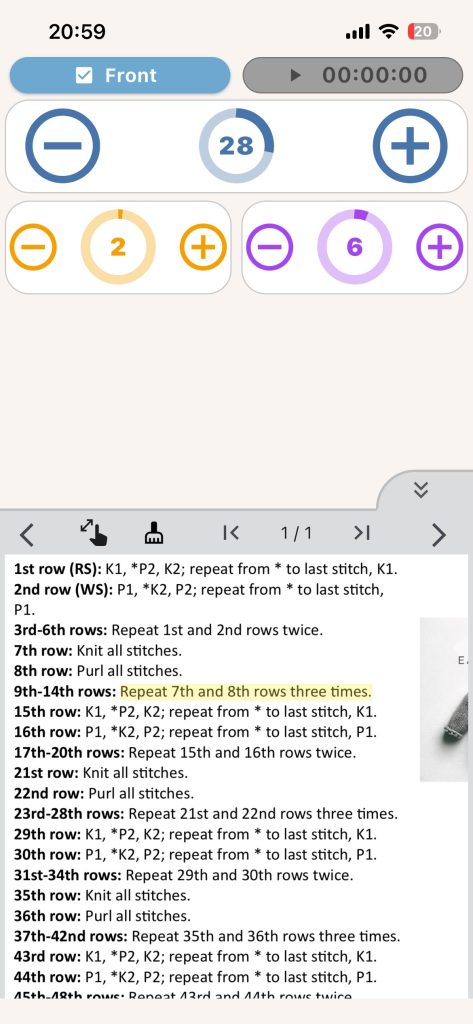
The Files panel lets you read instructions and track rows in the same workflow.
Supported File Workflow
- Cover image
- Project images
- Project PDF
Image Features
- Browse between images
- Open full-screen image view
- Use horizontal highlight line
- Adjust highlight position and thickness
- Step highlight downward as you progress
PDF Features
- Open and browse pages
- Zoom and page controls
- Add and remove annotations as highlights. To highlight a word or sentence long press a word, adjust selection and choose highlight on the displayed menu.
- Clear all annotations when needed
Suggested Use While Knitting
- Keep counters visible on top.
- Open Files and select your active instruction source.
- Advance Row counter as rows are completed.
- Move highlight/annotations to your current place.
Example: In a chart screenshot, move the highlight line down one step each completed row while tapping plus on your Knitting Counter.


Quick Links to Guides
- Knitting Row Counter Manual
- Getting Started with Knitting Row Counter
- Create or Edit a Project
- Edit Part
- Edit Counter
- Edit Reminder
- Work on a Knitting Project
- Work Mode: Notes and Project Info
- Work Mode: Files (Images and PDF)
- Pattern Home Screen
- Pattern Designer
- Work on Pattern
- Built-in Knitting Tools
- Stats and Streak Calendar
- FAQ and Troubleshooting